
For Distributors, and stores with more complex pricing needs, Contract Pricing lets you set specific prices for specific customers for specific products. These override the general pricing set up for each Customer Type.
Enabling Contract Pricing
Before you can use Contract Pricing you must turn it on. Make sure you have installed the required License Key and enabled the Contract Pricing feature in Tools => Options => Optional Features.

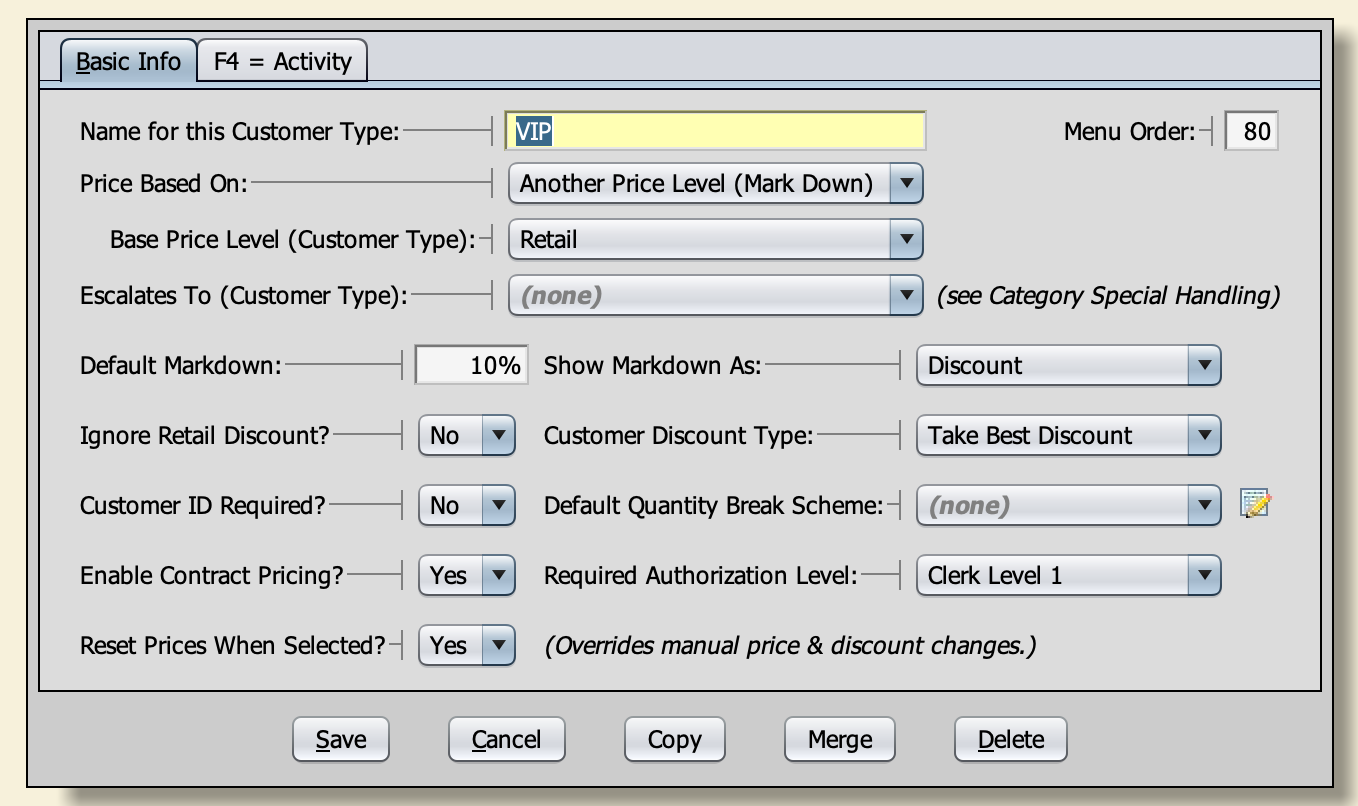
Next, go to Customers => Customer Types & Pricing => Customer Types (Price Levels). Set “Enable Contract Pricing” to Yes for the desired Customer Type(s):
Managing Contract Pricing
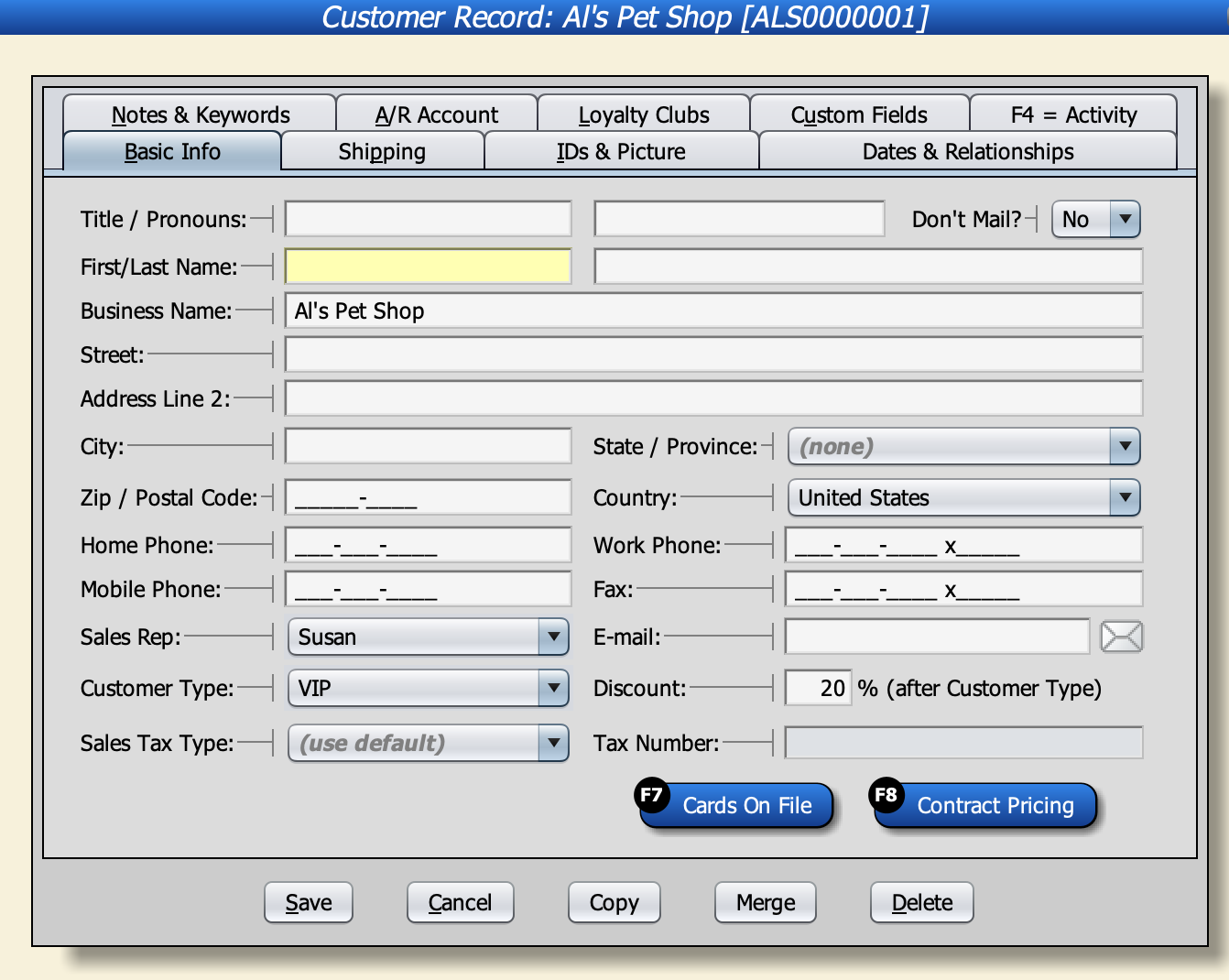
Now, when you go to any Customer Record, you will see a “Contract Pricing” button:
When you click on the Contract Pricing button, or press the F8 key, you’ll see a list of Contract Prices for this Customer (if any):
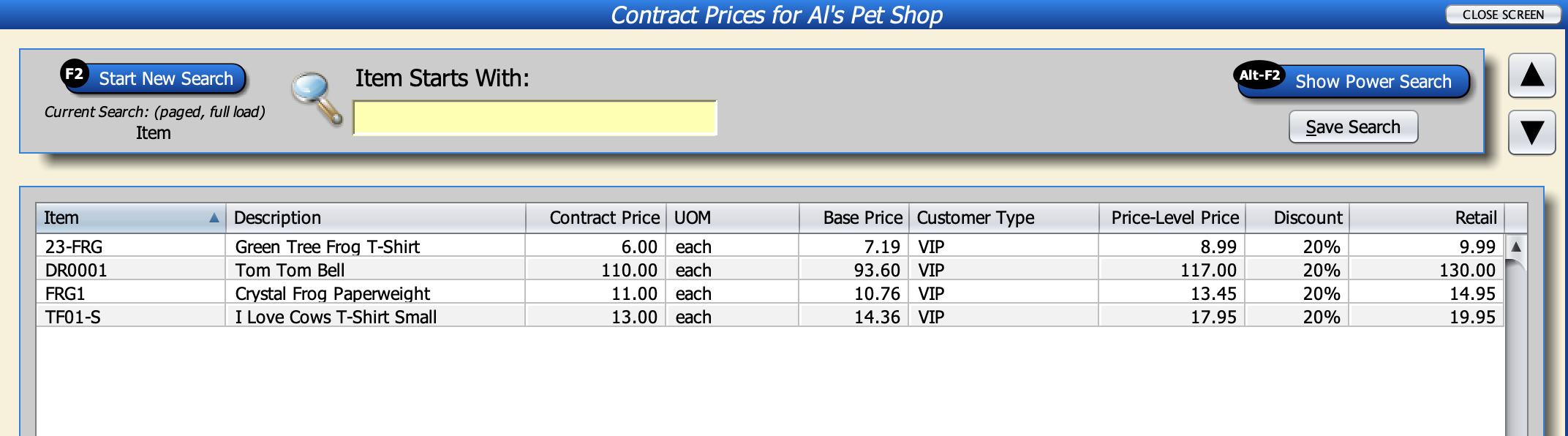
From here you can see or change the specific prices this particular customer will get when the listed items are sold, in the Contract Price Column. Any Product (Item) not explicitly listed will use the normal pricing for the customer’s Pricing Level.
You can also get to the list of Contract Prices for all customers by going to Customers => Customer Types & Pricing => Contract Pricing.
From either list, you can add new entries with function key F3 or edit an existing record with F4. You can narrow this list down to particular products, by Item Code, Description, etc.
To help you choose appropriate contract prices, available columns in the table show the retail price, the default price for the customer’s default Price Level (Customer Type), the customer’s default Discount percentage (from their Customer Record), the “Base Price” (which is their default Price Level price minus any customer Discount), and other useful information.
Changing Contract Prices During a Sale
If you change an Item’s price for a specific sale in the Cash Register screen, and Contract Pricing is enabled for the Customer Type used on the sale, Artisan will ask if you want to make this the new contract price for this customer. That way you can use a “keep last price” policy if you want.