
Artisan has a variety of helpful reports that let you gain insight into your inventory. One of these is the “Inventory Summary By Category, By Vendor” report.
You can group your data by category first, then vendor or vice versa, or just by category or vendor. You can also show consignment items if you have any, or choose to exclude them from the report. This report shows the following information for each section: QOH, Cost, Retail, Discount, and Adjusted Price (from a discount).
Accessing the Report
Select “Reports,” “Inventory Reports,” and “Inventory Summary by Category by Vendor” report.
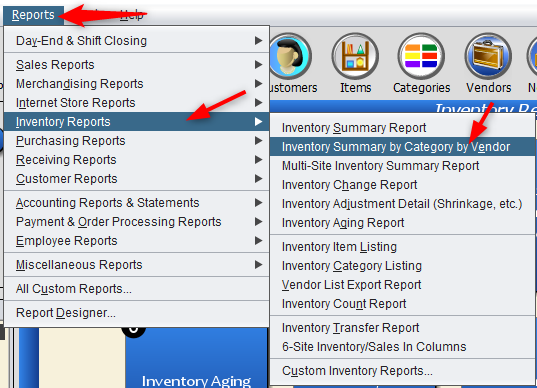
Or, from the “Main Menu,” select “Reports.”

Select “Inventory Reports.”

Click on “Inventory Summary by Category by Vendor” report.
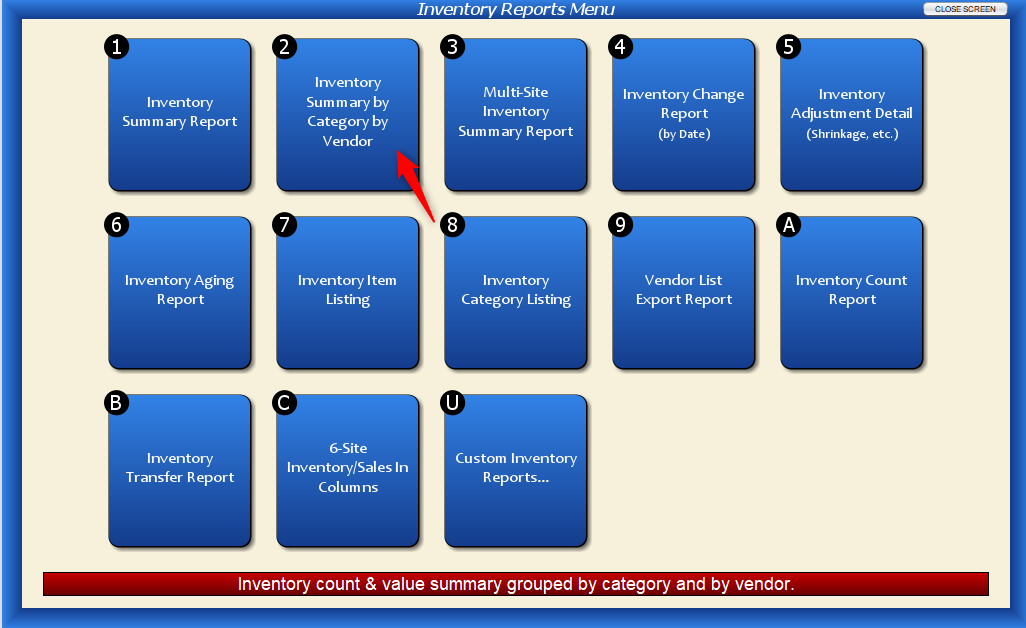
Either way, you’ll end up at the following screen.
Report Fields

Inventory Site: If you have more than one site, you can choose to view data for all locations or just one.
Group By: This controls the data Artisan will show.
Category, then Vendor: This will list the report by Category Code alphabetically, with the Vendor(s) for each category in the next column.
Category: This excludes any mentions of vendors and only includes category information.
Vendor, then Category: This will list the report by Vendor Code alphabetically, with the categories for each vendor in the next column.
Vendor: This excludes any mentions of categories and only includes vendor information.
Vendor Sort By: If vendors are included in your report, determine if you want to sort them by Vendor Name alphabetically or by Vendor Code alphabetically.
Show Consignment?: If you have any consignment items, you can choose to include or exclude them in your report, or only show consignment items.
You can also save your preferences for next time, if you want, by selecting “Save as Defaults for this Report.”
Report Examples
By Category, then Vendor
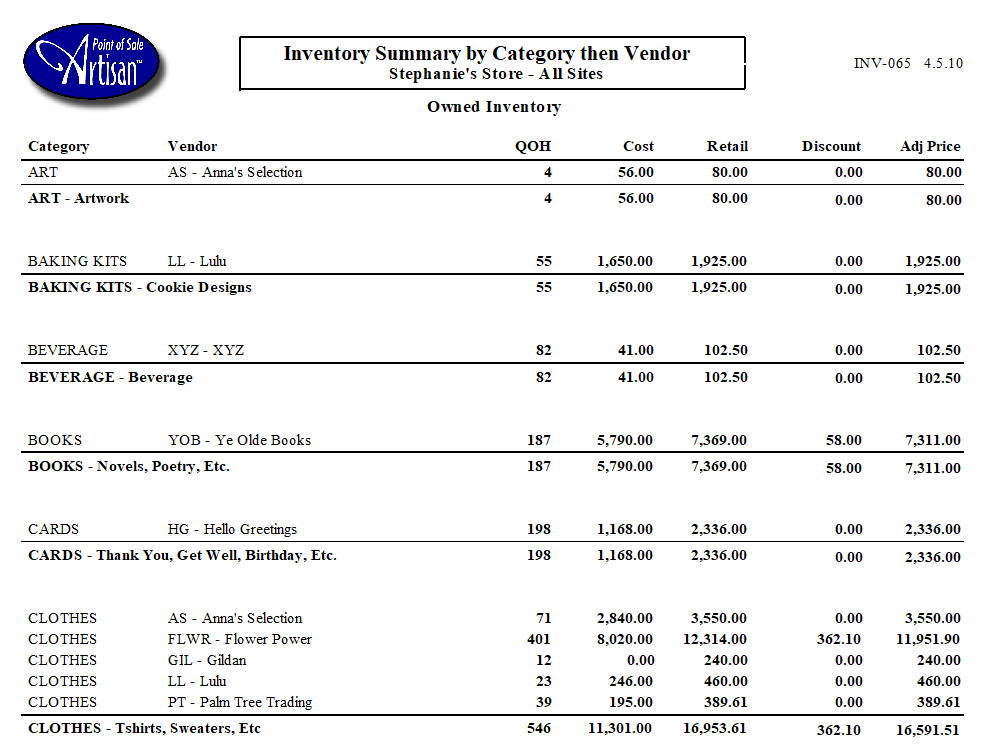
Here, we can see that each category is listed, with the vendors listed in the second column.
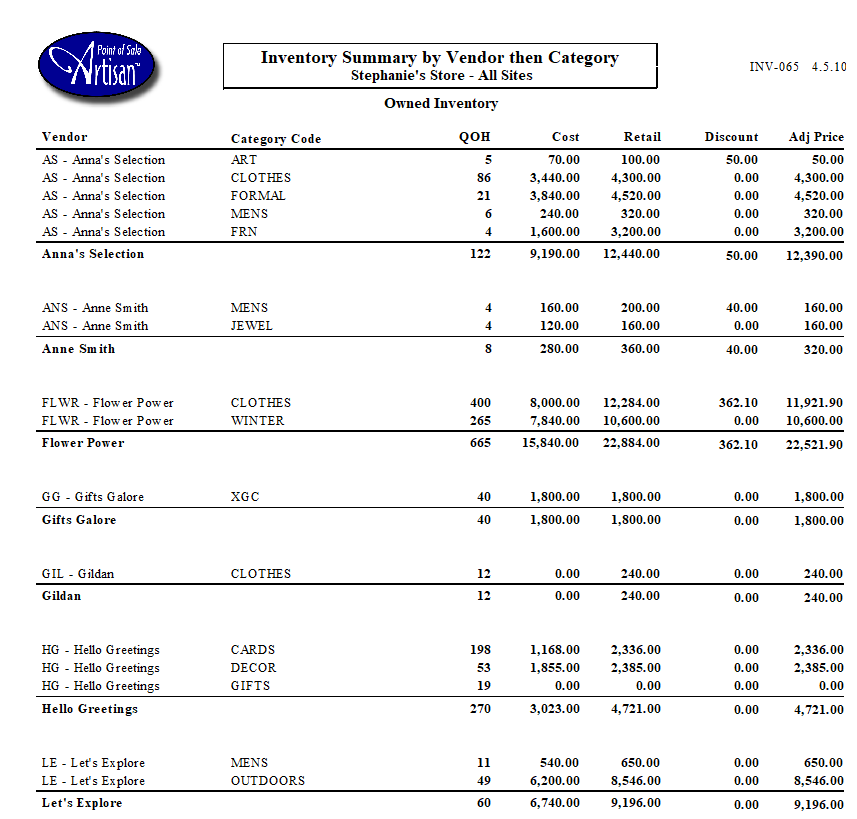
Most of our items do not have any discounts applied. If there is a discount listed in the Item Record, Artisan will calculate this column based on the retail price for the quantity of items. For example, we have four items by vendor Anne Smith that we are selling for $50.00 each, which amount to $200. We are currently running a discount on these shirts for 20%. 20% of 200 is 40, which leaves us with a $40 discount for these items.

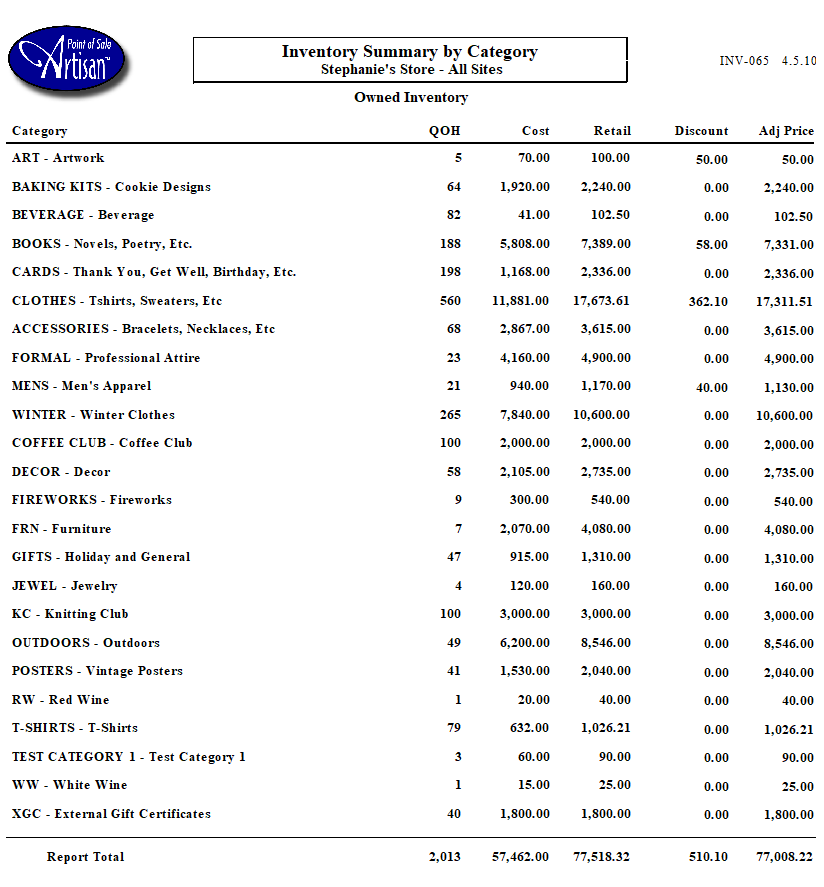
By Category
Here, Artisan has compressed the report to show only totals by category, removing any mentions of vendors.
By Vendor, then Category
Here, the report breaks down sections by Vendor first, with each category that vendor is included in.
By Vendor
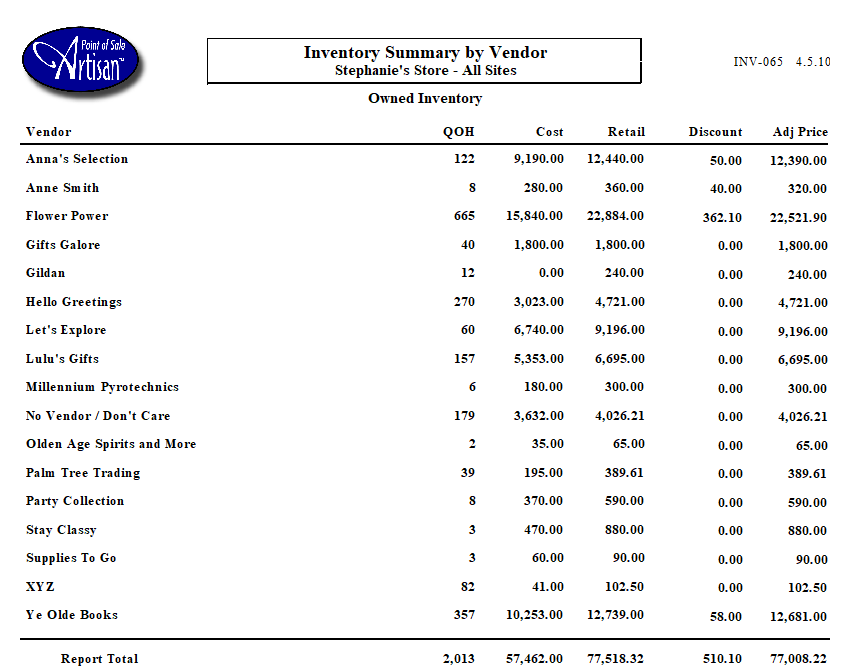
Here, Artisan compressed the report to show results only by vendor, removing any mentions of categories.
Consignment Inventory
If you opted to consignment items, you may choose to show consignment inventory only, or consignment inventory alongside owned inventory.

With Owned Inventory:
