
Artisan’s reports provide valuable insight into your store. In this article, we’ll go over how to use the “Inventory Summary Report.” This report provides important information about your products, such as QOH, inventory cost, and inventory retail. You can use this report to show owned inventory and consignment inventory, if applicable.
Accessing the Report
Access this report by heading to “Reports,” “Inventory Reports,” and “Inventory Summary Report” from the toolbar.

Or, from the “Main Menu,” select the “Reports” button.

Select “Inventory Reports.”

Choose “Inventory Summary Report.”

Either way, you’ll end up on the following screen.
Report Fields

Summarize By?: Determine how you want to sort your report. View the examples for more details.
Category Tree: The report will list and separate each Category individually, including sub/nested categories.
Preferred Vendor: This will list inventory data by each vendor instead of separating by category or other classification.
Actual (Received) Vendor: This lists inventory data by each vendor that you received the item from in Artisan. Your preferred vendor might be different than your “Actual (Received) Vendor” if you buy from multiple vendors. For example, the vendor you usually buy from didn’t have the items in stock that you wanted, so you went with a different vendor.
Individual Item: Artisan will list data for every Item Record instead of being grouped by vendor, category, or shelf location.
Shelf Location: For inventory with “Shelf Location” included in their Item Record. Artisan will look for numeric characters first (ex. Shelf 1, Shelf 2) and then will look for shelves alphabetically (ex. Shelf 32 A, 32T, ST1, ST2).
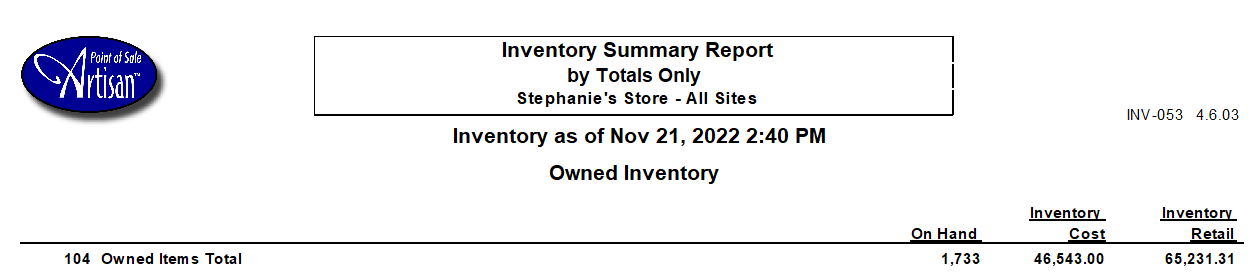
Totals Only: This report will only display the total QOH, Inventory Cost, Inventory Retail, and Owned Items. If you opted to include consignment items as well, these details will show on a separate page.
Inventory Site: Determine what site(s) you want to show data from. You may choose all sites if you have multiple, or individual sites.
Backdate Inventory To: This automatically defaults to today’s current date. You can change this to look at past inventory data.
What Date Did You Accept Physical Inventory Counts?: This automatically defaults to today’s current date. You can change this if you conducted physical inventory counts and accepted them on a different date.
Show Individual Items?: This shows the Item Records within each classification, such as all the Item Records within Categories or Vendors.
Like most Artisan reports, you can narrow your results further by filling out other fields. For example, you can include only certain Items on the report by using “Specific Item” and typing in Item Codes separated with a comma, or using the magnifying glass to select from the Inventory Records screen.
The same methods apply to Description, Vendor, and other searchable fields. You can also include or exclude discontinued items, product variants, consignment items, and more, as well as filtering price range and quantity on hand. If necessary, you may save any fields you change for next time by selecting “Save as Defaults.” The next time you open the report, your selections will automatically be filled with the presets you defined. The only data that won’t save are date ranges.
Example Report
This report can vary greatly depending on the fields you select.
QOH Units: This is the number you currently have in stock.
Inventory Cost: This is the cost of your inventory.
Inventory Retail: This is the price of your inventory items.
Click on images to enlarge.
Summarize By Category Tree:

Here, we can see the report is separated by category. Notice how a line stretches from “Clothes” and encompasses categories below it. “Clothes” is a parent category and the rest of those categories are nested categories within “Clothes.”
Summarize By Preferred Vendor:

This report puts the item’s inventory count first, then the preferred vendor.
Summarize By Received Vendor:
This report follows the same format as the above report.
Summarize By Individual Item:
This report shows each item, not separated by category, vendor, or shelf location.

Summarize By Shelf Location:
For items that don’t have a shelf number/location, Artisan will leave this space blank. In this case, we have 27 items without a shelf location. This could be because they’re non-physical items, like coupons or digital gifts, or you simply haven’t entered shelf locations for those items yet.

Summarize By Totals Only:
Artisan will only show totals for your items instead of listing them individually, or by vendor, category, or shelf location.
Consignment Inventory
If you included consignment inventory, Artisan will also show your consignment items on a separate page.
