
If you have plenty of categories, especially nested categories, and want to view inventory specifics for each one, consider running the “Inventory Category Listing” report.
Accessing the Report
To view this report, click on “Reports” on the toolbar, then “Inventory Reports,” and “Inventory Category Listing Report.”

Or, from the “Main Menu,” click on “Reports.“

Select “Inventory Reports.”

Click on “Inventory Category Listing Report.”
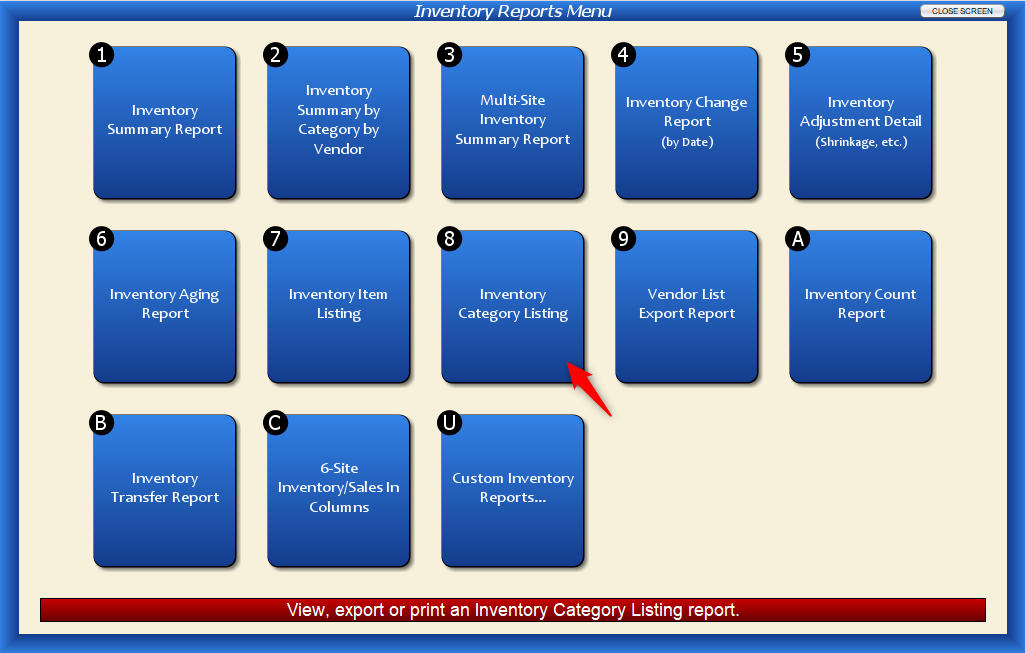
Either method will load the document.
Report Example
Click to expand.
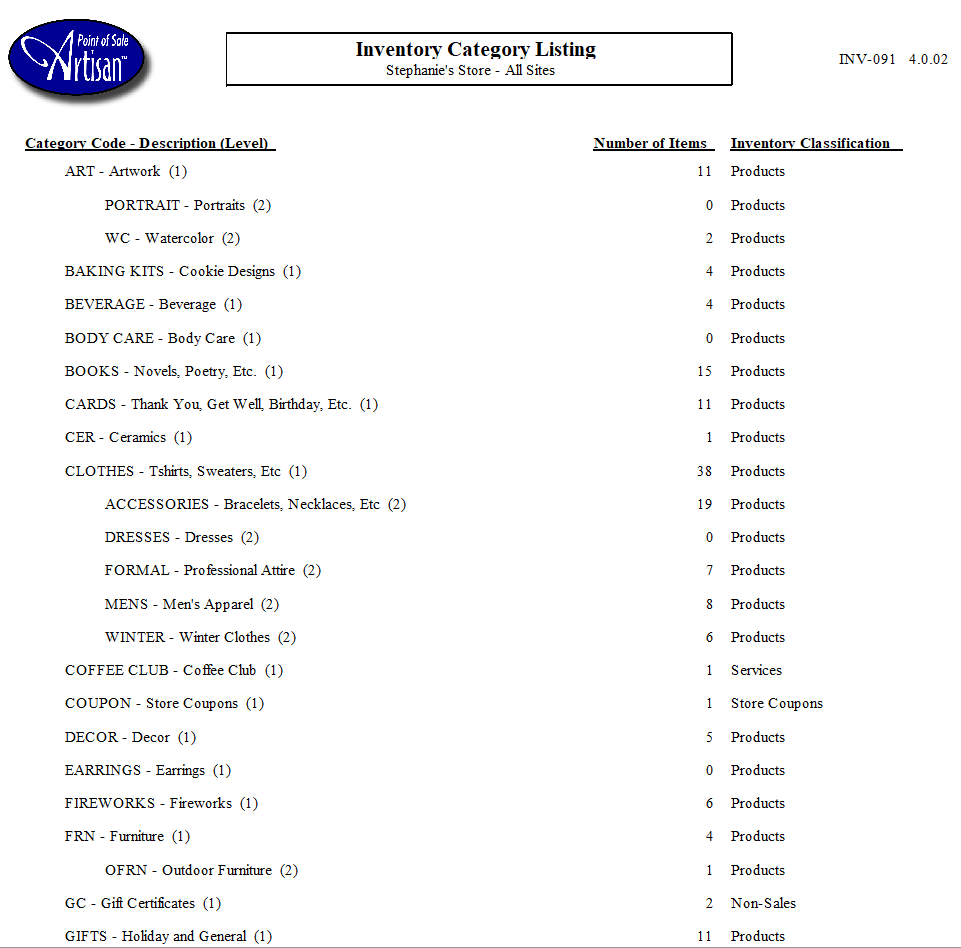
Category Code – Description (Level): This column shows the category code, description name, and its sort order. For example, we can see that category “ART” has two nested categories, “Portrait” and “WC.”
Number of Items – This column shows the number of Item Records within each category. For example, we have 11 items in the “Artwork” category, 0 in the “Portrait” category, and 2 in the “Watercolor” category.
Inventory Classification – This column shows how the Item Record is sold. Is it a product, like a t-shirt? A service, like a membership? A coupon? Or a non-sale item, like a service, coupon, or a non-sales item, like shipping?
This is a good report to run if you’re wanting to double-check that your categorization makes sense to your store and that Item Records are listed accurately with proper inventory classifications.