
One of Artisan’s many handy reports is the “Inventory Count Report w/ Retail Value” report. This report’s data is pulled from the “Inventory Counting” screen.
This report shows your current quantity on hand for items with any discrepancies in Artisan. In other words, Artisan compares the quantity on hand listed in each item record to the number inputted in the “Qty Counted” column. These numbers are entered by a traditional scanner or handheld with a built-in scanner, or by manually entering counts with your keyboard/mouse.
You can then use this report to see all discrepancies in a list, with a view of how much retail value is gained or lost by finding an item that wasn’t previously counted, or coming up short. For example, sometimes an item falls behind a shelf and is rediscovered later, or an item was broken and thrown away without reporting the incident.
Accessing the Report
Access the report by heading to “Report,” “Inventory Reports,” and “Inventory Count Report” from the toolbar.

Or, from the “Main Menu,” click on “Reports.”

Select “Inventory Reports.”

Choose “Inventory Count Report.”
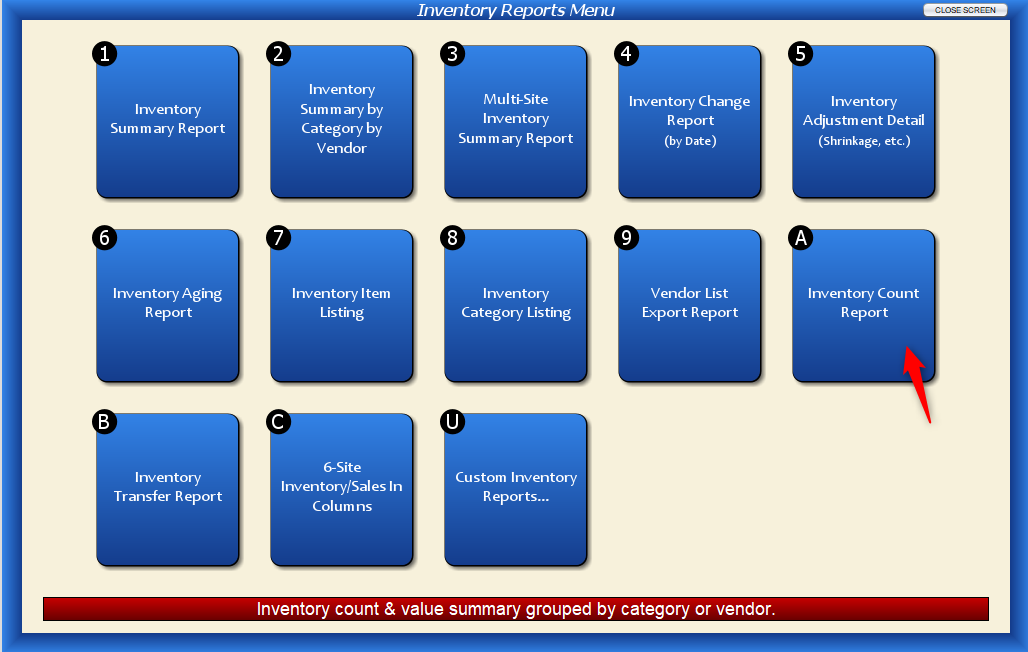
Either way, you’ll end up on the following screen.

Report Fields
Show Counted Items: Determine which Items you want to include in your list.
All Counted Items: This shows all items you have currently counted on the Inventory Counting screen, including Items with discrepancies/exceptions.
Uncounted Items: This is a list of all items you haven’t yet counted on the Inventory Counting screen.
Exceptions Only (Just Counted Items): This will only show counted items that are listed as discrepancies/exceptions.
All Exceptions (Including Uncounted): This will show any discrepancies/exceptions, even if they haven’t been counted yet.
All Items (w/ or w/o Counts): This will show all Items in your Inventory Records, regardless of discrepancies, both counted and uncounted.
Select Group By: This is how your report will be organized. Refer to the examples for more information.
Inventory Site: If you have multiple locations, you can choose to view data from all of them or a certain location.
Show Item Detail?: Selecting “Yes” includes each item’s “Item Code.”
Like most Artisan reports, you can narrow your results further by filling out other fields. For example, you can include only certain Items on the report by using “Specific Item” and typing in Item Codes separated with a comma, or using the magnifying glass to select from the Inventory Records screen.
The same methods apply to Description, Vendor, and other searchable fields. You can also include or exclude discontinued items, product variants, consignment items, and more, as well as filtering price range and quantity on hand. If necessary, you may save any fields you change for next time by selecting “Save as Defaults.” The next time you open the report, your selections will automatically be filled with the presets you defined.
Report Examples
In this example, we’ve sorted our report by Category, with “All Counted Items” for this specific site. We also have “Inventory Detail” selected, which shows each Item’s “Item Code.”
All Counted Items

We can see that Artisan detected discrepancies for some of our items, such as the Twenty-First Birthday Green Card. We should have a count of four, as indicated in the “On Hand” section, but we’ve only come up with three of these cards, leaving us with a -1 unit, and negative discrepancy costs and retail. Our “Estimated Cost Value” is based on the cost we normally spend to purchase this item, and the “Retail Value” is the amount we sell the item for.
We can also see that we gained an inventory item. Our “On Hand” column displays a quantity on hand of 0 for the “Gildan T-Shirts Blue Large” item, though we counted one of these.
Uncounted Items
This report shows all items we have not yet counted in the “Inventory Counting Screen.” We chose to show data from all of our locations, and sorted by “Vendor.” We can see all of these entries have a Cost Value Estimate of 0.00 right now since these items have not been counted, and this will be generated once the counts are updated.

Exceptions Only, Counted Items
This report only shows exceptions within counted items. The birthday card and t-shirt have been counted, but both show an exception (one item is negative and the other is positive). As stated before, this could have happened for a variety of reasons. This might happen due to a simple miscount, with positive discrepancies due to misplacing an item and rediscovering it later, and negative discrepancies due to the item being lost or stolen.

All Exceptions (Including Uncounted)
This report combines uncounted items and exceptions.

All Items (w/ or w/o Counts)
This report shows all items, including those that have and have not been counted.
