
One of Artisan’s useful reports is the “Inventory Item Listing” report. This report displays details about Item Records in the program: item code, description, vendor, vendor purchase number, on-hand qty, on-order qty, cost and price, and discounts. You can filter information by site, description, price range, and many more fields.
Accessing the Report
To access this report, head to “Reports,” “Inventory Reports,” and “Inventory Item Listing.”

Or, from the “Main Menu,” select “Reports.”

Select “Inventory Reports.”

Click on the “Inventory Item Listing” report.

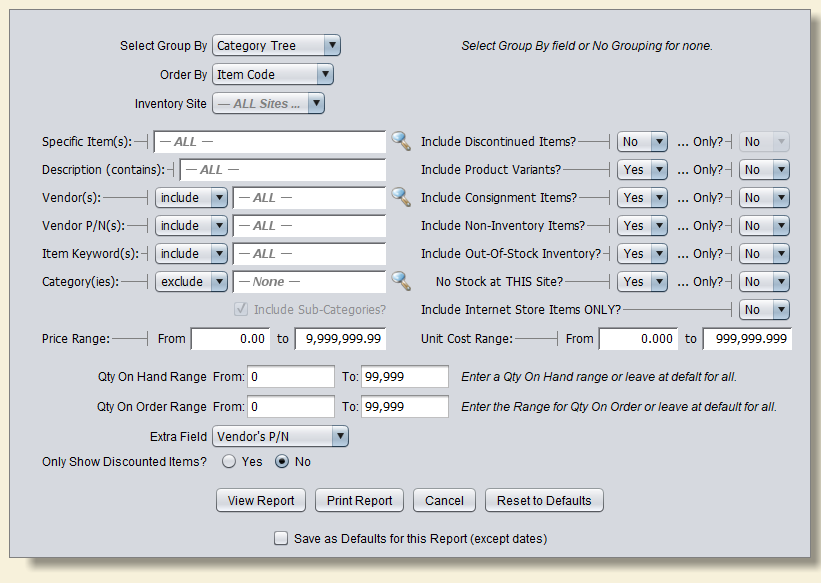
Either way, you’ll end up at the following screen.
Report Fields
Select Group By: This is how your report will be organized, if you pick an organization type. Refer to the examples for more information.
Order By: The order in which the report will organize its items.
Inventory Site: If you have multiple locations, you can choose to view data from all of them or a certain location.
Like most Artisan reports, you can narrow your results further by filling out other fields. For example, you can include only certain Items on the report by using “Specific Item” and typing in Item Codes separated with a comma, or using the magnifying glass to select from the Inventory Records screen.
The same methods apply to Description, Vendor, and other searchable fields. You can also include or exclude discontinued items, product variants, consignment items, and more, as well as filtering price range and quantity on hand. If necessary, you may save any fields you change for next time by selecting “Save as Defaults.” The next time you open the report, your selections will automatically be filled with the presets you defined.
Report Examples
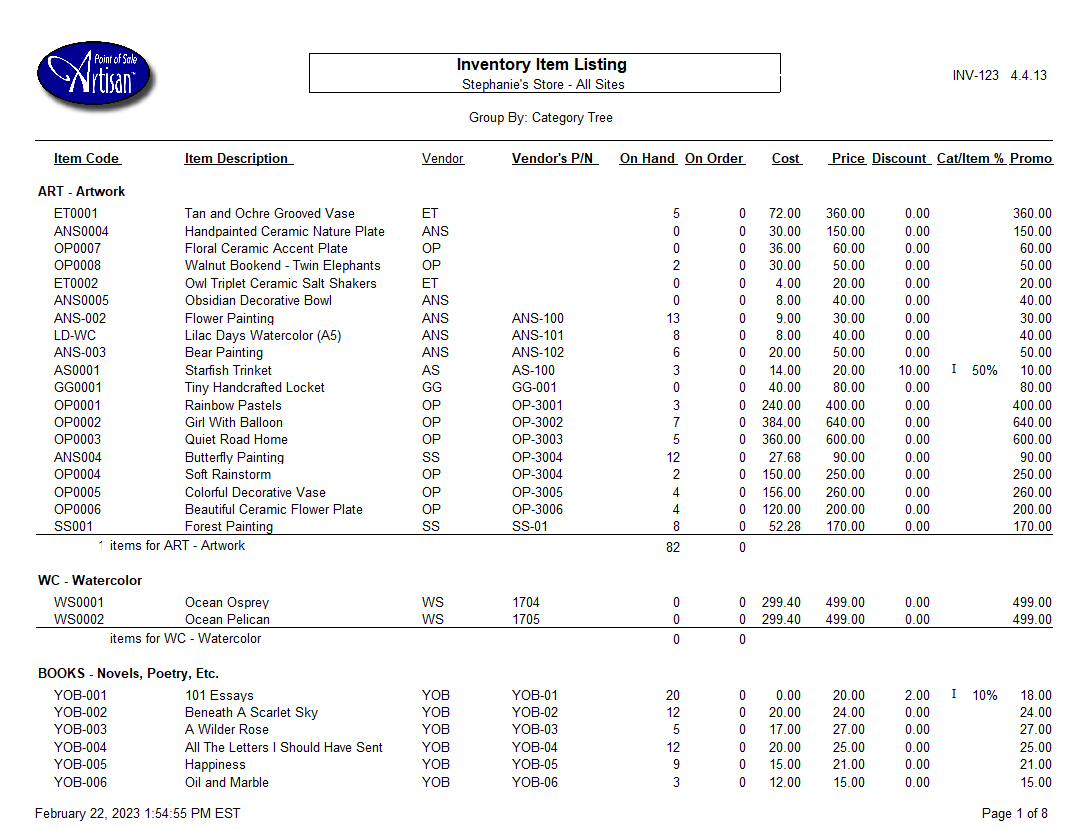
Select Group By: Category Tree
Order By: Item Code
In this example, Artisan separated our report by category and sorted alpha/numerically within each section by Item Code.

Select Group By: Category Tree
Order By: Vendor’s P/N
In this example, Artisan separated our report by category and sorted alpha/numerically within each section by Vendor’s P/N. Items without a P/N are put first.
Select Group By: Category Tree
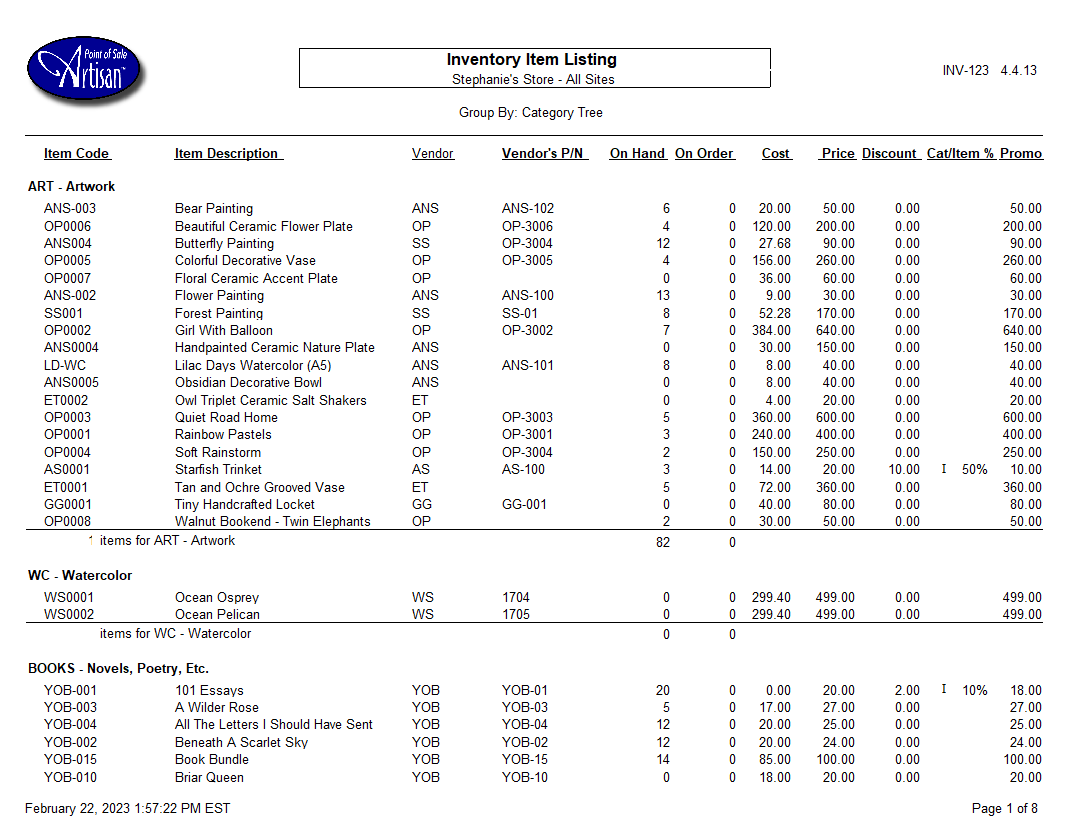
Order By: Description
In this example, Artisan separated our report by category and sorted alpha/numerically within each section by the Item Description. Descriptions starting with numbers are put first.
Select Group By: Category Tree
Order By: Cost
In this example, Artisan separated our report by category and sorted by cost within each section, from low to high.

Select Group By: Category Tree
Order By: Price
In this example, Artisan separated our report by category and sorted by price within each section, from low to high.
