
If you have more than one site (location), you can run Artisan’s “Multi-Site Inventory Summary Report.” You may filter this report to show just totals for all locations or all items sold at each location. Read on for more information.
Accessing the Report
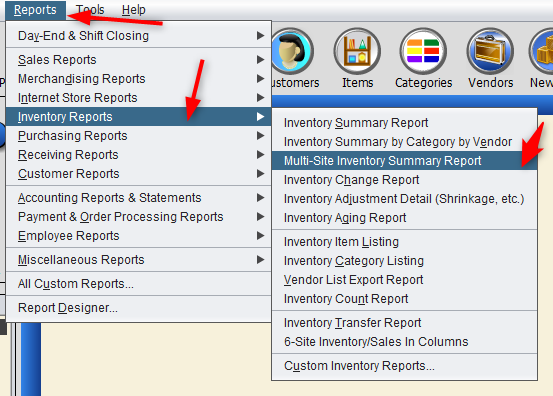
To get to this report, go to “Reports,” “Inventory Reports” and “Multi-Site Inventory Summary Report” in the toolbar.
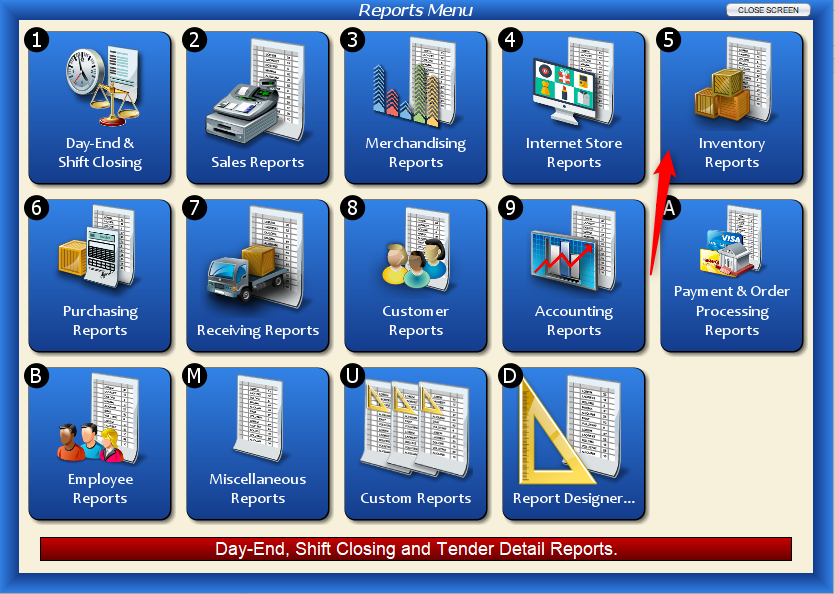
Or, from the “Main Menu,” click on “Reports.”

Select “Inventory Reports.”
Click on “Multi-Site Inventory Summary Report.”

Either way, you’ll end up at the following screen.
Report Parameters
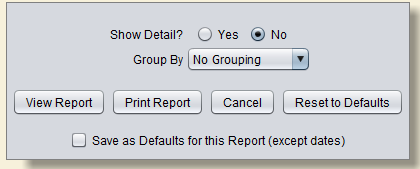
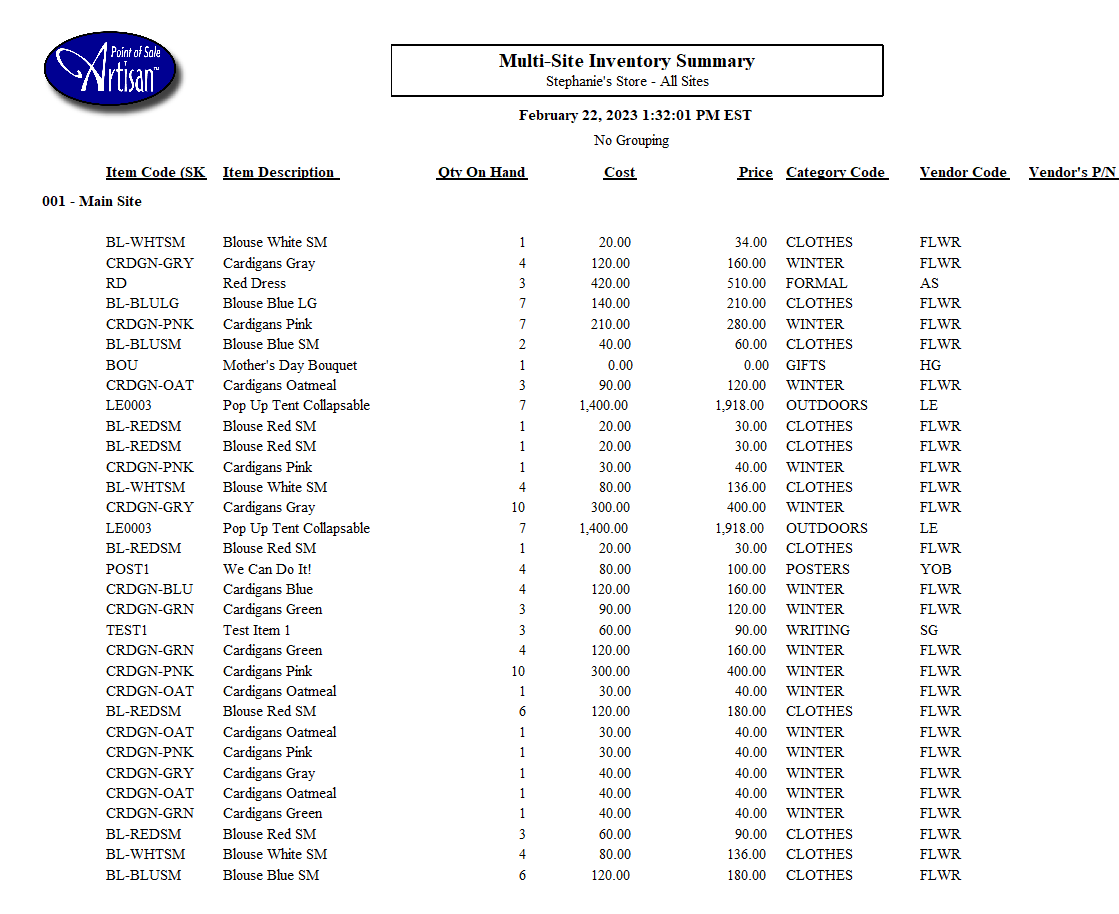
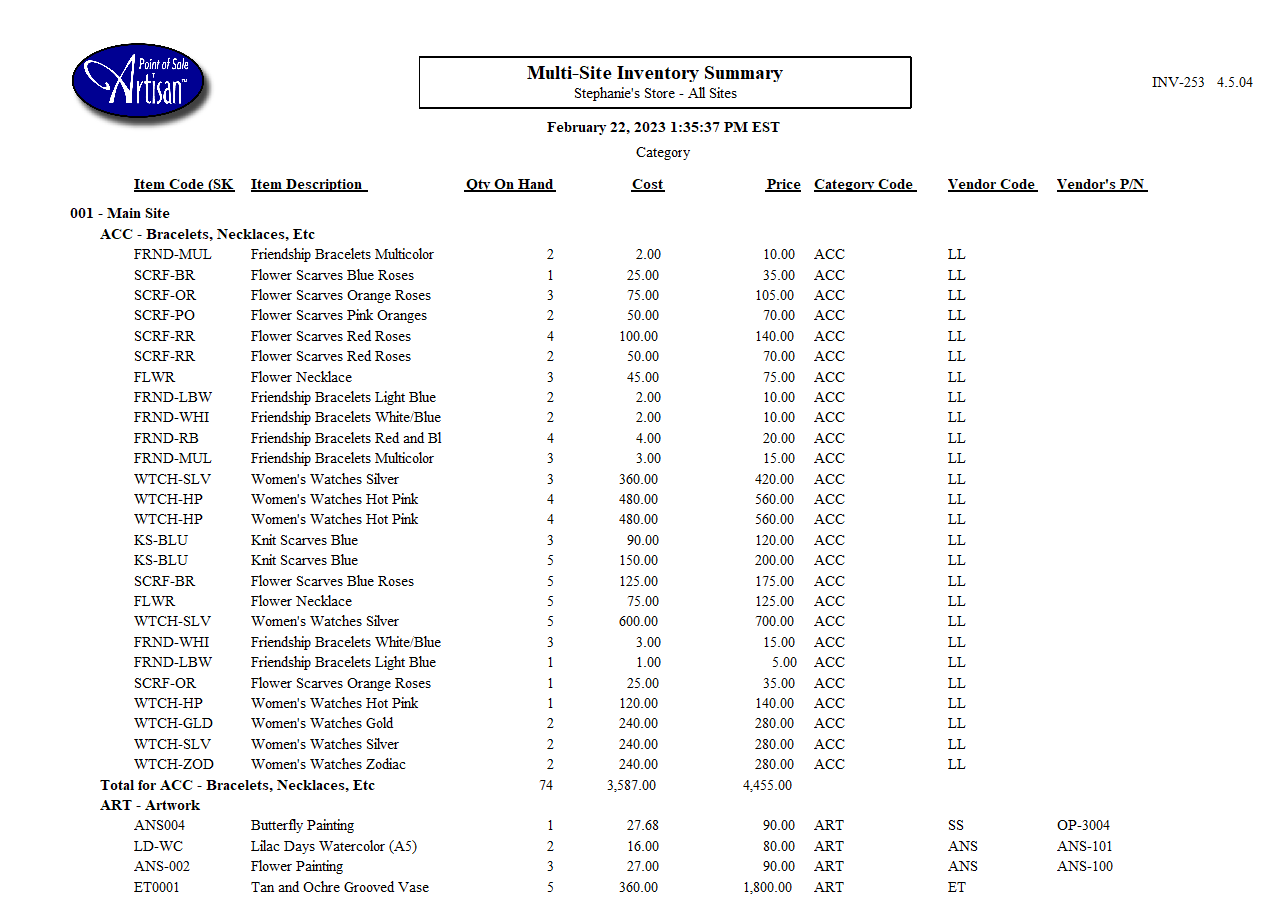
Artisan lets you include certain information in your report. For example, clicking “Yes” for “Show Detail?” includes a list of each site’s inventory, with the Item Code (SKU), Item Description, Qty on Hand, Cost, and other details. Selecting “No” will show just the “Qty On Hand,” “Cost” and “Price” of inventory at each location.
You may further organize your report by grouping by Vendor or Category. There are examples of both in the next section.
As with most Artisan reports, you may save your changes for next time by clicking “Save as Defaults for this Report.”
Report Examples
Below are some examples of various report configurations.
Show Detail: No
Group By: No Grouping

Show Detail: No
Group By: Category

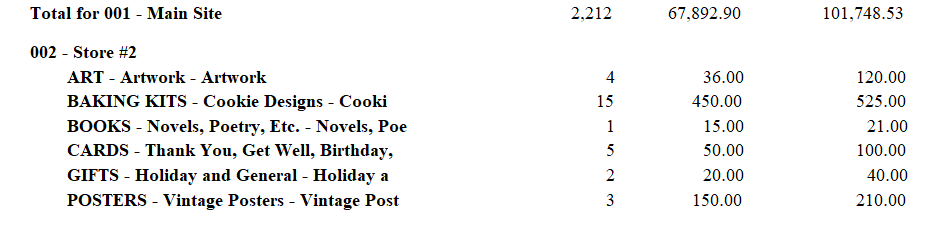
Show Detail: No
Group By: Vendor

Show Detail?: Yes
Group By: No Grouping
Show Detail?: Yes
Group By: Category
Show Detail?: Yes
Group By: Vendor
