
In this article, we’ll go over how easy it is to import records for your online store into Artisan.
Open an Excel Spreadsheet (.XLS or .XLSX) file. Create column headers with the following information.
| Artisan Excel Header | Artisan Field Name |
| ITEMCODE | Leave Blank to have Artisan auto-generate an item code. HOWEVER, if you leave this field blank, when you repeat the process you will get yet another new item record. If you want to update existing items, you must include the Item Code field, UPC, or Vendor’s P/N and Vendor. |
| IDESC | Item Description (Required for NEW records) |
| PRICE | Retail Price |
| CATEGORY | Item Category Code (Required for NEW records) |
| VENDOR | Item’s Vendor Code (Required or use “NONE”) |
| ONLINE | Use Online? This should be a “Y” or “N” or left blank |
| INSTORE | In-store only? |
| FEATURED | Featured product? |
| SORTORDER | Catalog Order |
| ISLAYOUT | Internet Store Layout Template |
| ISLAYOPTS | Additional Layout Options |
| XCATCODES | Additional Categories |
| TAGS | Product Tags |
| RELPRODS | Related Products |
| PRODNAME | Product Name / Title |
| SHIPWEIGHT | The shipping weight. Not required, but very useful |
| DETAILDESC | Detailed Description |
| BRIEFDESC | Brief Description, mostly used for SEO metadata |
| FULLIMAGE | The URL to the image on the WEB or LOCAL file path |
| ALTIMAGE1 | The first secondary image |
| ALTIMAGE2 | The second secondary image |
| ALTIMAGE3 | The third secondary image |
| ALTIMAGE4 | The fourth secondary image |
| ALTIMAGE5 | The fifth secondary image |
Once you’re done, navigate to “File” and “Import.”
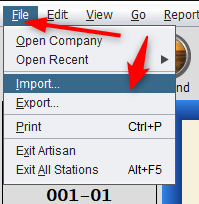
Select “Item Records.”

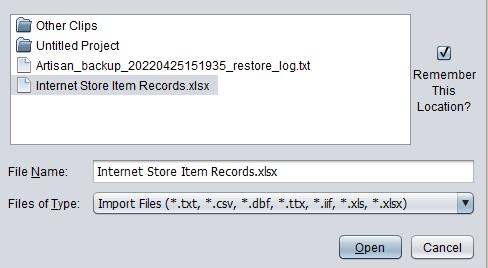
Locate your file and select “Open.”
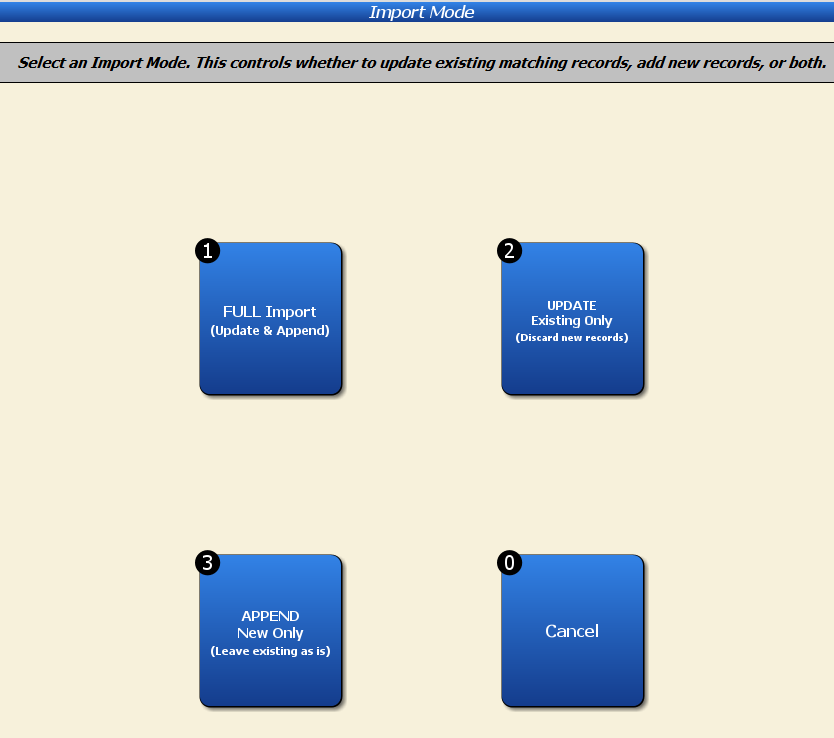
Determine how you want to import your file, otherwise known as the Import Mode. Do you want to update and append your records, update existing records and discard any new records, or append only new records and leave existing records as-is?
Once you’ve made your selection, Artisan will display if your import was successful, along with the number of items imported.

Check the Item Record(s) to ensure Artisan inputted your data correctly.
