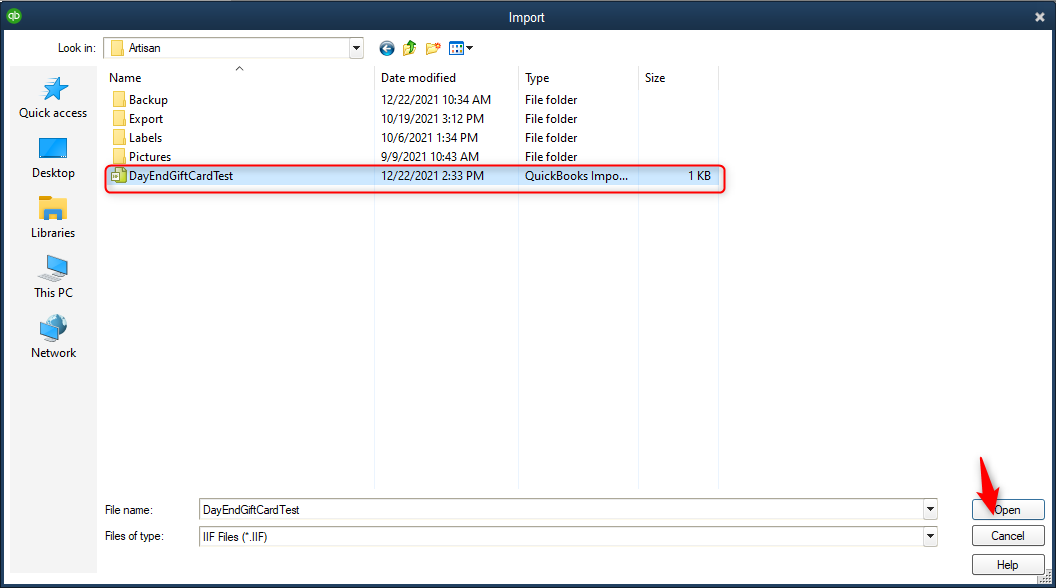
This article contains tips and examples for using QuickBooks Desktop to import sales summary transactions from Artisan POS.
Creating Accounts in QuickBooks Desktop
To create accounts in QuickBooks, you’ll need to open your “Chart of Accounts.” Click on “Lists” and “Chart of Accounts.”

Click “Add New Account.”
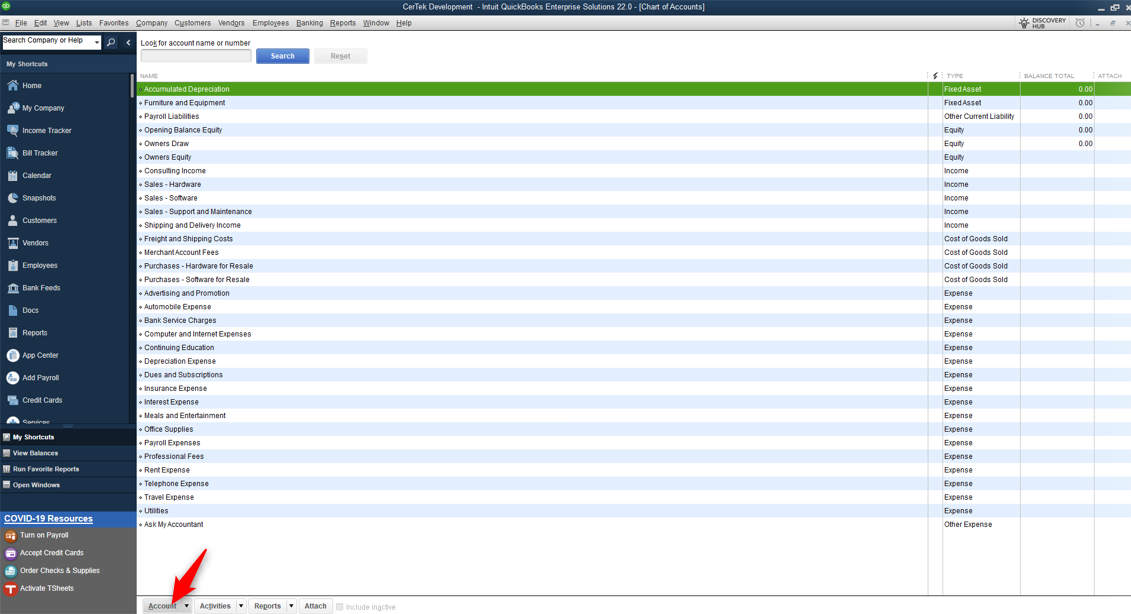
Your account type and title depend on what account you’re creating.
For example, let’s create our first account – our bank account.
From “Account Type,” select “Bank.”
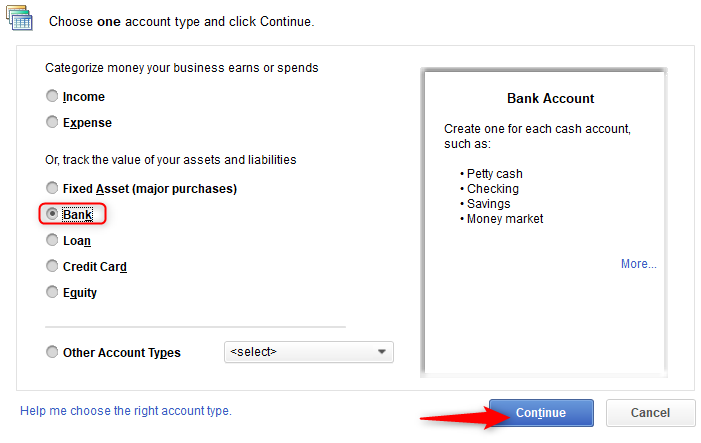
Give your account a name (typically the name of your bank). Save the account.

Numbering Accounts in QuickBooks Desktop
Some people prefer to use account numbers in QuickBooks, rather than account names. You can enter either names or numbers into Artisan’s configuration settings.
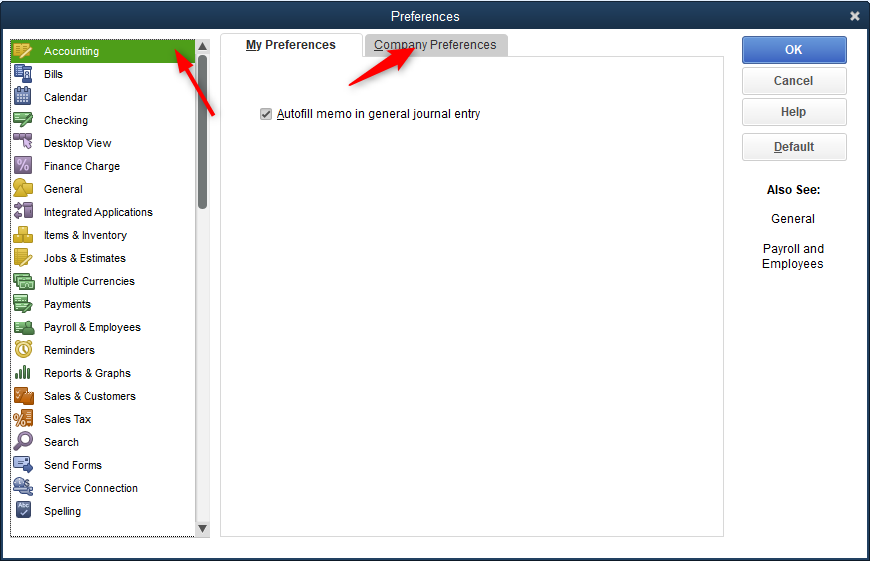
To enable account numbering in QuickBooks Desktop, head to “Edit” and “Preferences.”
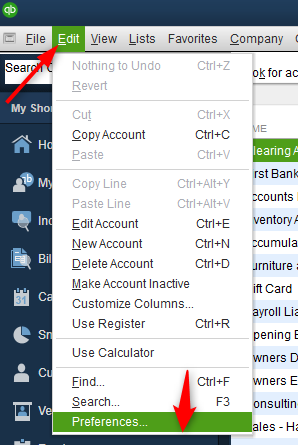
Click on “Company Preferences.”
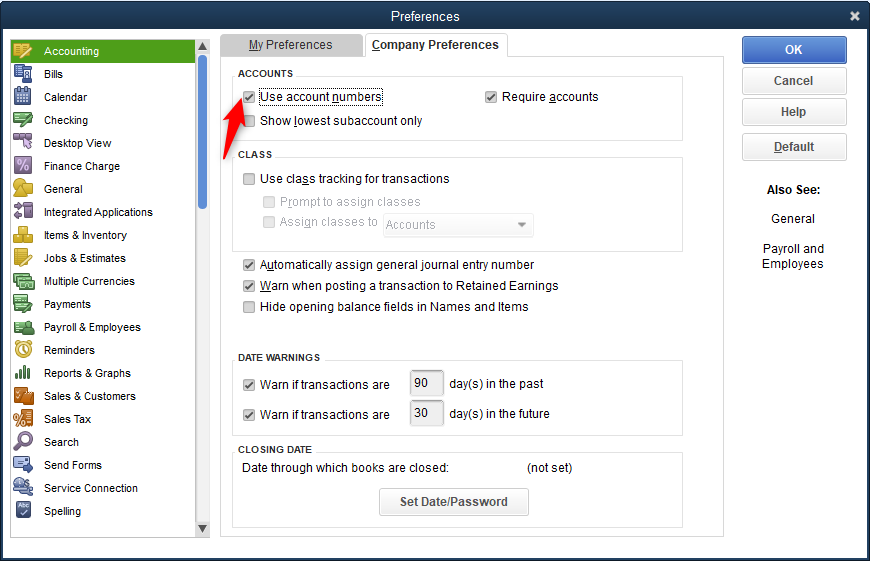
Check “Use Account Numbers.”
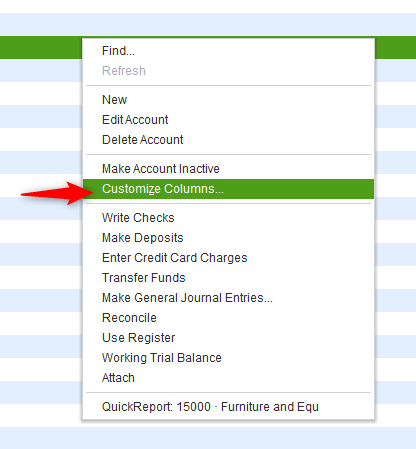
Right-click on your chart of accounts and select “Customize Columns.”
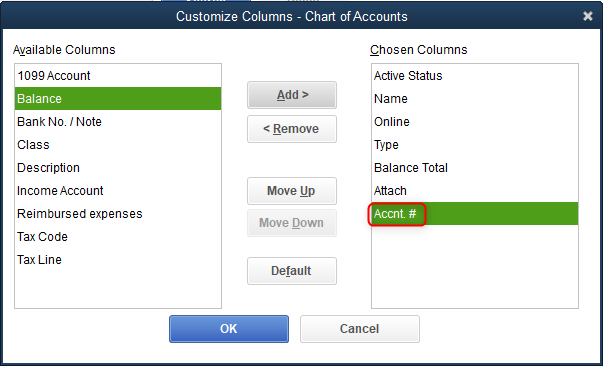
Move “Accnt. #” to “Chosen Columns.”
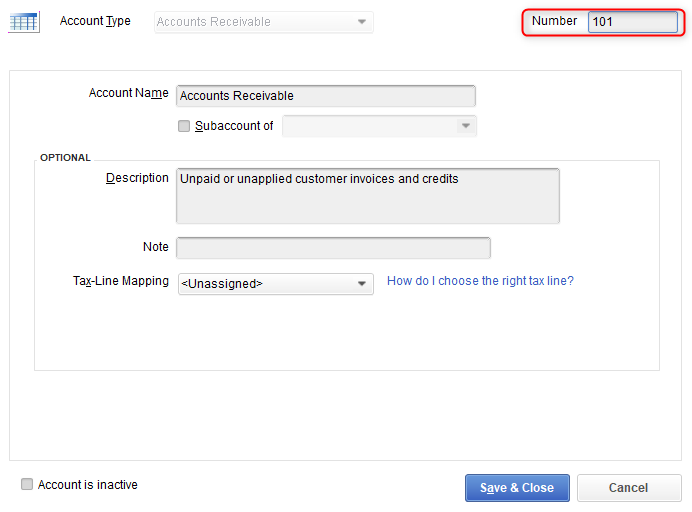
Select whatever account number you want to change.

Enter whatever number you want to use (ex. 101).
Importing IIF Files Into QuickBooks Desktop
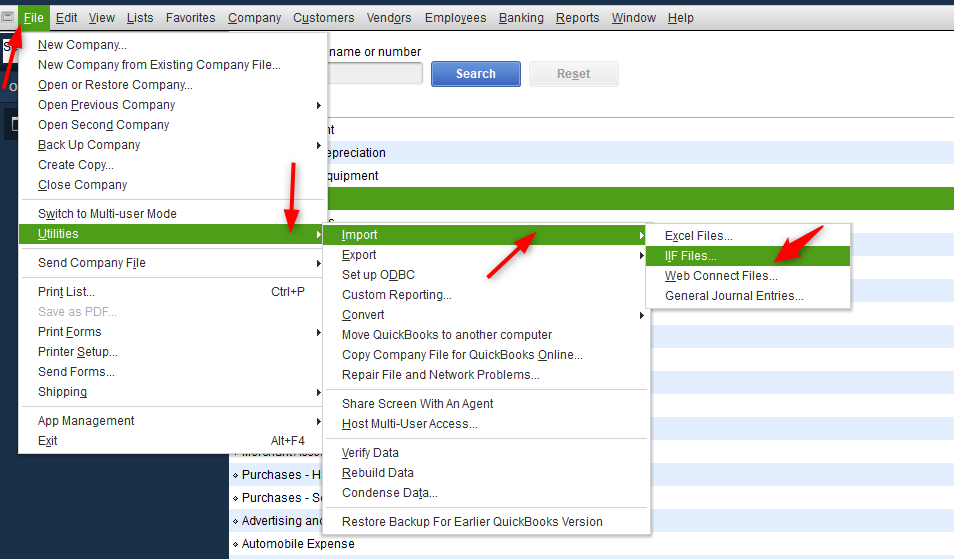
In QuickBooks, click on “File,” Utilities,” “Import,” and “IIF Files.”
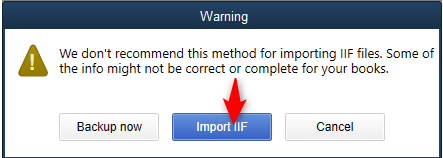
Click “Import it for me, I’ll fix it later.”

Locate the file.