
This article explains how to export sales summary data from Artisan POS to an external accounting program like QuickBooks. You can either export sales for a range of dates or for an individual day-end closing, automatically.
Most of this procedure is common to all external accounting packages, but some details vary:
- For QuickBooks Desktop, Artisan exports to a file in Intuit Interchange Format (IIF).
- Artisan POS version 4.9.225 or later uses a direct connection to export directly into QuickBooks Online.
- With older versions of Artisan, you can use the IIF export method then use a third-party program to import IIF files into QuickBooks Online. See Connecting to QuickBooks Desktop for notes on using Importer GURU for this.
Before you can export for the first time, you must configure the External Accounting Package Settings appropriately.
Exporting a Range of Dates
Once configured, you can perform an accounting export by going to the Sales Exports menu.
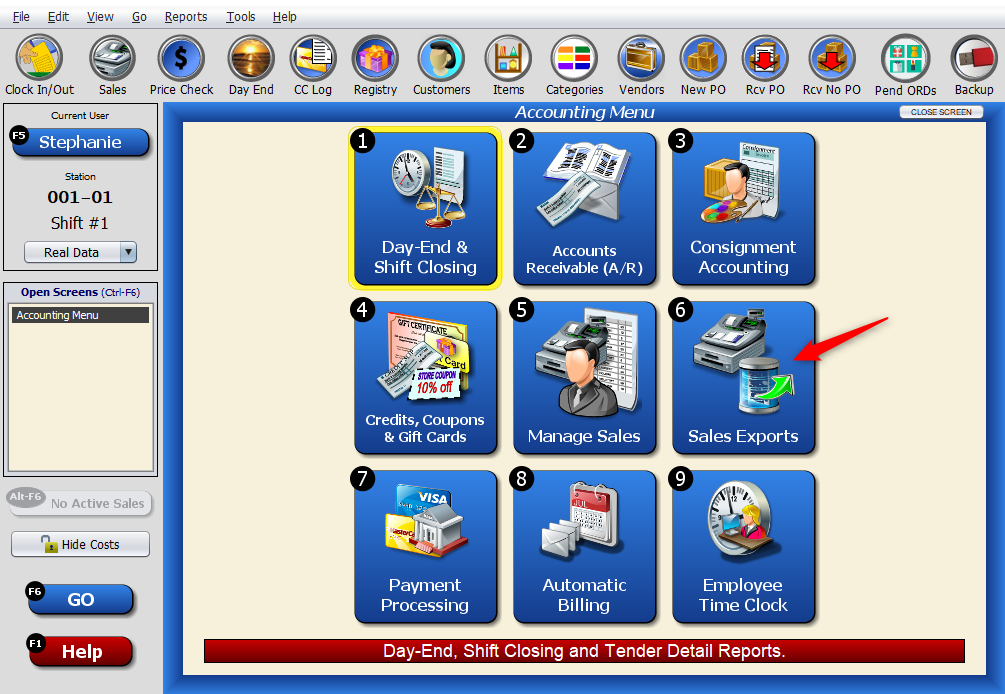
Next, click on “Export Sales Summaries to Accounting Package.”

Enter the range of dates to include. (Use the pull-down buttons on the right for a calendar date picker.)
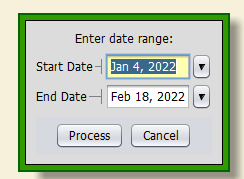
The next step depends on whether you’re using QuickBooks Desktop or QuickBooks Online.
For QuickBooks Desktop, the exported data will be written to an .iif file (Intuit Interchange Format), for import into QuickBooks. After entering the date range above, you’ll need to choose an export filename and location. The default filename will be “DayEnd.iif”, or a date-specific “DayEnd-YYYYMMDD.iif”, depending on your configuration settings, but you can change it to whatever you want. Remember the folder location and filename; you’ll need it for the next step. (Click on the “Look In” pulldown for the full path.)

Once the export is complete, you’ll need to import the .iif file into QuickBooks. Make sure you browse to the same folder. You can find detailed instructions here: Using QuickBooks Desktop with Artisan POS – Importing IIF Files.
For QuickBooks Online, the data will be sent via the Internet directly to QuickBooks. If you haven’t done so recently, you may be sent to a web browser and asked to login to QuickBooks and possibly to approve the connection from Artisan, as described in Connecting to QuickBooks Online (QBO).
Exporting Automatically at Day-End
Instead of exporting manually, you can configure Artisan to automatically export sales summaries after every Day-End closing. This export will only include transactions from the specific Day-End, even if there are multiple Day-End closing on the same date.
To change this setting, go to Tools => Options => Miscellaneous Program Options => Day-End & Shift Closing Options. Go to the section on “Other Automatic Actions to Perform”, then “Export to Accounting Package”:

Exporting Accounting Data for Multiple Sites
If you have multiple sites, you can configure the accounting export to send data only for the current site, or to include posted transactions from all sites (separated by site). This is controlled by the “Include ALL Sites in One Export” setting in the External Accounting Package Settings for the current site.

Each site can be configured with a separate set of export settings by creating or selecting a separate External Accounting Profile. To select the profile to use for a given site, you must be running at that site or must change the Station Selector at the top of the Configuration Settings window to a station at that site.
If you have any sites with no stations, such as an Internet Store Sales Site, you can configure the profiles to use for those sites via the table of Profiles for Sites with NO Stations:
