
[UNDER CONSTRUCTION…]
Choosing Categories to Include
In the categories, find your parent category, or click the icon to jump to it. Go as far up the category chain as needed. You only want to select tobacco-related categories.
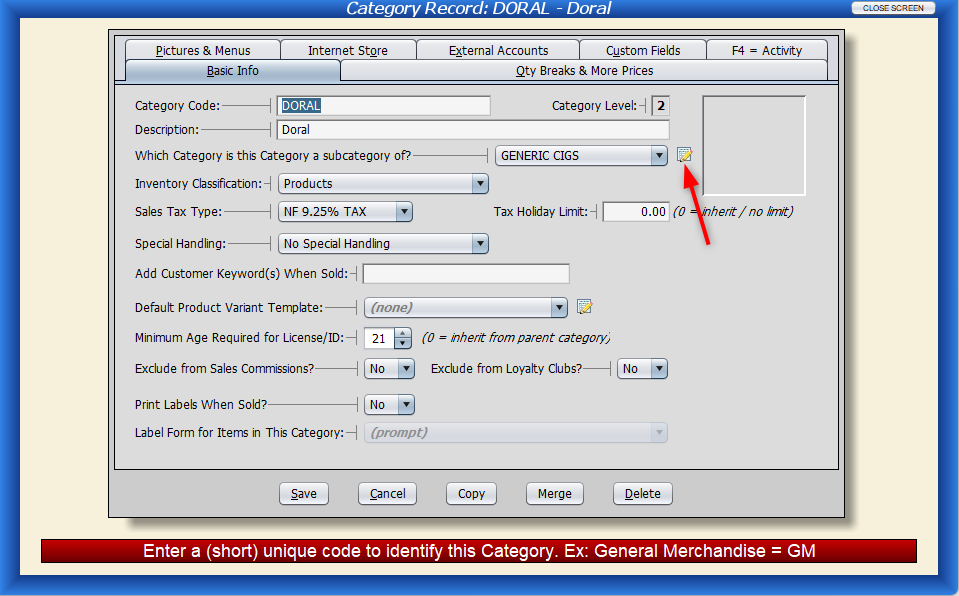
Your parent category should look something like this.
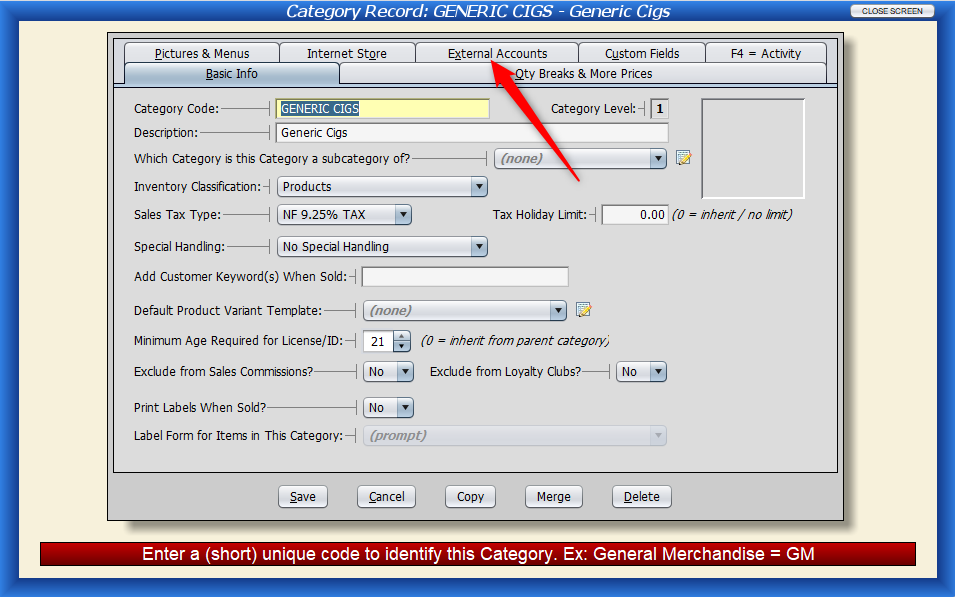
Click on the External Accounts Tab.
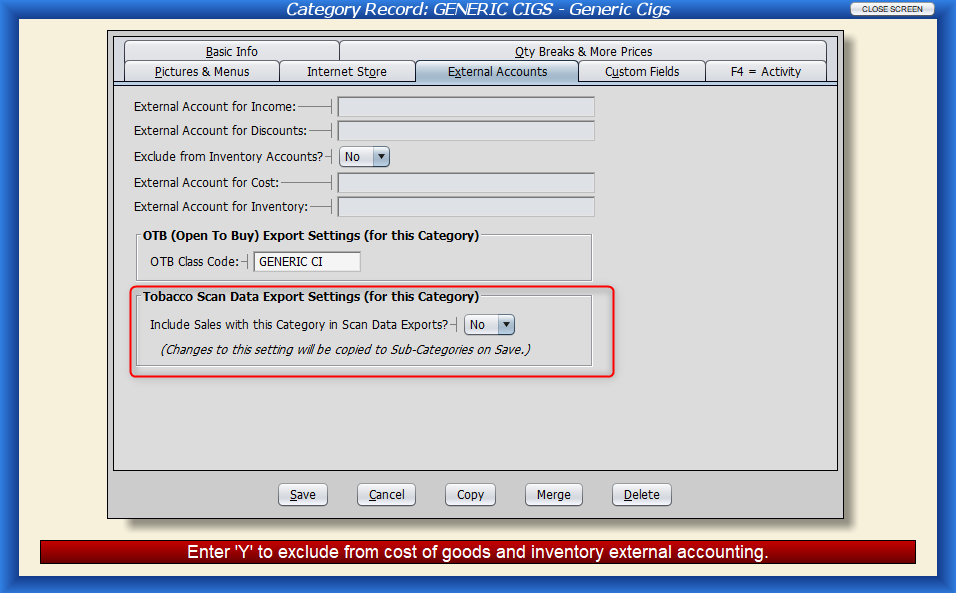
Change this to YES for categories that you want to include. It will also set the Sub-Categories to be included. You could manually edit those categories and set them to No if, for some reason, you don’t want those Sub-Categories included.
Choosing Vendors a.k.a. Manufacturers to Include
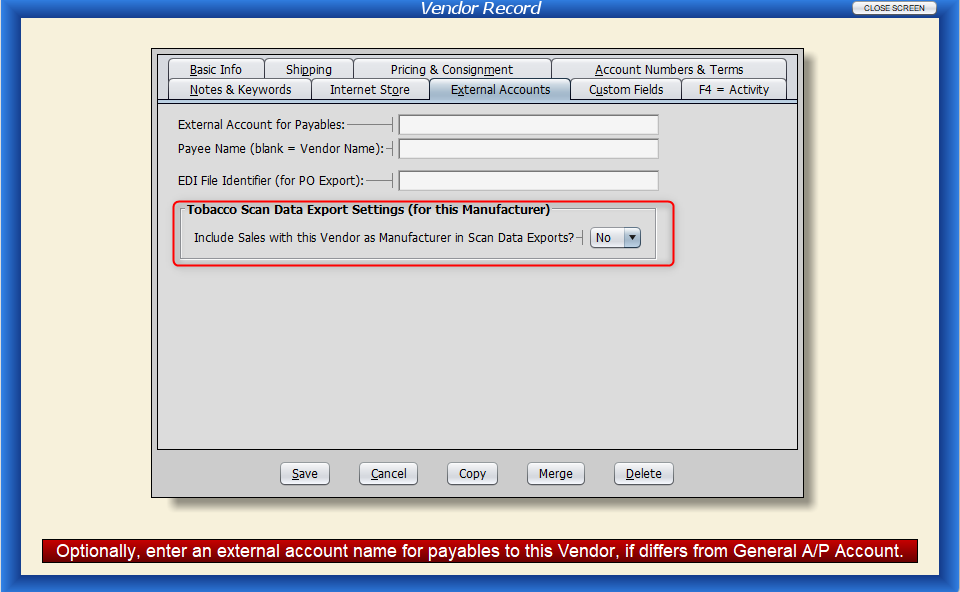
This is the same process as there is for Categories. You must specify a vendor and a category, or Artian will tell you there are no sales during this period.
Preparing the Data to Send
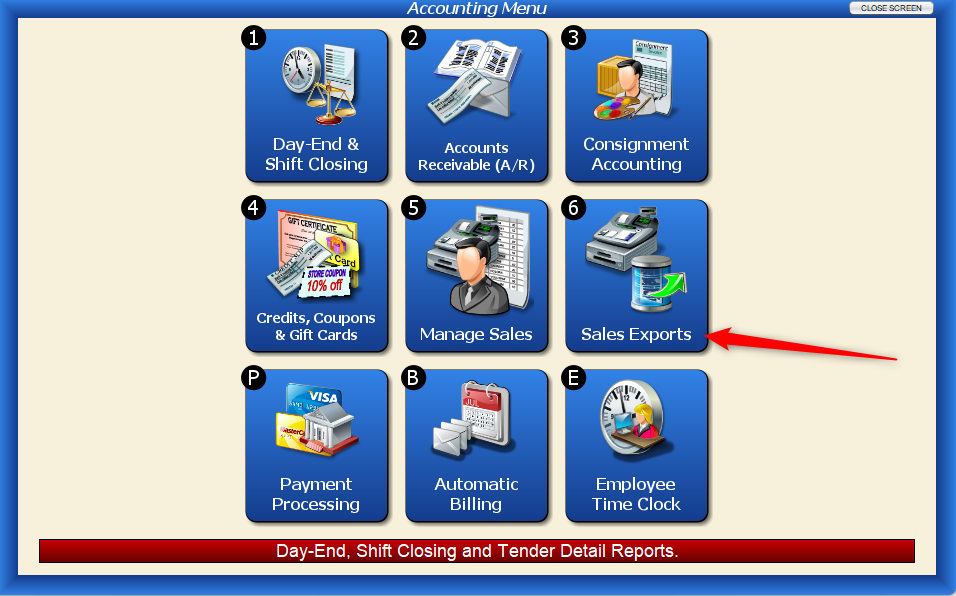
From the Accounting Menu, choose Sales Exports.
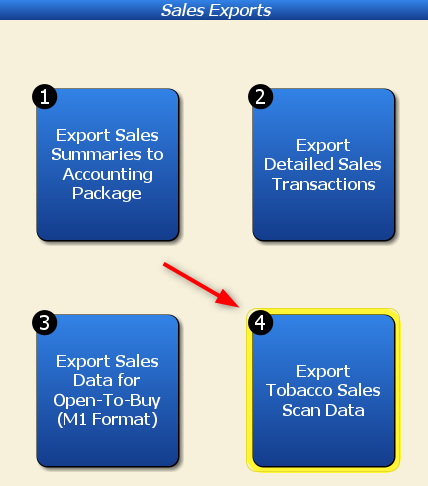
Now Choose Export Tobacco Scales Scan Data.
Sending the Data with a Secure FTP program
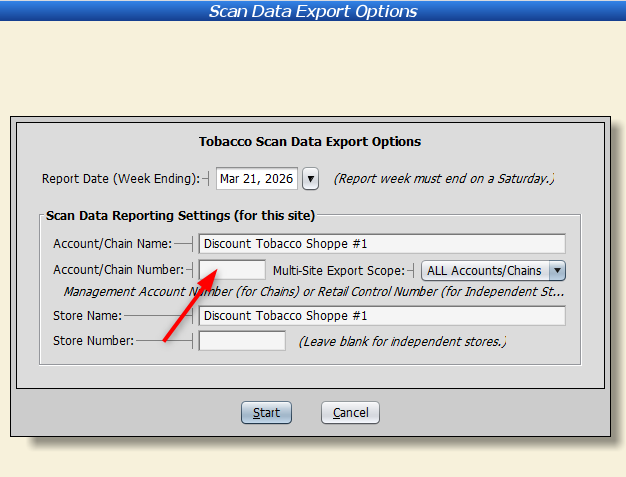
Artisan will fill in your store name and account name; you must change this to match your account with Altria. Also, you will need your Account or Chain Number. Altria will provide you with this to you.
Unless you have multiple stores, you should leave the Store Number blank.
Click Start to create the file. You will be prompted for the file location. You should create a special folder for this and make sure you don’t get mixed up about which file you are sending.