What is Management One?
Management One is a company that provides a Retail Planning service to help you make informed purchasing decisions. By analyzing your store’s data, Management One helps retailers gain even deeper insight into product performance and sales history.
Artisan supports exporting your data into Management One’s “Open to Buy” plan. “Open to Buy” analyzes how much you should spend on each category of products in Artisan.
Having this information on hand is vital, as it helps mitigate over-purchasing – buying too much of a product, especially if that product isn’t selling as anticipated. Management One looks at what you have on order within a class (category) of products, your past history, seasonal changes, and trends in the market, then helps you determine how much to spend for that class.
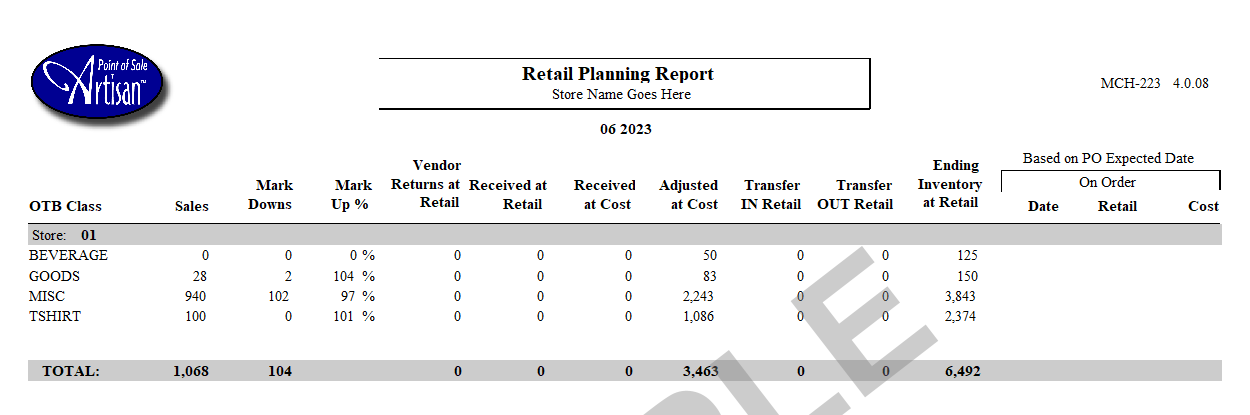
Artisan also has the “Retail Planning Report,” which coincides with your Management One information. More on this later.
Setting Up Management One Classes in Artisan
In order for Management One exports and the “Retail Planning” report to work properly with your information, you must map your Management One classes to Artisan categories.
Management One will provide you with a chart of class codes. This code needs to be applied to the class’s category, as shown in this example.
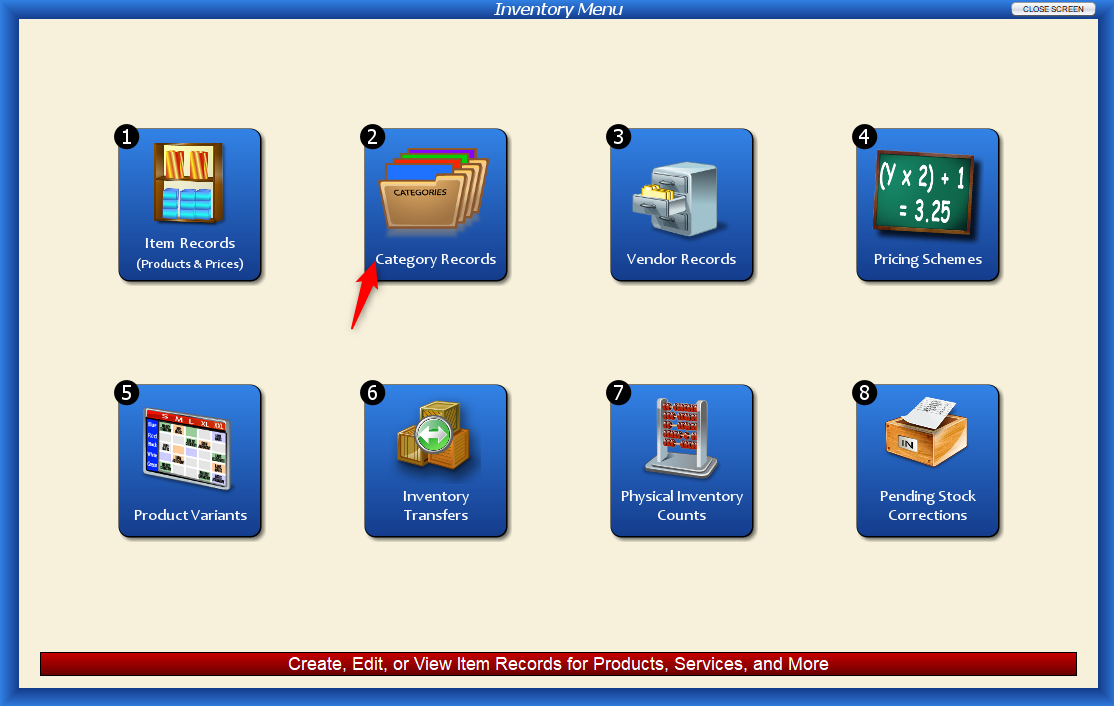
Head to “Categories.”
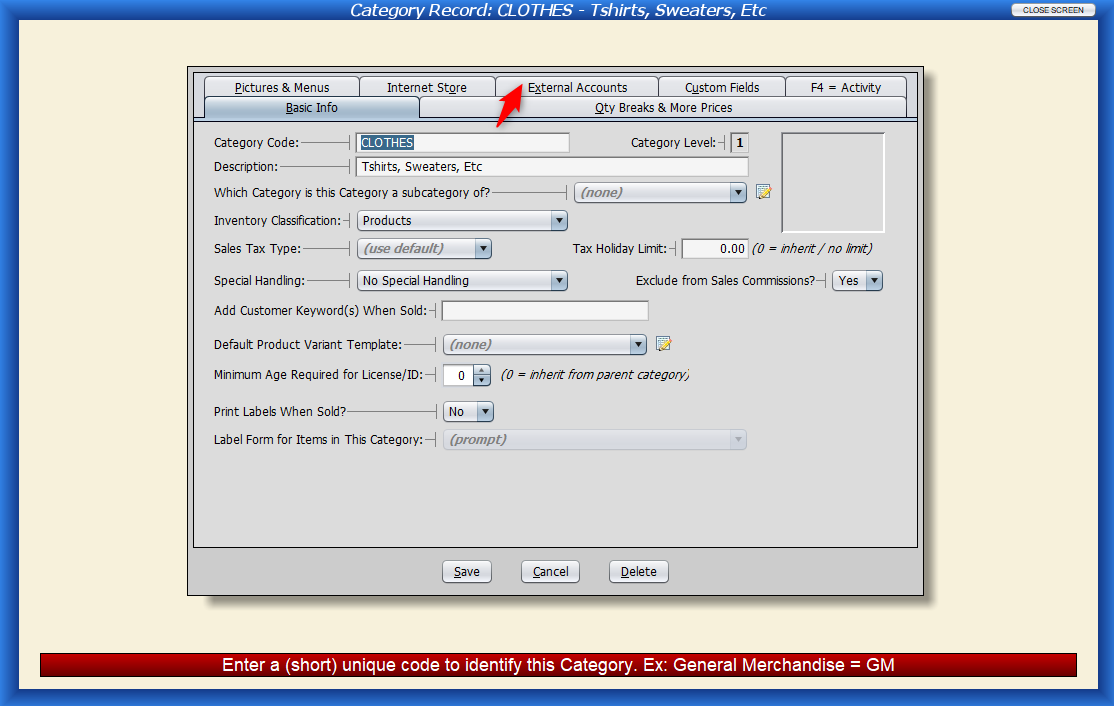
Edit a category.

Click on the “External Accounts” tab.
Look for the “Management One OTB Class Code” field.
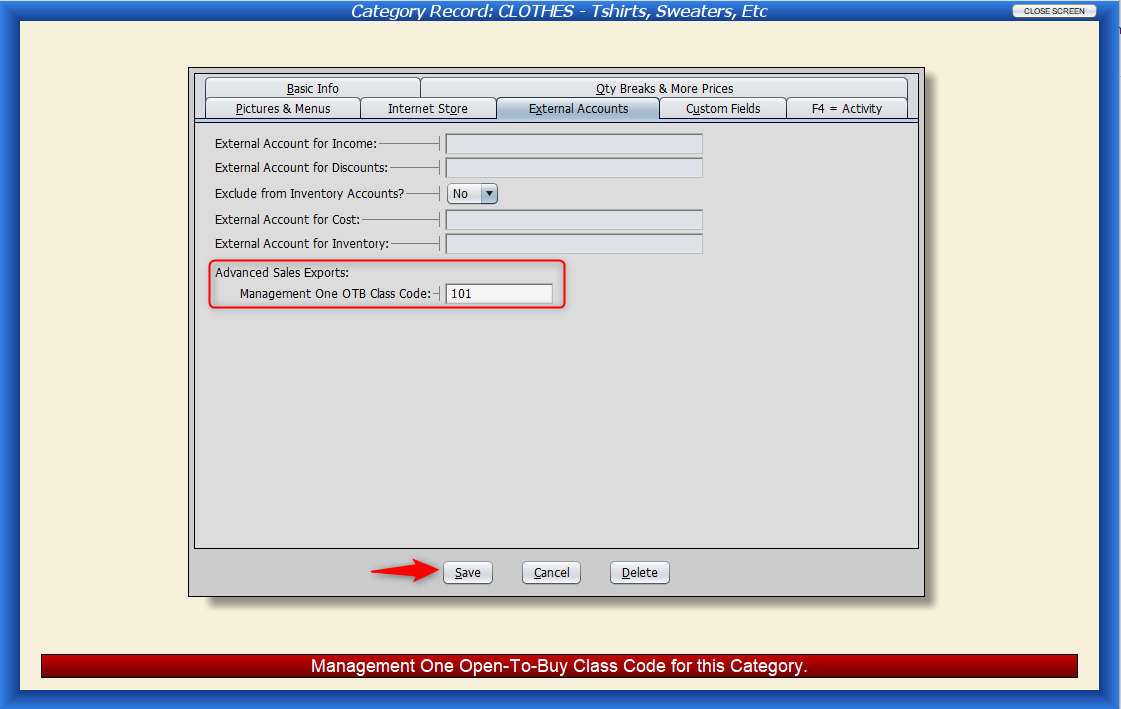
Enter the code given to you by Management One. Save the category record.
Exporting to Management One
When you’re ready to export your information to Management One, follow these steps.
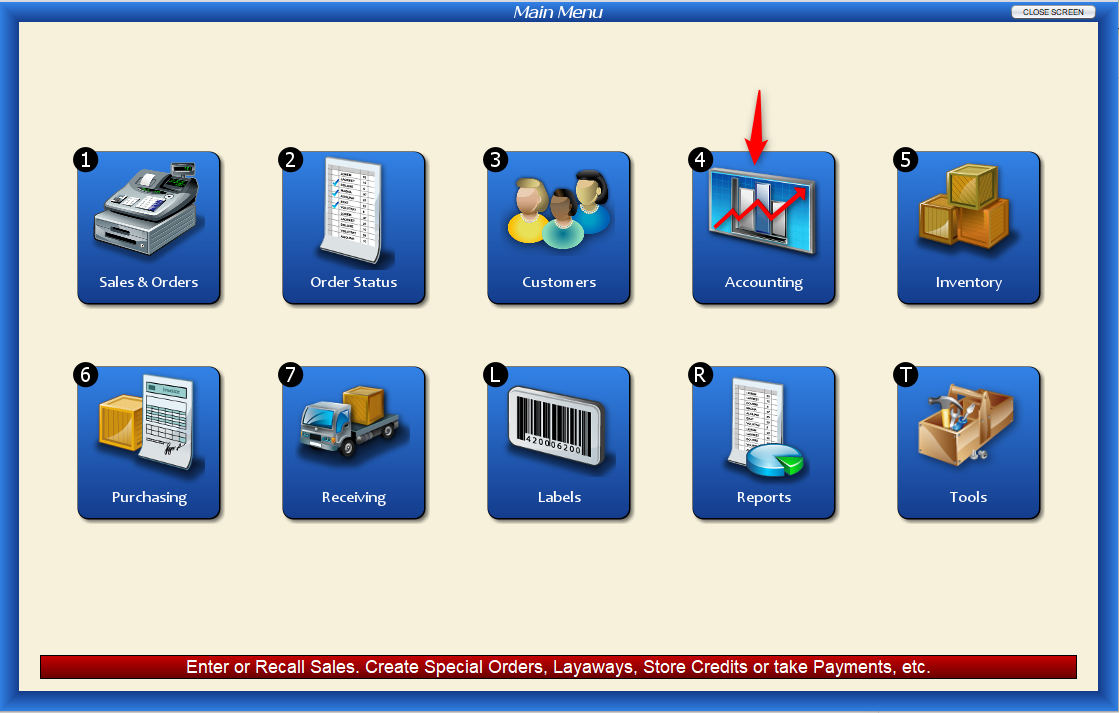
Head to the “Accounting” menu.
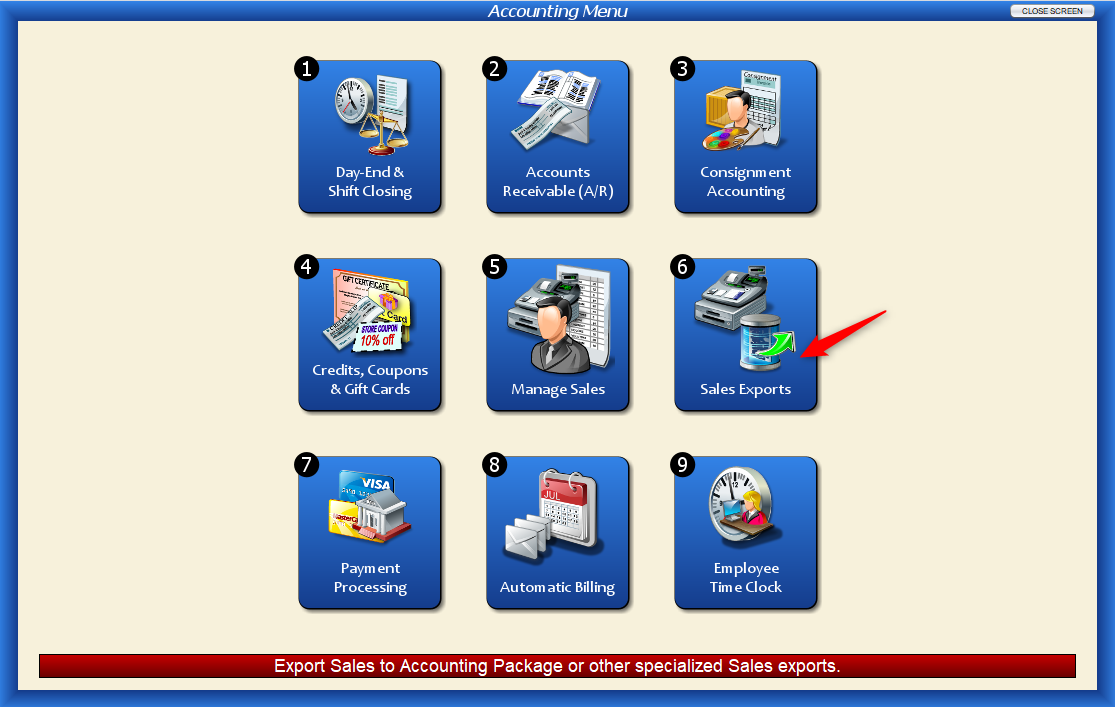
Click on “Sales Exports.”
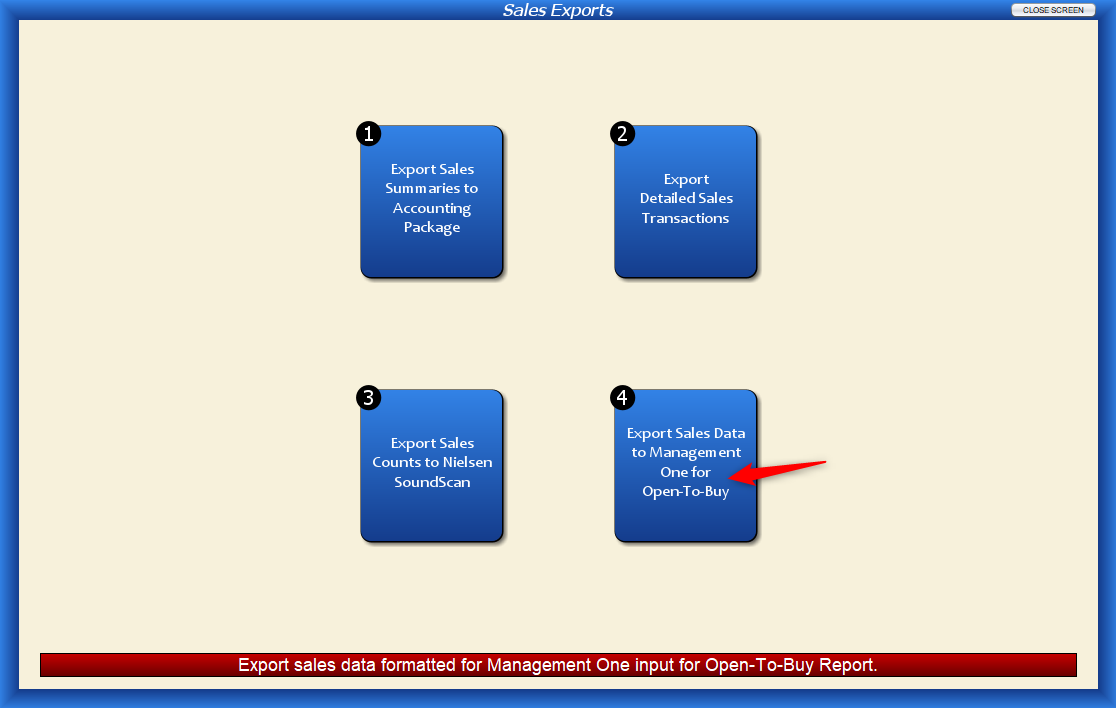
Select “Export Sales Data to Management One for Open-To-Buy.”
The exported file will be a .txt file that can be placed in a file or location of your choosing, as well as easy to upload directly to Management One through your dedicated portal.
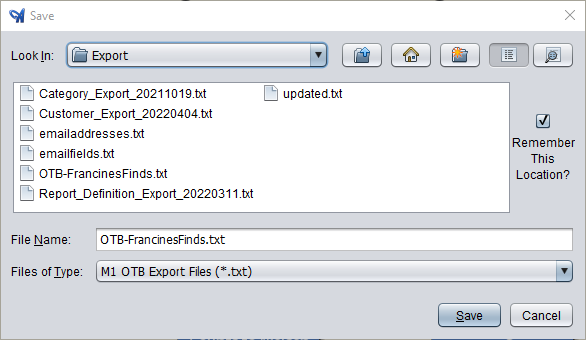
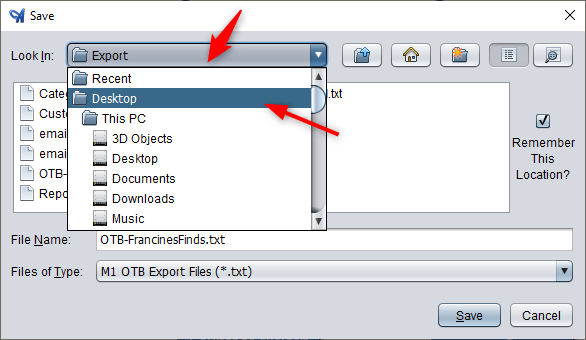
To change the location of this export, simply select the “Look In” dropdown.
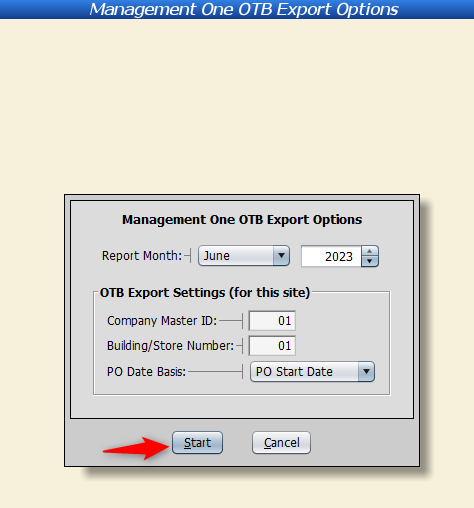
Artisan will then show you the “Management One OTB Export Options” screen.
Select the Report Month to export, as well as enter in any other additional necessary data – Company Master ID, Building/Store Number, and PO Date Basis.
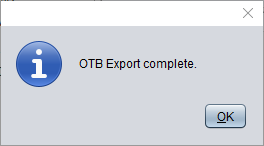
Artisan will confirm that the export is complete.
Retail Planning Report
The “Retail Planning Report” shows you what information is being sent to Management One. This is a great summary to see how your merchandise is performing and predictions for future sales.
From the “Reports” menu, select “Merchandising Reports.”

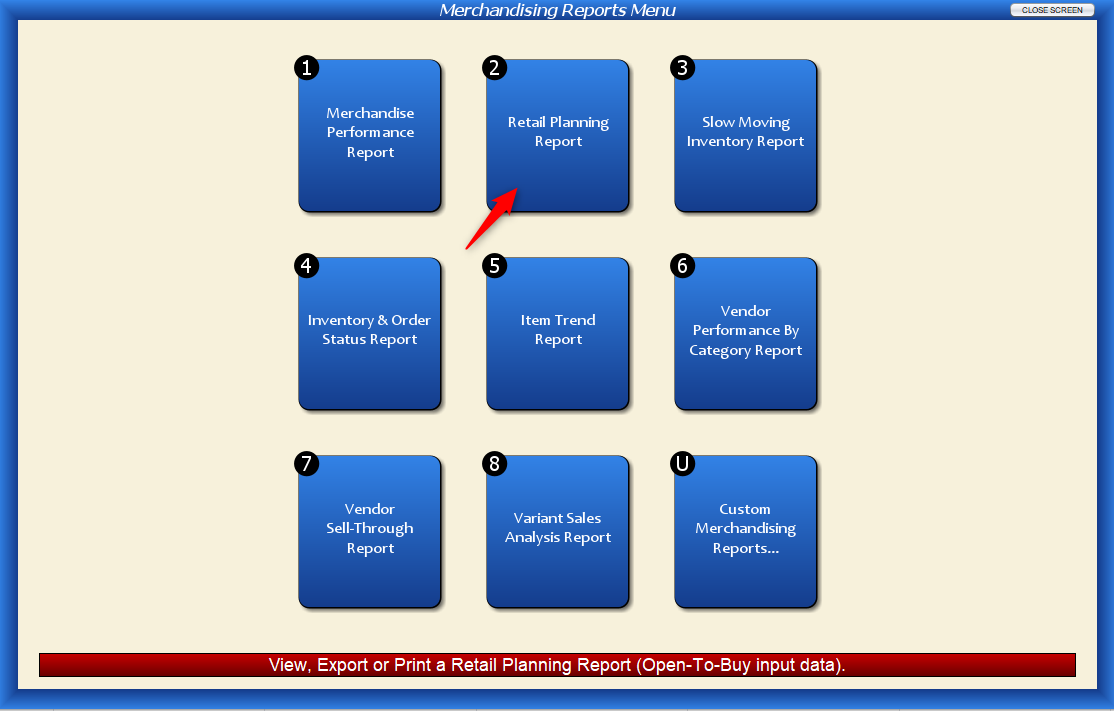
Select the “Retail Planning” report.
Select the report month and year, as well as the “PO Date Basis.”
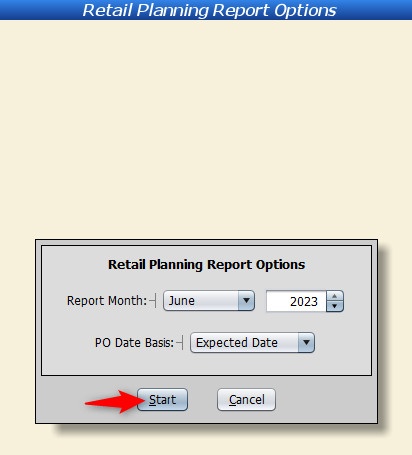
Press “Start.”