Artisan can store customer contact information, such as an email, in a customer record. This is especially helpful if you want to import this information into a marketing service or email program.
There are two ways to export customer emails in Artisan:
- Exporting from a customer list. Use the “Power Search Filter” to narrow down your results, add the “Email” column, and then click the “Export” button.
- Running Artisan’s “Customer Email Export Report.“
For detailed instructions on both methods, please keep reading.
Export by Using a Customer List
Open the “Customer Records” list.
It’s a good idea to narrow down your search results to only show customers with an email address. On the “Customer Search Filters” tab, select email addresses “Are Present.” Click “Show Matches.”

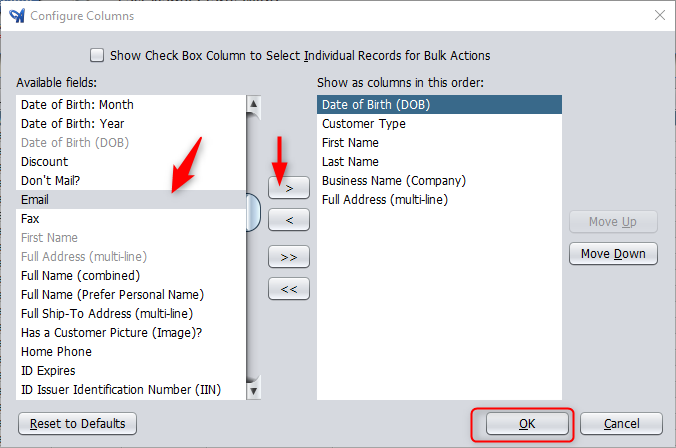
Right-click, select “Configure Columns.” Scroll down and add the “Email” column. You can use the “Move Up” and “Move Down” buttons to change the location of this column on your screen.
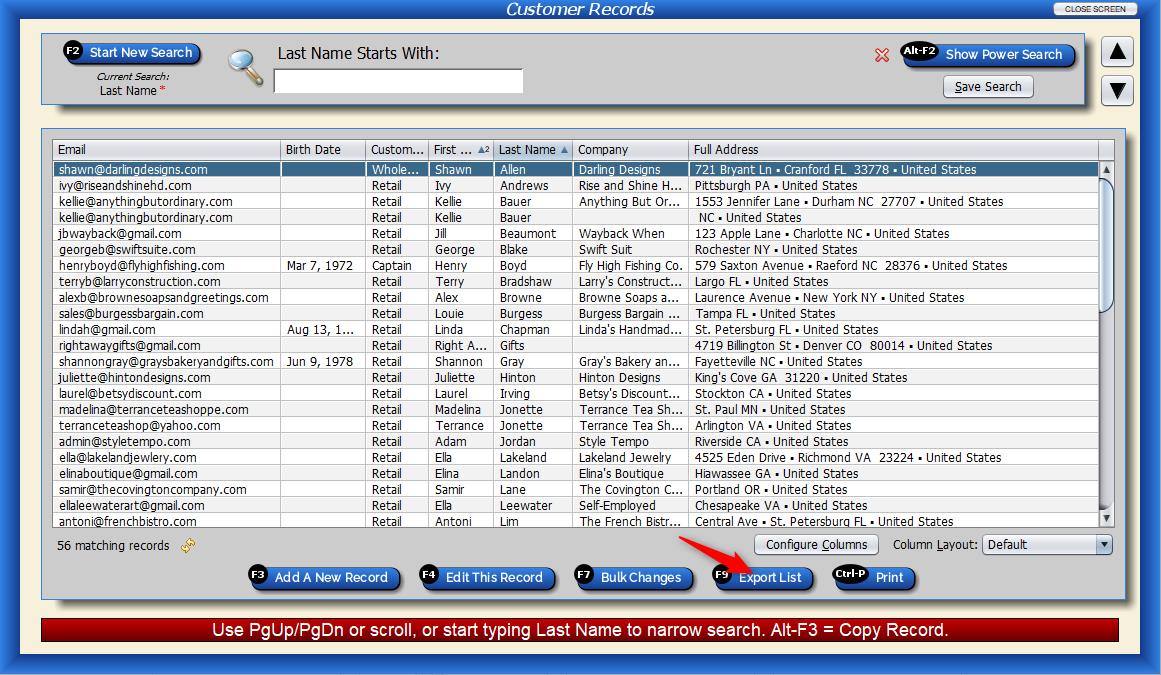
Click on the “Export List” button or F9 on your keyboard.
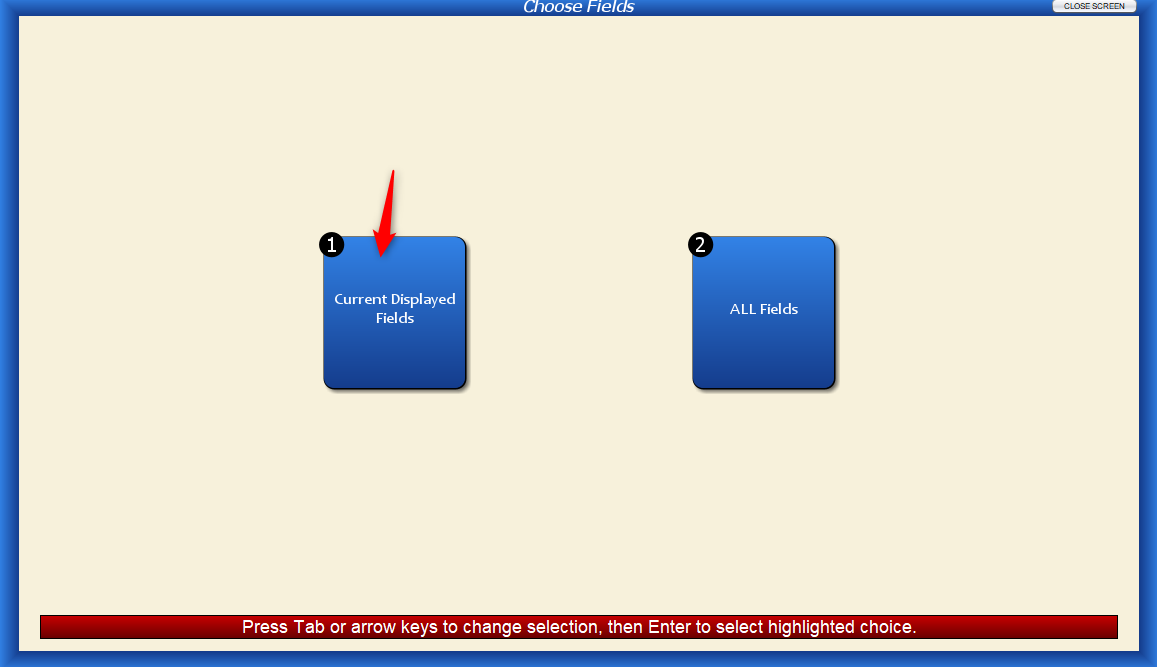
Select “Current Displayed Fields.”
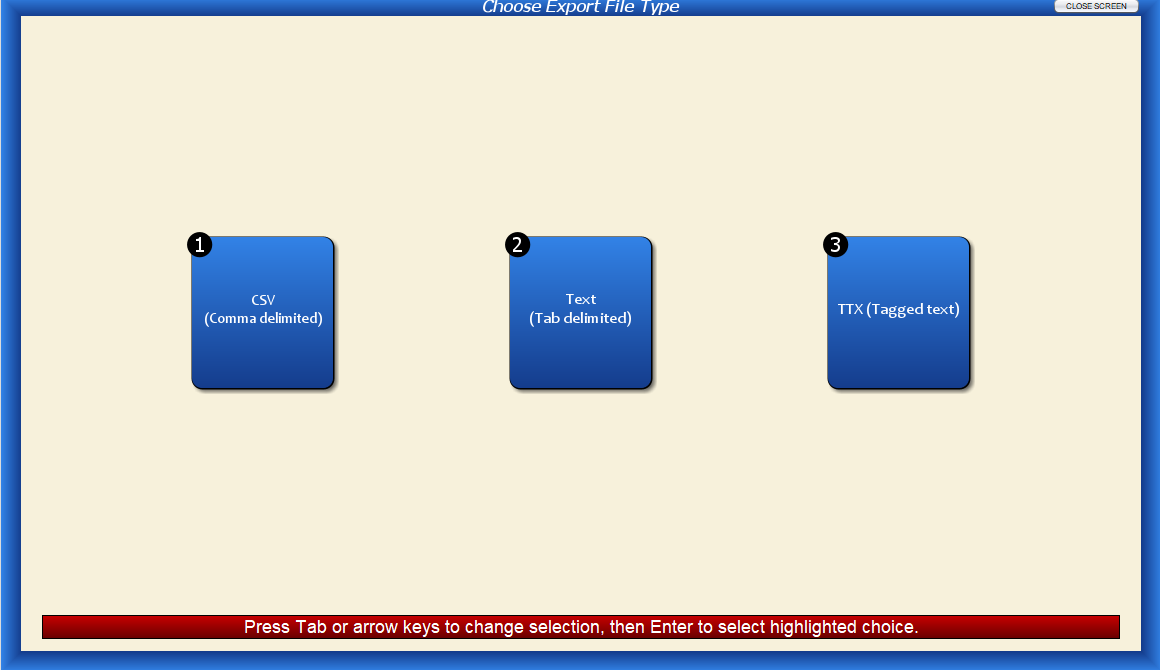
Choose the file type. Usually, email programs require .CSV.
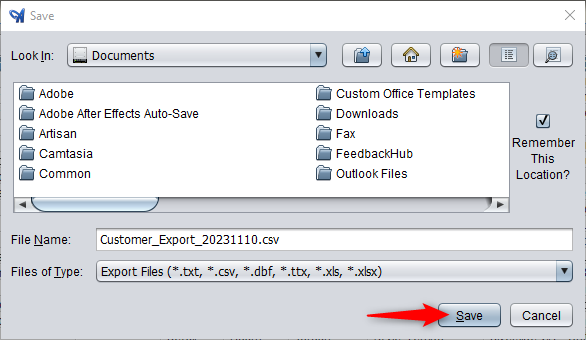
Choose where to save the file.
Accessing the Report
There are two ways you can access this report. From the top of the screen, click on “Reports,” “Customer Reports,” and “Customer Email Export Report.”

Or, from the “Main Menu,” click on “Reports.”

Select “Customer Reports.”
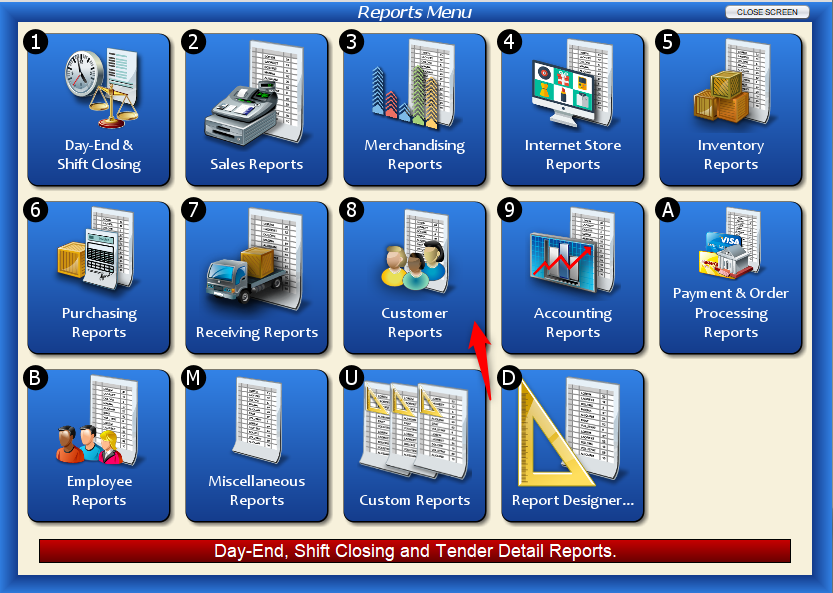
Click on “Customer Email Export Report.”

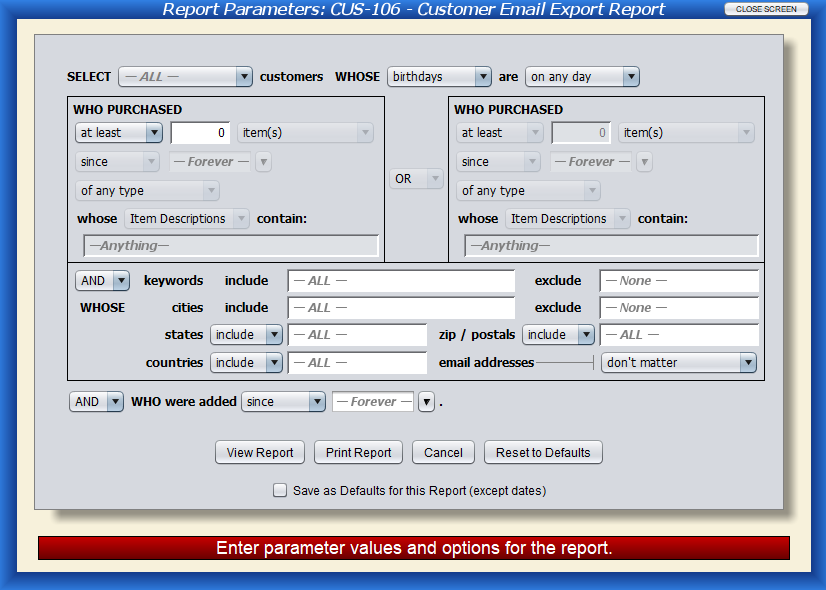
Either way, you’ll end up at the following screen.
Report Fields
Select (Customer Types) – This field contains your list of customer types (ex. retail and wholesale). Select one to only view customers in that category or leave it set to “all” to include every customer type.
Whose (Birthdays and Anniversaries) – Use these two fields to narrow down any customer birthdays or anniversaries. This is especially helpful if you’re planning on sending out special discounts to customers based on these criteria. Based on how often they’ve purchased from you, you can see if they might be more inclined to purchase from you again soon, and what items they might be interested in.
Who Purchased Specific Items or Dollar Amount Between Dates
You can further narrow down the report parameters here. There are plenty of options to “mix and match” your results. For example, you can include customers who purchased at least five items since May 3, 2022. Or, as another example, you can look for customers who purchased more than $50 worth of items in the last three months. These fields truly allow you to be as specific as possible.
You can even look for customers who bought items with specific descriptions or one of your own custom fields.
To narrow or expand your report, you may choose to include or exclude keywords and locations. You can also narrow down email parameters and define your report by when the customer was added to Artisan.
Example Report
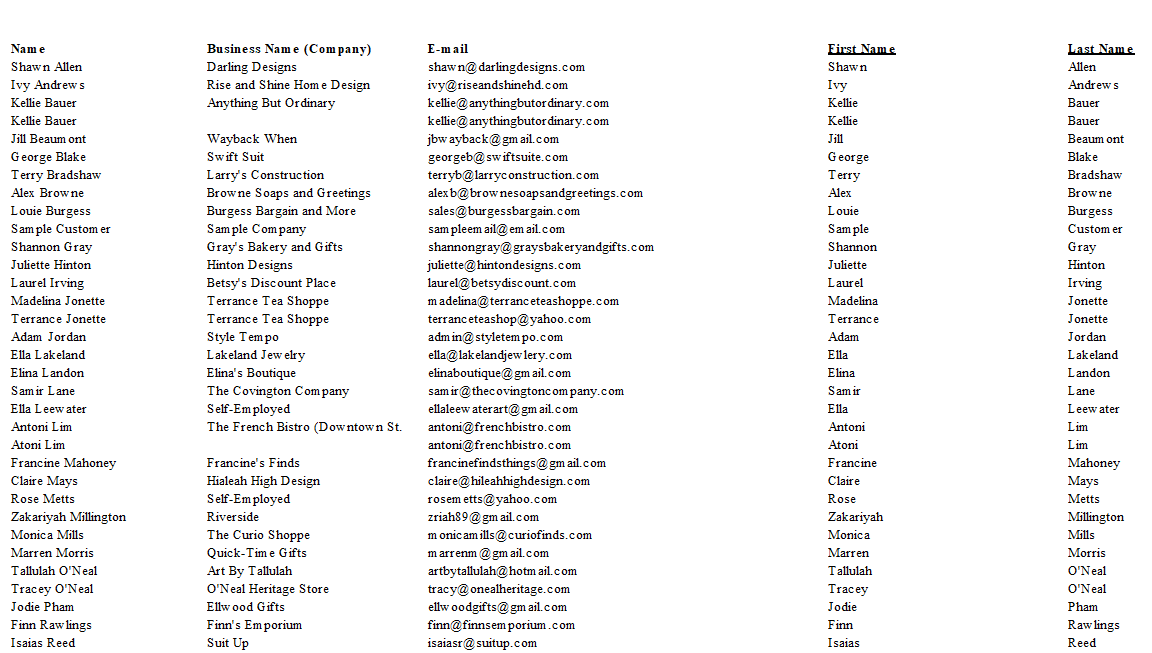
Click image to expand
In this example, we decided to list all of our customers. Artisan separated their information into customers, including full name, business name, email, and first and last name.
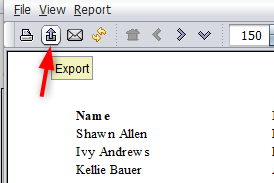
To export this report, click on the purple export icon.
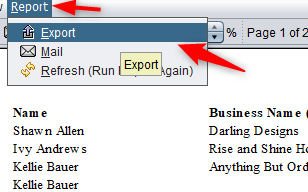
Or go to “Report” and “Export.”
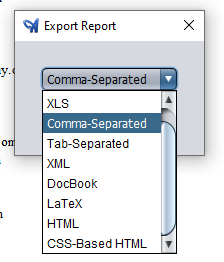
Select the file type you want to export the report as. Most email and marketing services require files in a comma-separated (CSV) file format.