
Artisan allows importing files for different types of records. Only RAW imports can be done. That is, the user needs to compile a file to meet a specific format we will describe below in this article. Once the file is in one of the recommended formats, then we can use the Raw Import Utility in Artisan to add records to the current database.
Steps to Follow
1. Like with any other records we will be importing, the first thing we need to do is look at the proper column headers for this type of record. Artisan needs a specific code to identify the data being imported – and those codes are given to you in this article. If you import a file with column header names different from what is given in this article, Artisan will ignore the data under that column entirely. To avoid this from happening, make sure you use the column headers appropriately.
2. Then, we work on the file to meet one of these formats. You can use any spreadsheet program – common programs are Microsoft Excel or Google Sheets. Make sure you save the file as one of these formats:
- Tex (Tab Delimited) *.txt
- CSV (Comma Separated Values) *.CSV
- Database file *dbf
- Tagged Text file *.ttx
- Excel Workbook *xls
- Excel Workbook *xlsx
3. Lastly, we import the file using Artisan’s Raw Import tool located at the top menu, “File,” and “Import.”

Import Codes and Headers
Artisan Excel Header | |
BOGODISC | BOGO Discount |
BOGOBRKTYPE | BOGO Qty Break Type |
BOGOADDQTY | BOGO Qty Extra |
BOGOMINQTY | BOGO Qty Required |
CHANGESTATION | Changed At |
CHANGEDBY | Changed By |
CHANGEDATE | Changed On |
CHARTPRICE | Chart Pricing Method |
COMBINETYPE | Combination Method |
COSTMARKDN | Cost Markdown from MSRP |
COUPONLIMIT | Coupon Limit (per Sale) |
CREATESTATION | Created At |
CREATEDBY | Created By |
CREATEDATE | Created On |
DISABLED | Disabled? |
ID | ID |
MENUORDER | Menu Order |
MODCOUNT | Modification Count |
NFERDISC | NFer Discount |
NFERBRKTYPE | NFer Qty Break Type |
NFERQTY | Nfer Qty |
PRICEPLUS | Price Add |
MARKDOWN | Price Markdown from MSRP |
PRICEMULT | Price Multiply |
SCHEMETYPE | Pricing Type |
BREAKLIMIT | Qty Break Limit (per Coupon) |
REQITEM | Required Coupon Item |
PRICEROUND | Round Amount |
ROUNDMODE | Round Mode |
SCHEMENAME | Scheme Name |
SZPRICE | Size Chart Unit Price |
USECOSTMD | Use Cost Markdown |
VISIBILITY | Visibility |
How to Import
IMPORTANT: Before importing any files into Artisan’s database, MAKE A BACKUP of your data in case you do not import what you wanted and want to go back to a previous point in time.
– Now that the file has been formatted according to the instructions above, you should have the file saved on the computer where you plan to do the import on.
– The file must be closed when importing in Artisan. It cannot be open in another program.
– The file must be saved using one of these file formats:
- Tex (Tab Delimited) *.txt
- CSV (Comma Separated Values) *.CSV
- Database file *dbf
- Tagged Text file *.ttx
- Excel Workbook *xls
- Excel Workbook *xlsx
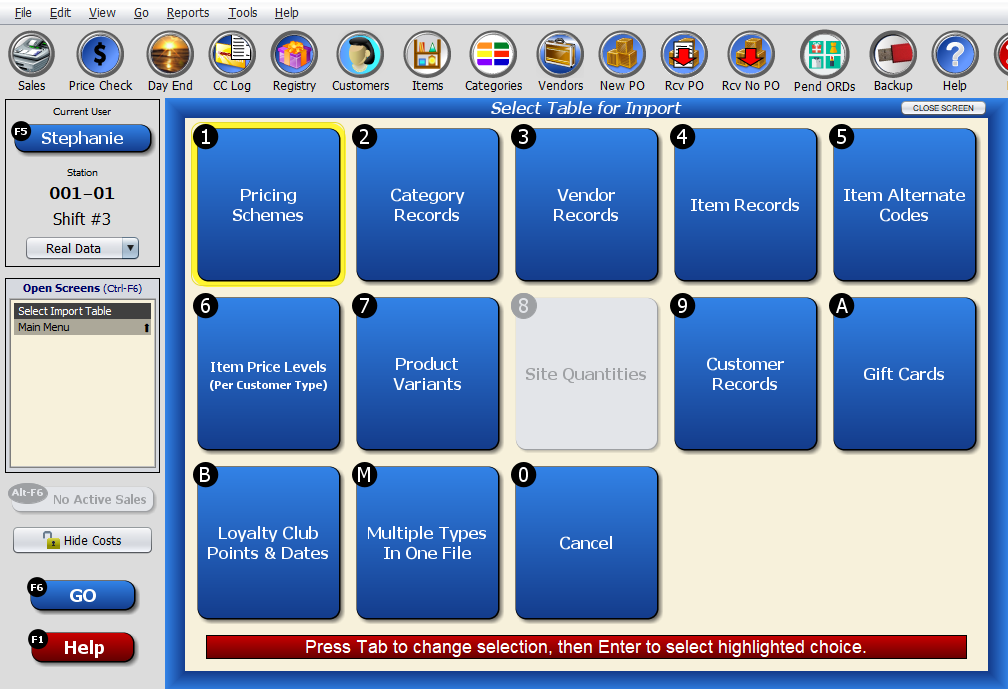
1. Go to Artisan and select “File,” and “Import.”
Choose the type of record you are importing.
2. Choose the file that has been created and select “Open.”
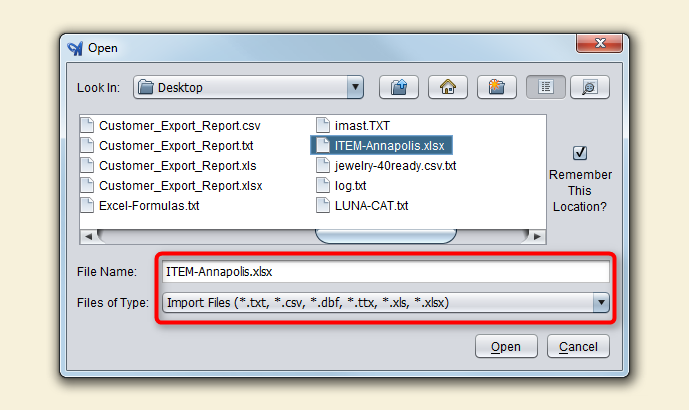
Once “Open” is selected, Artisan will start importing the items and a progress bar will be displayed.

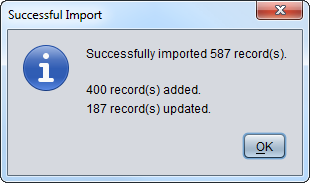
3. If the file was correctly formatted, a confirmation message will be shown next with the number of records “updated” and new records “added.”
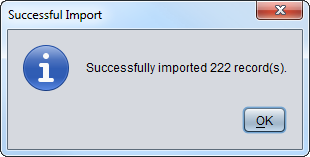
Optional: Revise Imported Records (Recommended)
This step is not required as part of the import but ensures everything went well with your files and allows you to reverse the action if needed.
It is good practice to check that the records were imported as intended. Artisan offers its user the ability to search for these records through a “Power Search.”
*If you are not familiar with the Power Search feature in Artisan, learn more about it in this article.
1. In Artisan, go to any type of records you’d like to search. In this example, we will use Item Records, but other records work in a similar way, just with different fields.
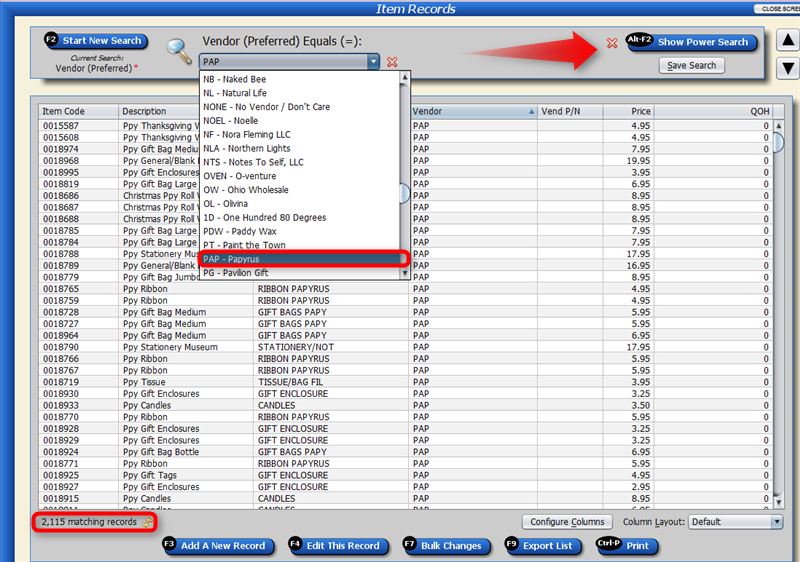
Select the Vendor to narrow down the list of items. In this case, PAP – Papyrus is selected.
Notice that there are 2,115 records for this vendor before importing any item.
Under the Item Records Screen, select the Power Search tool on the right side of the window.
2. After we imported our items, we received the following confirmation message (see image below)
- 400 records added
- 187 records updated
3. Using the Power Search tool, follow the image below to query the database through filters. First, we will look at the new items added.
Notice we chose “Created On” and picked the date. We can see that it shows 400 items that were created.
You have the ability to use whatever field you want to query the database. You could use “Created By,” for example, and choose a user to see who added the items. Or, you can add even more filters to have a combination. Feel free to experiment with other fields to see the information retrieved.
