
Before you can export accounting data, you must configure Artisan’s External Accounting Package Settings to map to the appropriate accounts in the Chart of Accounts in your accounting program. This article describes those settings in detail. To learn more about Charts of Accounts, see Understanding Your Chart of Accounts.
Before you begin, make sure you’ve turned on the External Accounting feature. See Turning On External Accounting.
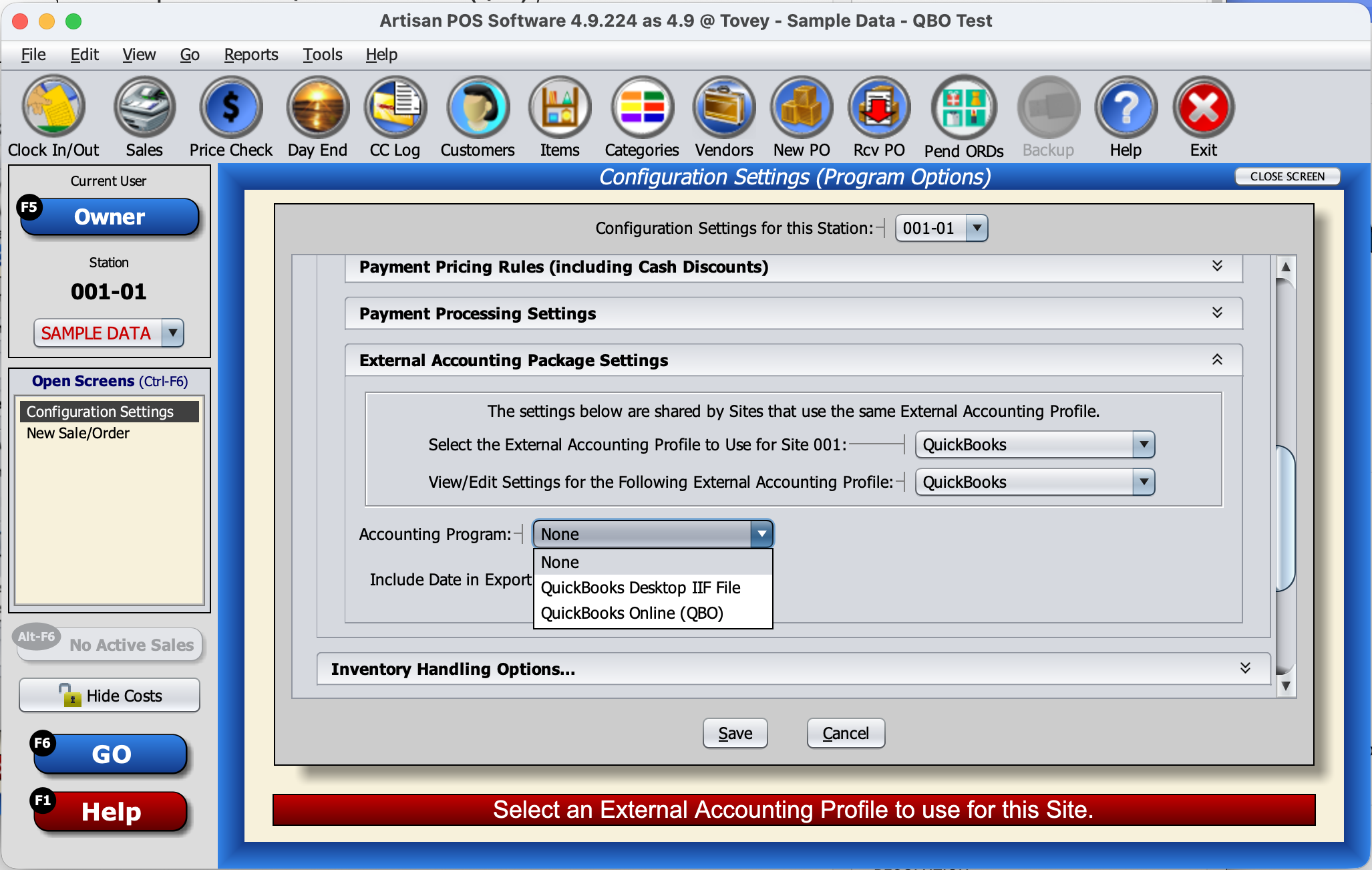
From Tools => Options, click on “Business and Financial Settings” and then “External Accounting Package Settings.“
From here, you can configure your settings for exporting to external accounting programs like QuickBooks. These settings are associated with an “External Accounting Profile”. If you have just one set of External Accounting settings, you can use the default “Standard Profile”, if you want, or create a new one. If you need different settings for different sites (physical stores or online stores), you’ll need a separate profile for each site.
To add a new profile, open the dropdown and click “Edit List.“

Click “Add” and call this profile “QuickBooks” (or whatever). Click “OK.”

Select your new profile from the “View/Edit Settings” dropdown.

Next, from the “Accounting Program” dropdown, select “QuickBooks Desktop IIF File” or “QuickBooks Online (QBO)“, as appropriate.
Other general settings
There are a few settings in the top section in addition to the Accounting Program selection.
Default “Class” Name: Some accounting programs, including QuickBooks, support classes as a more fine-grained way to categorize transactions beyond accounts. This is often used to distinguish amounts for separate business entities or stores in a multi-store company. This optional setting allows you to specify a class to append to each account, but you can override this by putting a class name after a double percent-sign (“%%”) in any individual account setting. (For example, “Sales Income%%Store 2”). Leave this blank if you don’t use classes.
Include ALL Sites in One Export (Multi-Site Only): Set this if you have multiple sites and want them all to be included in one accounting export (from any site), each with their own External Accounting Profile (usually distinguished by “Class” or an entirely separate set of account names).
Include Date in Export Filename: For file-based exports, like QuickBooks Desktop, this appends the date (of the last included closing) to the default export filename, so you can keep multiple day’s copies in the same folder. For example, “DayEnd-YYYYMMDD.IIF” instead of “DayEnd.IIF”. This field is not shown for direct integrations such as QuickBooks Online.
The rest of the External Accounting Package Settings are divided into “Deposits and Bank Accounts,” “General Accounts,” “Inventory Adjustment Expense Accounts,” “Accounts Receivable,” and “Accounts Payable and Vendors” sections.
Each of these sections contains a number of fields corresponding to abstract accounts in Artisan, like “Primary Bank Account”, “Sales Income Account”, “Cost of Goods Account”, etc. Fill in the exact account name or number of a corresponding account in the Chart of Accounts for your external accounting program. If an appropriate account doesn’t already exist in your Chart of Accounts, you’ll have to create a new one, and then fill in that name or number in Artisan.
Be sure to pick (or create) accounts of the correct type (Income, Expense, Asset, or Liability), as listed in the detailed description of each Artisan configuration field. You can use the same account name/number in multiple fields, if you want to combine multiple amounts into one account.
If your accounting program uses sub-accounts, enter the whole “chain” of accounts, starting with the main account, with each level separated by a colon (“:”). For example, “Cost of Goods Sold:Shipping Cost”.
If your accounting program uses “classes”, you can append a class name to each account (separated by “%%”), or use the Default “Class” Name setting, above, to use the same class for all accounts.
Deposits and Bank Accounts
Primary Bank Account: This is the main bank account where your cash and checks are deposited. Often, credit card deposits go to the primary account as well, but this can be overridden based on Deposit Group numbers (see below).

In the next section you can change which bank account different payment types go to, based on their Deposit Group numbers. You can also set them to be left in the “Undeposited Funds” account, if you want to record deposits manually in QuickBooks.

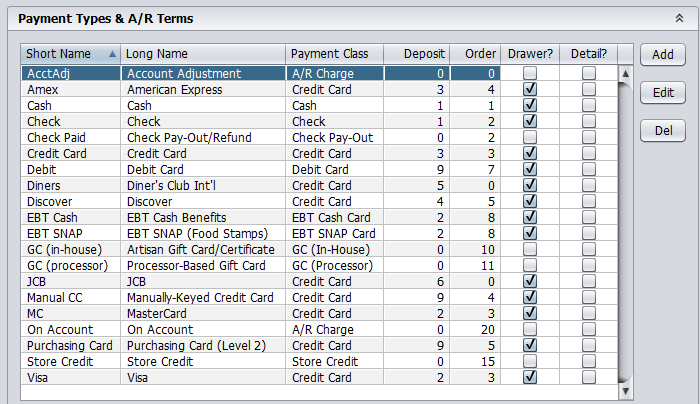
You can control which Payment Types are included in which Deposit Group by going to “Payment Types & A/R Terms”.
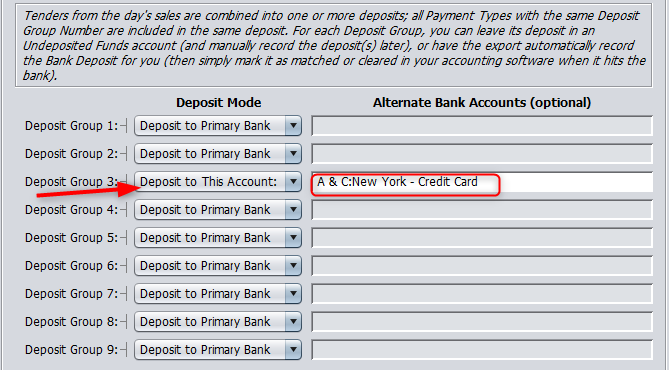
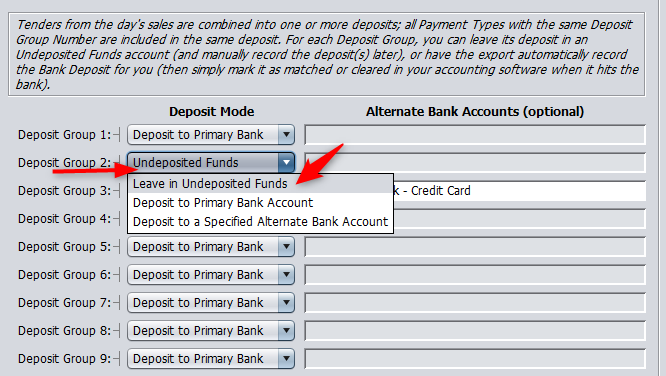
Deposit Modes: Each Deposit Group has a selector for a “Deposit Mode.” There are three deposit modes to choose from: “Leave in Undeposited Funds,” “Deposit to Primary Bank Account,” and “Deposit to a Specified Bank Account.” Normally, you’ll leave your deposit groups set to “Deposit to Primary Bank.” But there are exceptions.
For example, let’s say you want your credit card deposits to go into a specific account or group (let’s say Group #3). Click on the dropdown for “Deposit Group 3” and change it to “Deposit to Specified Bank Account,” then enter the corresponding account name/number from your chart of accounts. (For example, “A & C:New York – Credit Card.”)

If you want to record deposits manually in your accounting program (where supported), set the corresponding groups to “Leave in Undeposited Funds,” and fill in the “Undeposited Funds Account” field with the name/number of that account (which, for QuickBooks, will typically be “Undeposited Funds”).
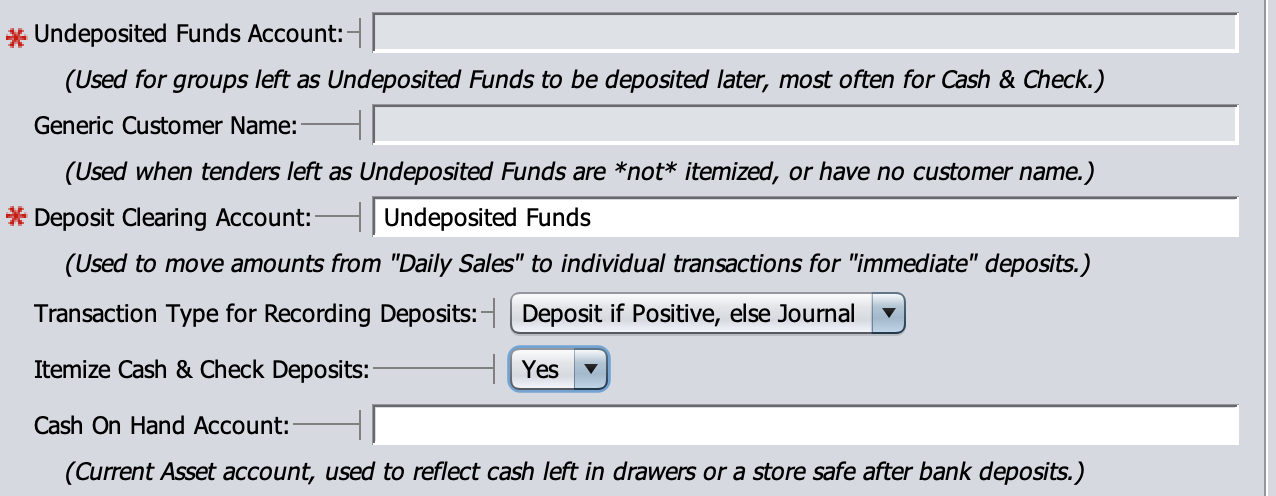
Undeposited Funds Account: Use this Current Asset account if you’ve set any deposit groups to be left as Undeposited Funds. For QuickBooks, this should be the built-in account named “Undeposited Funds.”
Generic Customer Name: If you’re using Undeposited Funds, set this to “Customer” or some other generic name to use when any undeposited tenders have no name associated with their sales in Artisan or aren’t itemized. (See “Itemize Cash & Check Deposits.”)
Deposit Clearing Account: Use this Current Asset account if you have any deposit groups that are not left as Undeposited Funds. You’ll probably have to create a new account for this in your Chart of Accounts. This account is used to transfer amounts from the overall “Daily Sales” journal entry to the Deposit transactions for the specific bank account(s), and should always net to zero.
Transaction Type for Recording Deposits: There are several options for how to record deposits in your accounting program. For QuickBooks, the best choice is “Deposit if Positive, Else Journal”, since QuickBooks does not allow negative deposits. Other options are to always record as a Journal Entry or always record as a Deposit.
Itemize Cash & Check Deposits: Select “Yes” to itemize deposits containing Cash and/or Checks to show each check on its own split line, with check details (if available) like check number and name (with one line for Cash). This itemization applies to both the “Daily Sales” Journal Entry and any created Deposit transaction(s).
Cash On Hand Account: This is a Current Asset account used to reflect any cash left in drawers or a store safe after bank deposits, if you use the Cash Counter to reduce the amount of the cash deposit at the end of the day.
General Accounts
The next section is the “General Accounts” section.

Sales Tax Account & Payee: When you collect Sales Tax, you don’t pay it to the state daily, so this is the account that accumulates your sales tax due into a Current Liability account (often called “Sales Tax Payable”). Make sure to also fill in the Payee Name (required by QuickBooks). This is the name of the tax authority to whom you will write checks for Sales Tax. It’s critical that you enter this name correctly and that it exactly match the name configured in your accounting program.
Sales Income Account – Enter the external account name or number to use for Sales Income (unless overridden by a Category record, when Allow Category Overrides is set). This will be Net Sales Income if the general Sales Discount Account is blank; otherwise it will be Gross Sales Income. This includes sales of both owned and consignment items, unless you configure a Consignment Sales Income account (see below).
Consignment Sales Account: Use this if you want to separate out your consignment sales income on the accounting side. This will be Net Consignment Sales Income if the general Sales Discount Account is blank; otherwise it will be Gross Consignment Sales Income. If this setting is left blank, consignment sales income will be included in the general Sales Income Account (or corresponding Category-specific account, if overrides are allowed). Either way, Artisan has some reports that distinguish consignment sales vs regular sales, so you don’t need to separate them in your accounting program.
Sales Discount Account: Normally, Net Sales Income is exported to the Sales Income account, but if you want, you can specify a Sales Discount Account here. In that case the Sales Income export will be the Gross (pre-discount) Sales Income.
Non-Sales Income Account: Use this to record Non-Sales Income (“Other Income”) from sales of items in Non-Sales categories.
Cost of Goods Account: Cost of Goods Sold or COGS is an accounting term, and it is the raw cost of normal and consignment sales, normally excluding transportation costs. Transportation costs may be included if Artisan has been configured to do so, but most businesses need to immediately expense the transportation costs. QuickBooks often creates this account for you, and they even have a Cost of Goods account type, which is a special category of Current Assets. Understanding how Cost of Goods works is integral to accounting for sales of inventory.
It is critical to understand that when you purchase inventory, it goes into an Inventory Asset account. It is never considered an expense until the merchandise is sold. Artisan will move the cost amount from the Inventory Asset to Cost of Goods Sold as sales are marked delivered. Most sales are automatically marked delivered except special orders and deferred shipping.
Consignment Cost Account: Use this if you want to separate out your consignment COGS on the accounting side. If you leave this field blank, then Consignment Cost will be included in the Cost of Goods Sold account. Either way, Artisan has some reports that distinguish cost of consignment sales vs regular sales, so you don’t need to separate them in your accounting program.
Inventory Asset Account: This is a required account if you have any owned (non-consignment) inventory. Artisan adds and subtracts from your inventory asset value as items are invoiced, sold, or adjusted. Note that just receiving inventory will NOT increase this value. You must either use Vendor Invoices or manually enter your invoices into QuickBooks. It works this way so you don’t double enter your inventory. Ultimately you have to pay for that inventory and when you do, it becomes an Inventory Asset in QuickBooks. See Also Cost of Goods and Accounts Payable.
Cash (etc) Over / Short: Often we have cash (and occasionally other payment types) that are over or under what we are expecting. During the Day End process, you can make adjustments and this is the account where that goes. This account should be an Income or Expense account. (It will be income when net positive and an expense when negative.)
Cash Rounding Account: If you’re using the Cash Rounding feature (also known as Penny Rounding), this account accumulates the corresponding adjustment income/expense. Often this will be the same account as Cash (etc) Over / Short. It should be an Income or Expense account. (It will be income when net positive and an expense when negative.)
Gift Card Liability Account: When a GC (Gift Card or Gift Certificate) is issued, it is not considered a sale. There is no sales tax due and nothing to report as sales. Instead, it counts as a Current Liability. Once the GC is redeemed, the liability is reduced. The GC is applied as payment on the merchandise sale, but it is that merchandise sale itself that counts as Sales Income and incurs Sales Tax, not the GC. On the Sales Summary report this total can go up or down depending on the activity. This account would theoretically zero out eventually, but inevitably some GCs will never get redeemed.
GC Discount Expense Account: When a GC is issued at a discount, the discount amount will be sent to this expense account.
Check Pay-Out Account: This Expense account records checks paid to customers (for refunds or Buy From Customer transactions) or for miscellaneous pay-outs from the Sale Screen.
Customer Deposits Account: When you enter a layaway, sales order, special order, custom order, or deferred shipping (manually mark shipped orders delivered) then, until it’s marked delivered, it’s not counted as a sale and sales tax is not due. Any deposit or additional payments made are held in this Current Liability account until the layaway/order is marked delivered and treated as a sale. At that time, the Customer Deposits account is reduced. Similarly to the GC Liability Account, this account will theoretically zero out eventually.
Store Credit Account: This is another Current Liability account, similar to Gift Card Liability and Customer Deposits. It represents the liability for Store Credits issued but not yet redeemed.
Tips (Gratuity) Account: This Current Liability account hold tips received but not yet paid out to employees. Note that Artisan handles the collection of tips, but it does not handle tip payments to employees. Employee payments must be handled outside of Artisan and recorded manually in your accounting program (by reducing the amount in this account by the amount paid, typically zeroing it out).
Inventory Adjustment Accounts
When merchandise is given away, used in house, destroyed, or otherwise taken out of inventory w/o selling, or added to inventory w/o receiving, the resulting reductions or increases in inventory asset value can be exported to specific expense accounts, rather than being lumped into Cost of Goods Sold. (These could be made sub-accounts of COGS if you want to do it that way.)
You could choose to have a single Inventory Adjustment account, and set all of the Inventory Adjustment Expense Accounts fields to that account. However, we recommend splitting the different types of adjustments into separate accounts or sub-accounts, as shown below, to give your accountant more visibility into the reasons for the adjustments.
All of these should be Expense accounts. DO NOT use the Inventory Asset account here. All of these transactions will also include an equal and opposite corresponding adjustment to the Inventory Asset account.
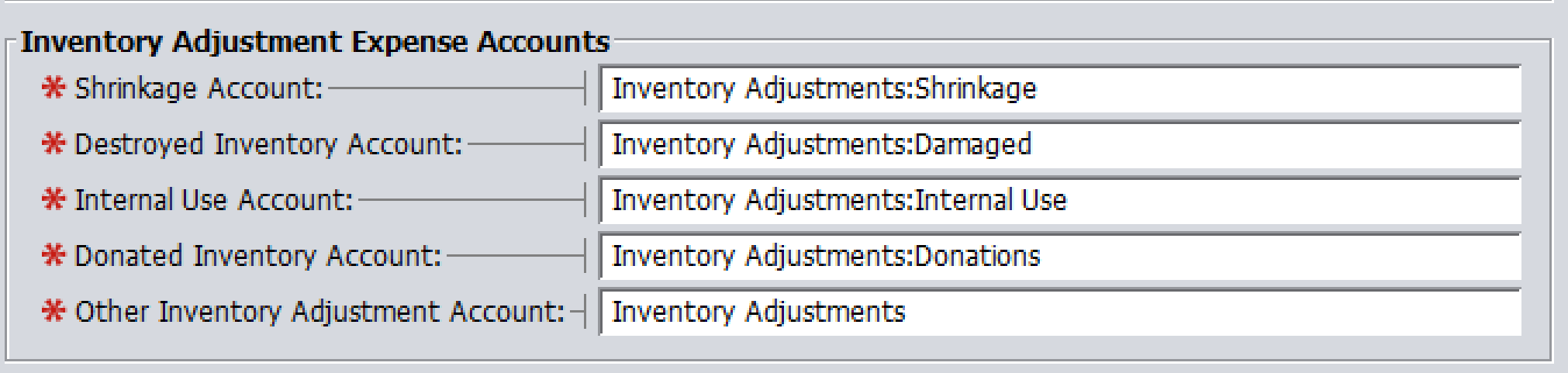
Shrinkage Account: Technically this is inventory that has been lost or stolen, but during a physical inventory any shortages are classified in this category. If you know that you failed to record a Donation, for example, make sure to enter that into Artisan before performing a physical inventory.
Destroyed Inventory Account: Anytime something is broken or damaged beyond the ability to sell it at a discount, then it is written off as an expense (unless the vendor takes responsibility for it). If you are returning defective merchandise, use Return to Vendor instead.
Internal Use Account: If you consume some of your product in the process of selling them, then that is considered Internal Use. For example, if you sell candles and you actually burn some of them as demonstration. The same is true if sell paper towels and you use some of them to clean your counter. You must take them out of inventory using an Internal Use adjustment; you can’t just go pull them off the shelf as needed. Also note that Artisan does not compute or report any Use Tax that might be due as a result of Internal Use; it’s your responsibility to handle that outside of Artisan.
Donated Inventory Account: When you give away merchandise to a charity or participate in a charitable promotion, and record it as a Donation, it’s recorded using this Expense account. Consult your accountant to determine whether donations are tax deductible.
Other Inventory Adjustment Account: Any type of inventory adjustment not listed above is exported to this expense account.
Accounts Receivable (A/R) Accounts
If you use the House Accounts or Full A/R features, then this group of accounts comes into play.

Accounts Receivable Account: All A/R funds go through this Current Asset account. (In QuickBooks, it may be the built-in special “Accounts Receivable” account.) This account holds the balance of your open accounts; individual transactions may increase or decrease this balance as sales are charged and paid off.
Finance Charge Income Account: Finance charges are recorded with this Income account.
Late Fee Income Account: Late fees are are recorded with this Income account. Often set to the same account as Finance Charges.
Manual A/R Adjustment Account: If you change a customer’s A/R balance directly, in the Customer Record, without a new charge or payment, it will be recorded as a Manual A/R Adjustment (offset by an equal and opposite change to the Accounts Receivable Account). This is an Income account. When it is necessary to edit the A/R balance field directly rather than through a sale or a return. This could be one way to write off bad debt and therefor this account is an Expense in QuickBooks.
Create Individual A/R Transactions (Yes/No): Normally, all A/R (Accounts Receivable) transactions (new charges and payments) for all customers are lumped into a single Net A/R line in the Daily Sales summary transaction. If you select “Yes” here, you’ll instead get a separate A/R transaction for each customer with any A/R activity on that day. This lets you track individual A/R balances in your accounting package. It does not let you produce detailed A/R statements in your accounting program. Artisan is responsible for generating and printing A/R statements.
A/R Clearing Account: When using Individual A/R Transactions, this account is used as a temporary clearing account for the A/R amounts to move them from the Daily Sales journal entry to the individual transactions. Like the Deposit Clearing Account, this is a Current Asset account and should always net to zero. It’s often set to the same account as the Deposit Clearing Account.
Accounts Payable & Vendor Accounts

A/P Export Mode: This setting determines which type(s) of Accounts Payable transactions, if any, are exported:

Accounts Payable Account: This is a Current Liability account (or special Accounts Payable account) used to record payments due to vendors for Vendor Invoices and/or Consignment Statements. If Allow Vendor Overrides is set to Yes, this account can be overridden by accounts set in individual Vendor Records.
Shipping Cost Account: This account receives the Expense for inbound shipping (freight) costs associated with any exported Vendor Invoices, if not distributed to individual units as part of Cost of Goods Sold. See the Shipping Cost Distribution setting under General Business Settings.
Leave a Reply
You must be logged in to post a comment.