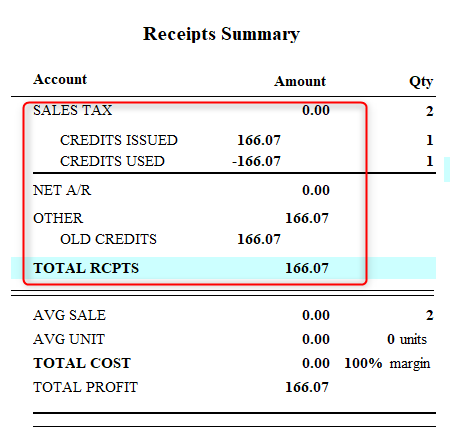
A store credit occurs when a customer returns an item and instead of receiving the refunded payment via cash, credit, or other tender, the money is left on their account if they want to purchase something at your store.
With that in mind, if you want to remove store credits that have expired in Artisan, please follow these steps. Note: The only way to completely get rid of the credit is to void the original sale, though we do not recommend this based on the details above.
View Store Credits
To view your store credits, head to “Accounting” on the “Main Menu.”
Select “Credits, Coupons, and Gift Cards.”
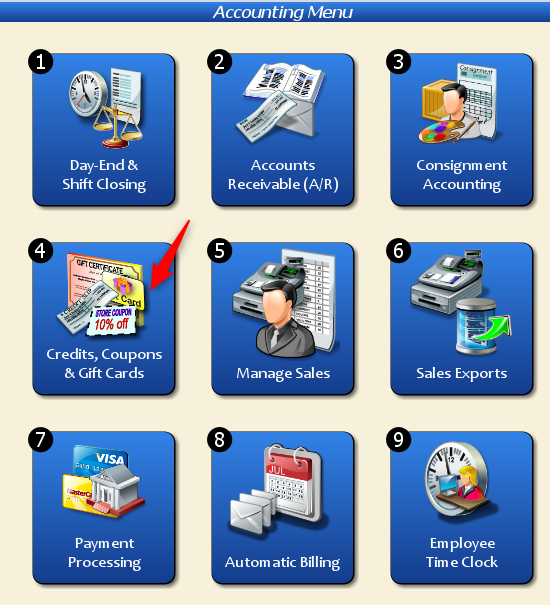
Then, select “Store Credit Slips.”

Artisan shows a list of all store credits.
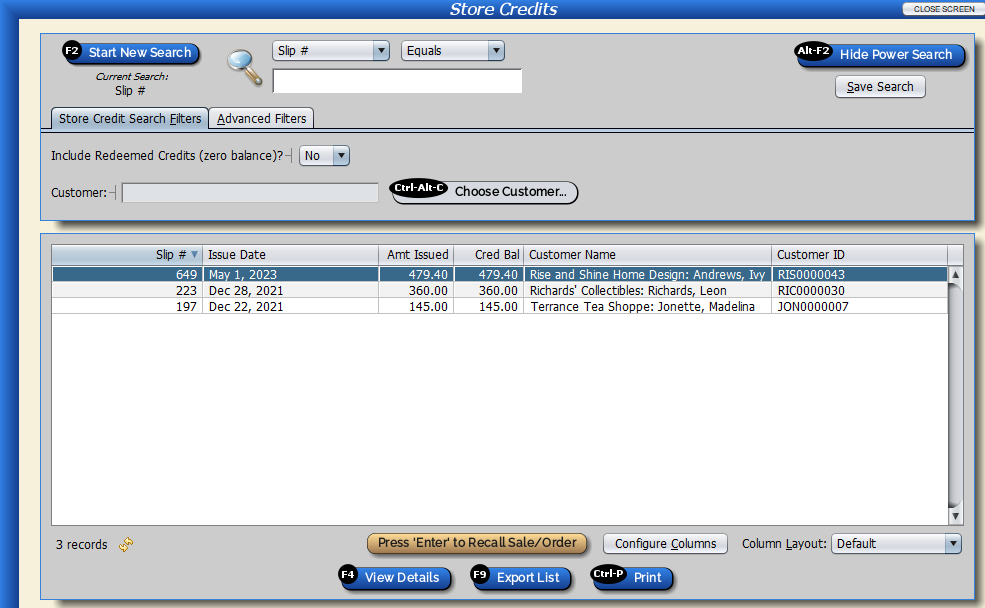
Setting Expiration Dates for Store Credits
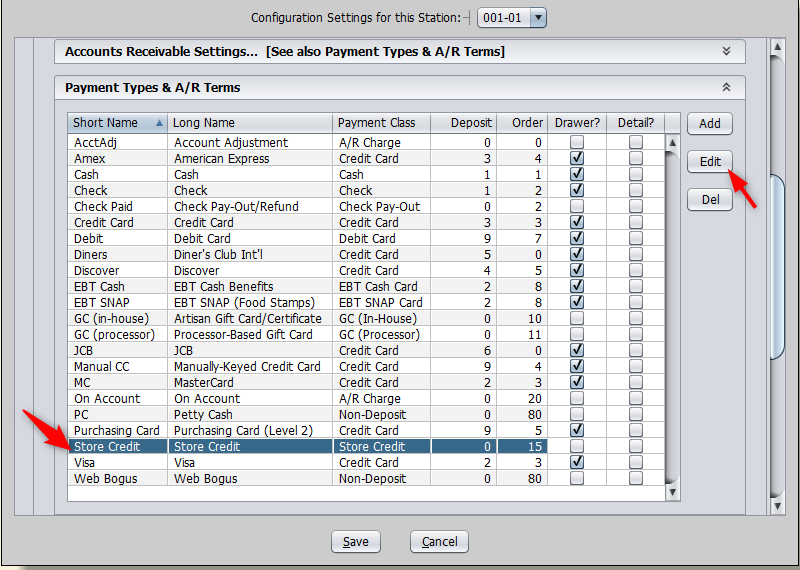
To enable expiration dates for store credits, head to “Payment Types.”
To get to this screen, go to “Program Options” and expand “Business and Financial Settings.”
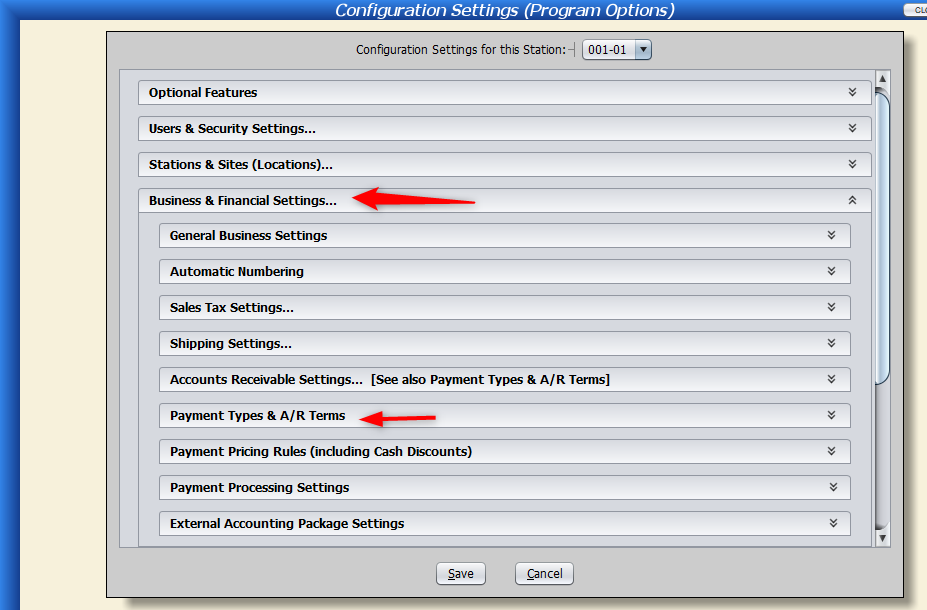
Select “Store Credit” and the “Edit” button.
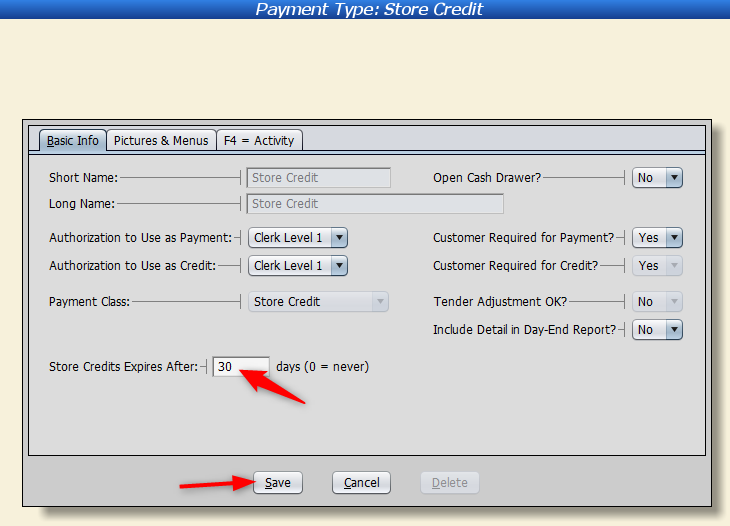
Enter the number of days you want the credit to expire after.
Remove Expired Credits
To remove expired credits, please follow these steps.
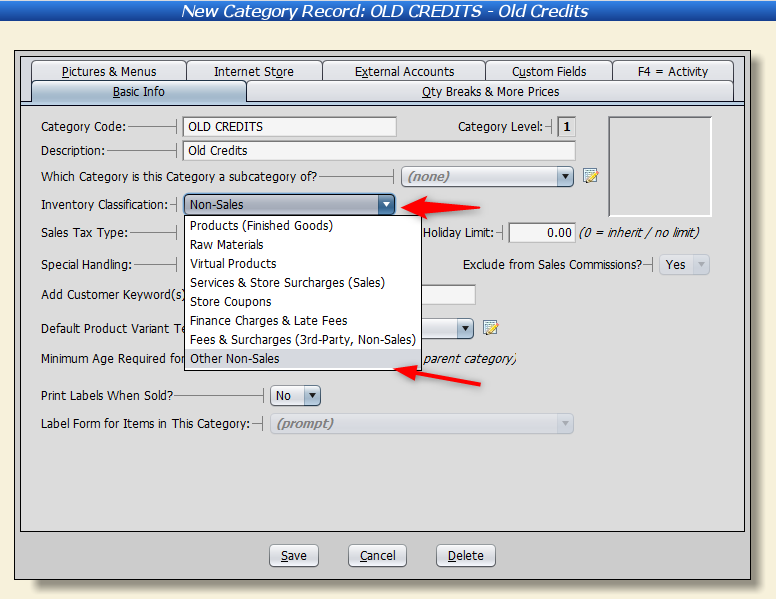
1. Create a category (ex. “Old Credits“).
Set the “Inventory Classification” to “Other Non-Sales.”
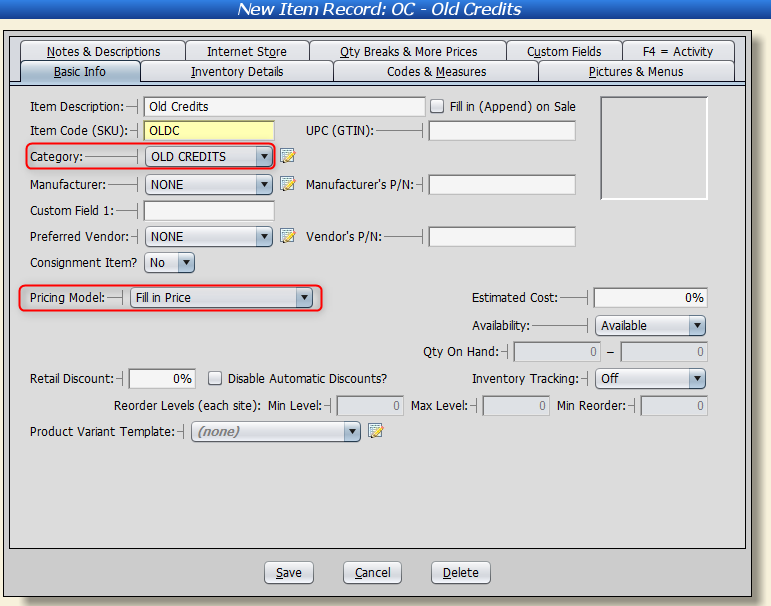
2. Next, create an item record (ex. “Old Credits“).
Set the “Category” as the “Old Credits” category you just created.
Leave the price to “Fill in Price at Time of Sale.”
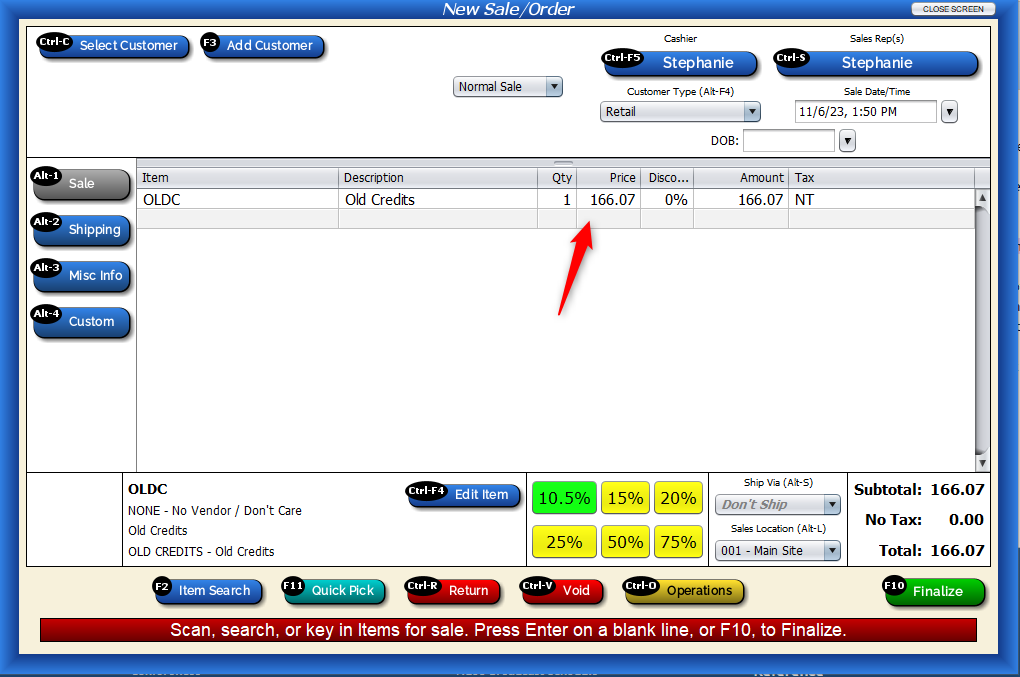
3. Open the Sales Screen.
Add the “Old Credit” item and enter the price of the credit you want to remove.
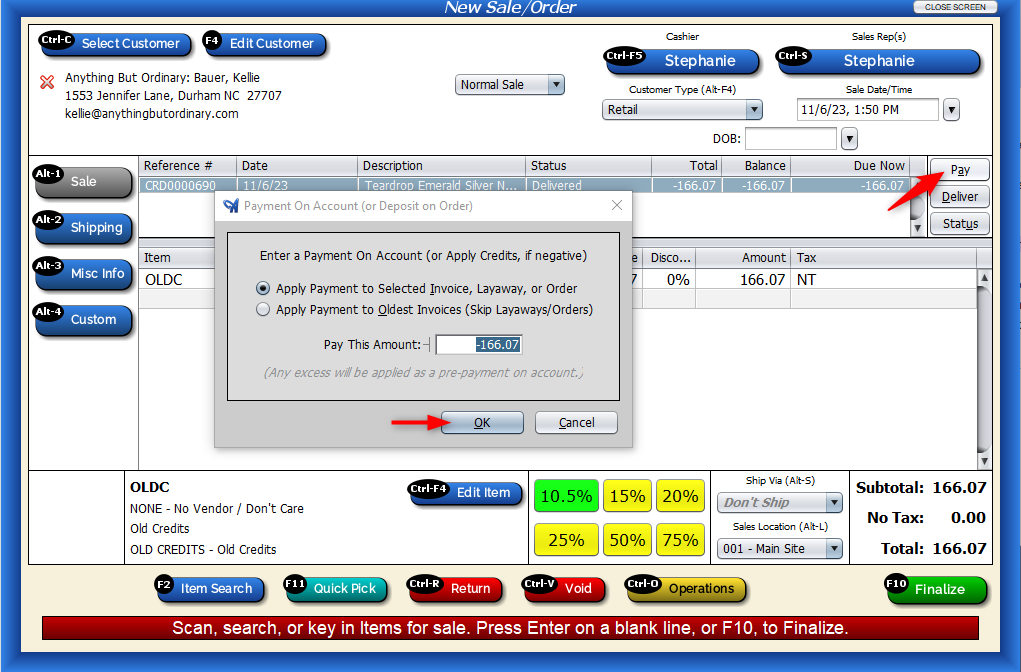
4. Add the customer to the sale. Select “Pay” to apply the credit to the sale.
5. Select “Finalize,” then “Save.”
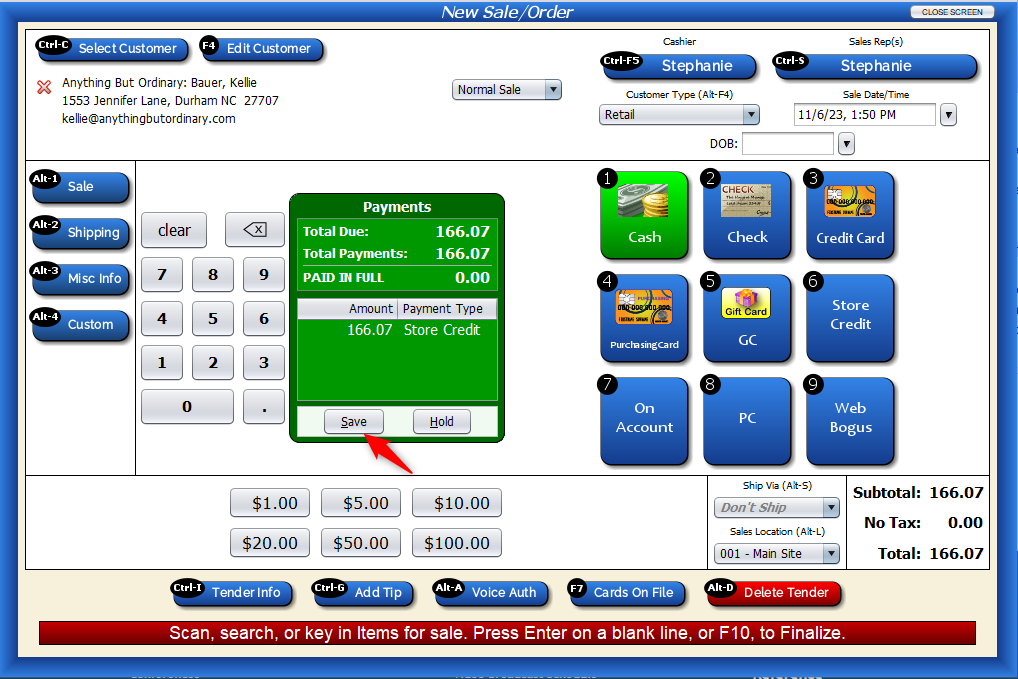
You’ll see this adjustment on your “Day End.”