Depending on your store, it might not be unusual for a customer to ask to create a fund for someone else. A common scenario might be raising money for a special gift. To do this in Artisan, we recommend converting gift cards paid by others into a credit for this specified customer. Follow these instructions to learn how to do so.
Basic Steps for Setting Up the Fund
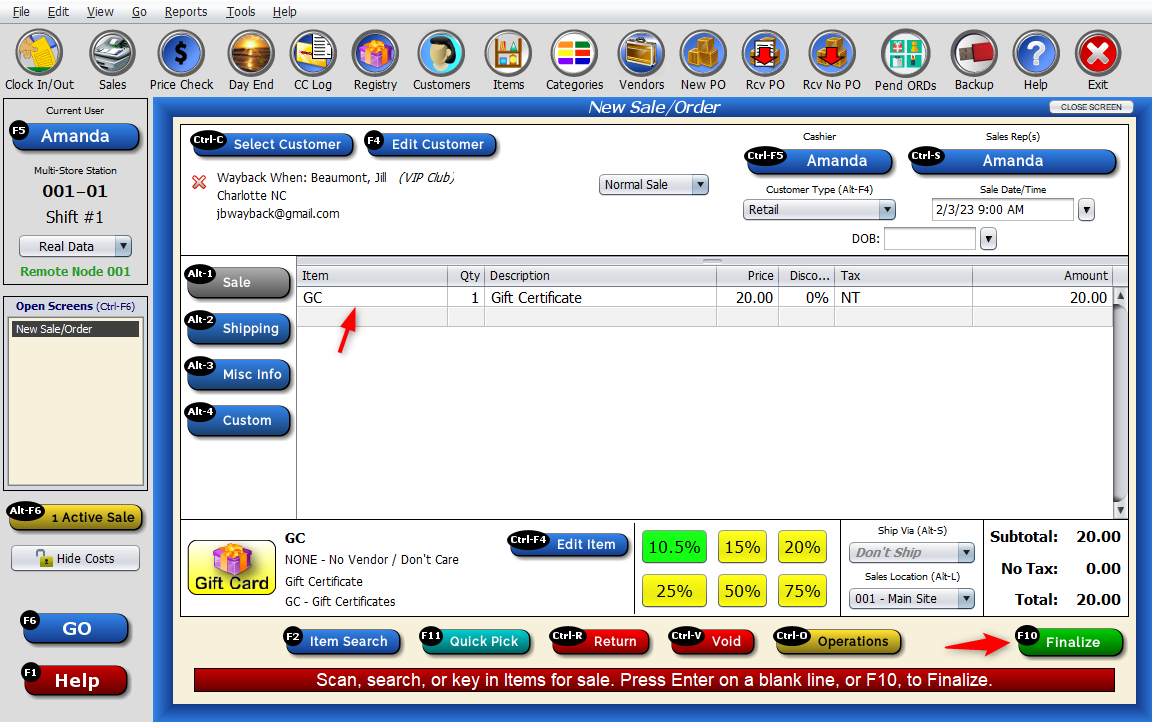
1. On the Sales Screen, sell the customer that is making the contribution a gift card/certificate (GC). Enter the amount and select “Finalize.”
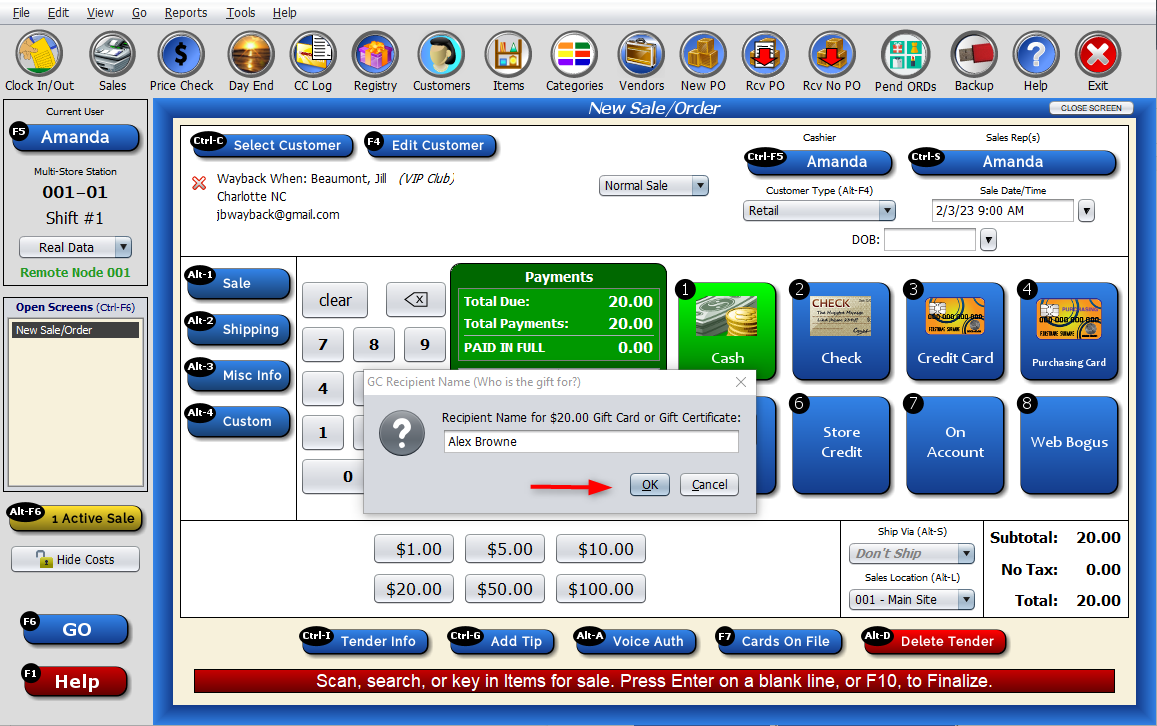
2. Once the customer pays for the gift card, type in the recipient’s name (the designated customer).
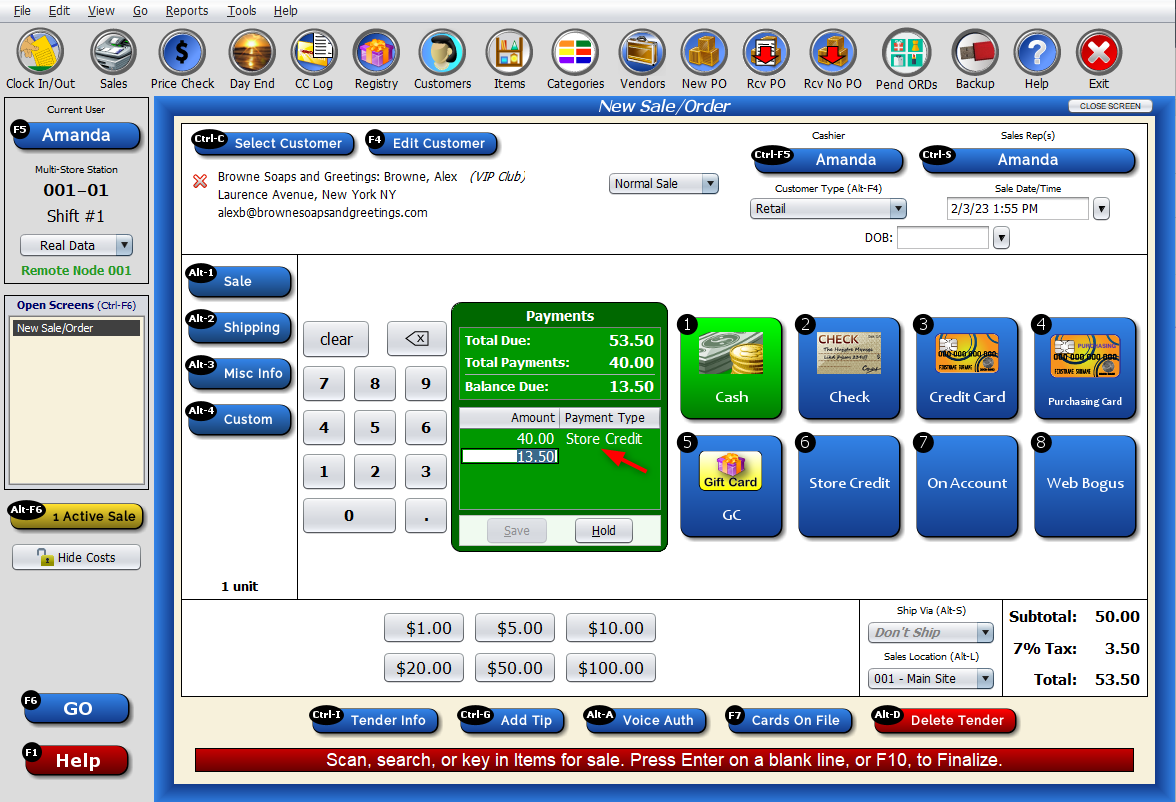
3. When the designated customer comes in and picks out an item to purchase, the clerk can ring up the item, using each GC for the sale. If there is more than one gift card (meaning more than one person has contributed to this customer, the clerk will have to click GC multiple times for each one issued to this designated customer).
Narrowing Down Gift Card Searches
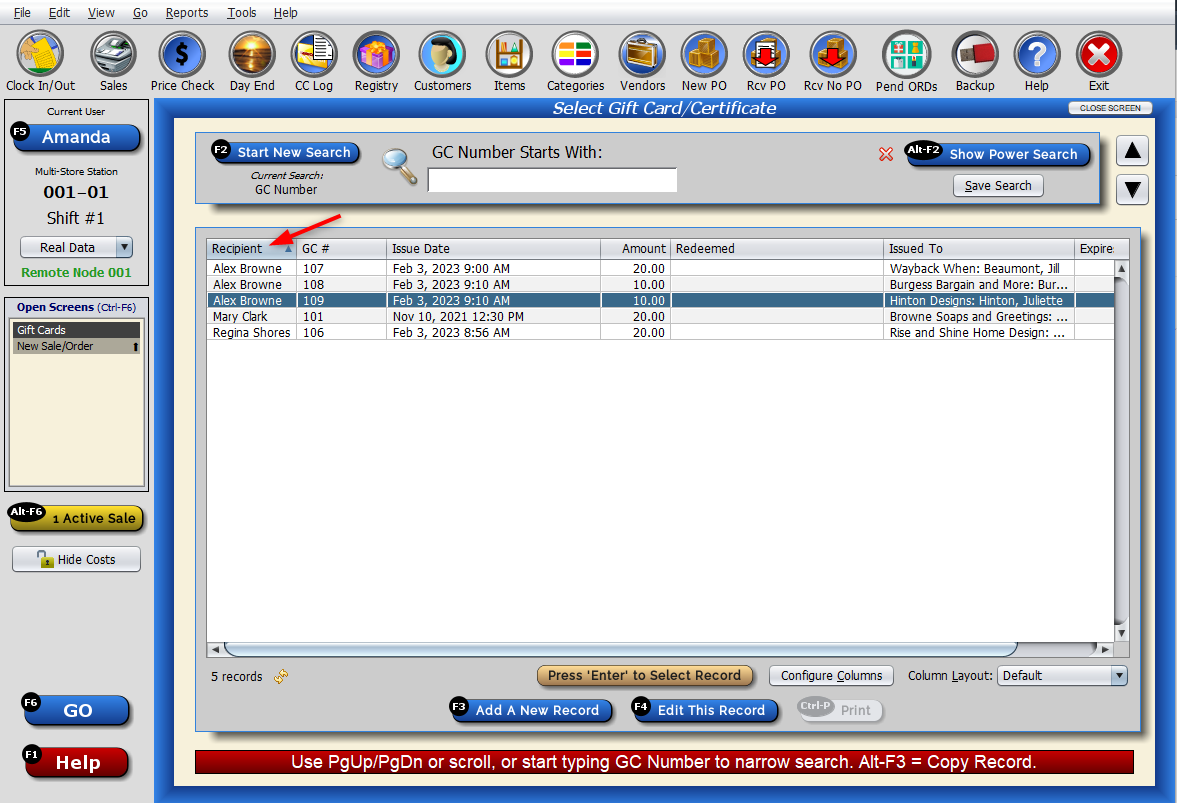
Tip: Right-click on the search result screen and make sure the “Recipient Name” column is added.
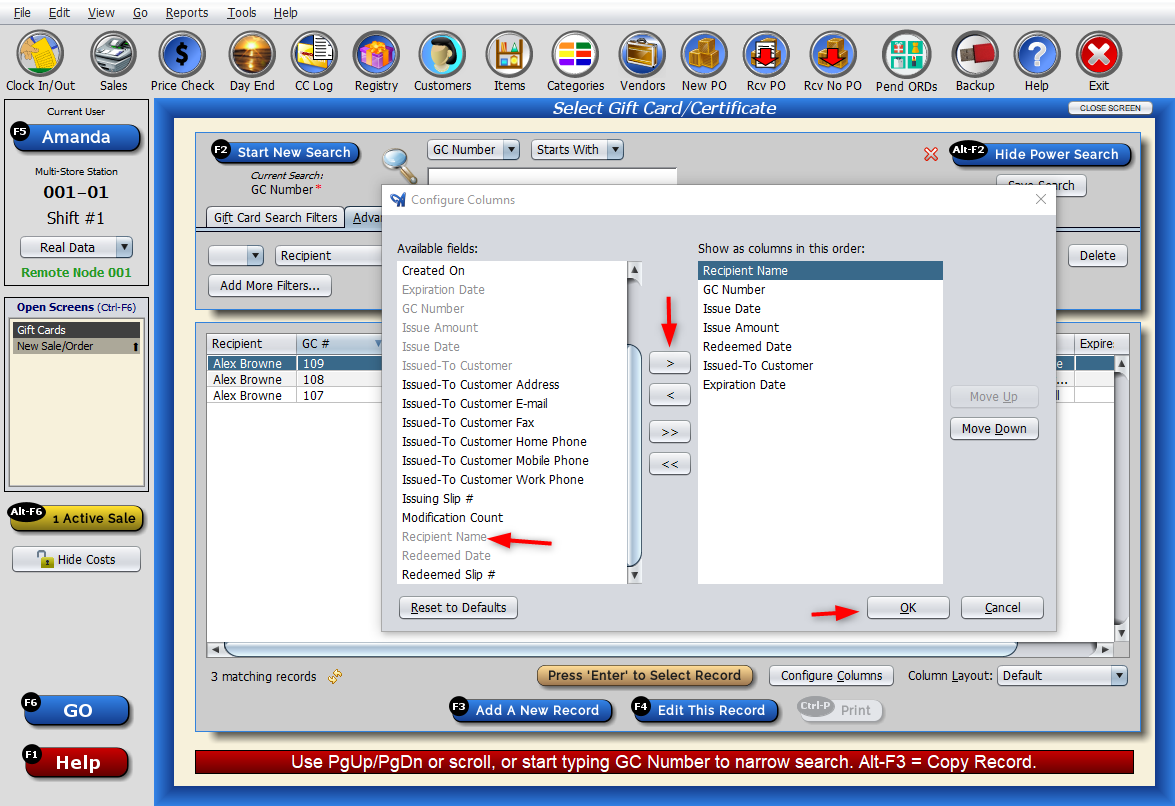
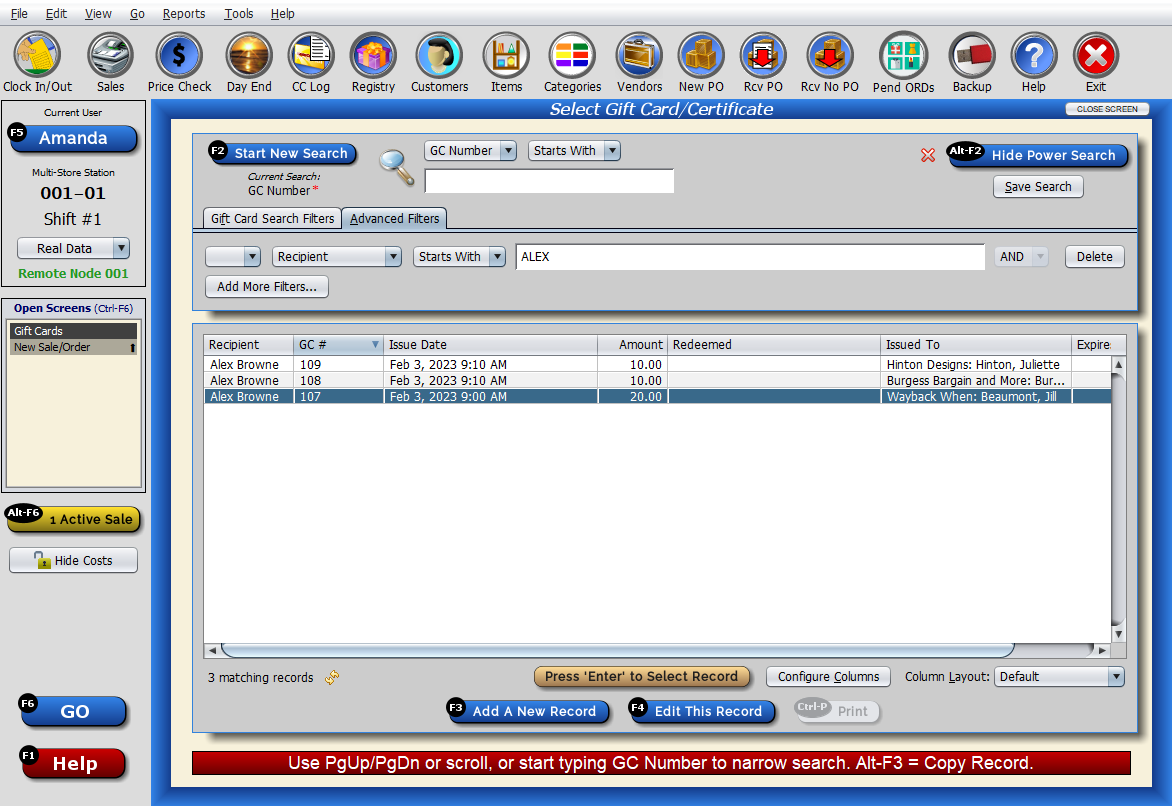
Next, click on “Show Power Search” and click on “Advanced Filters.”
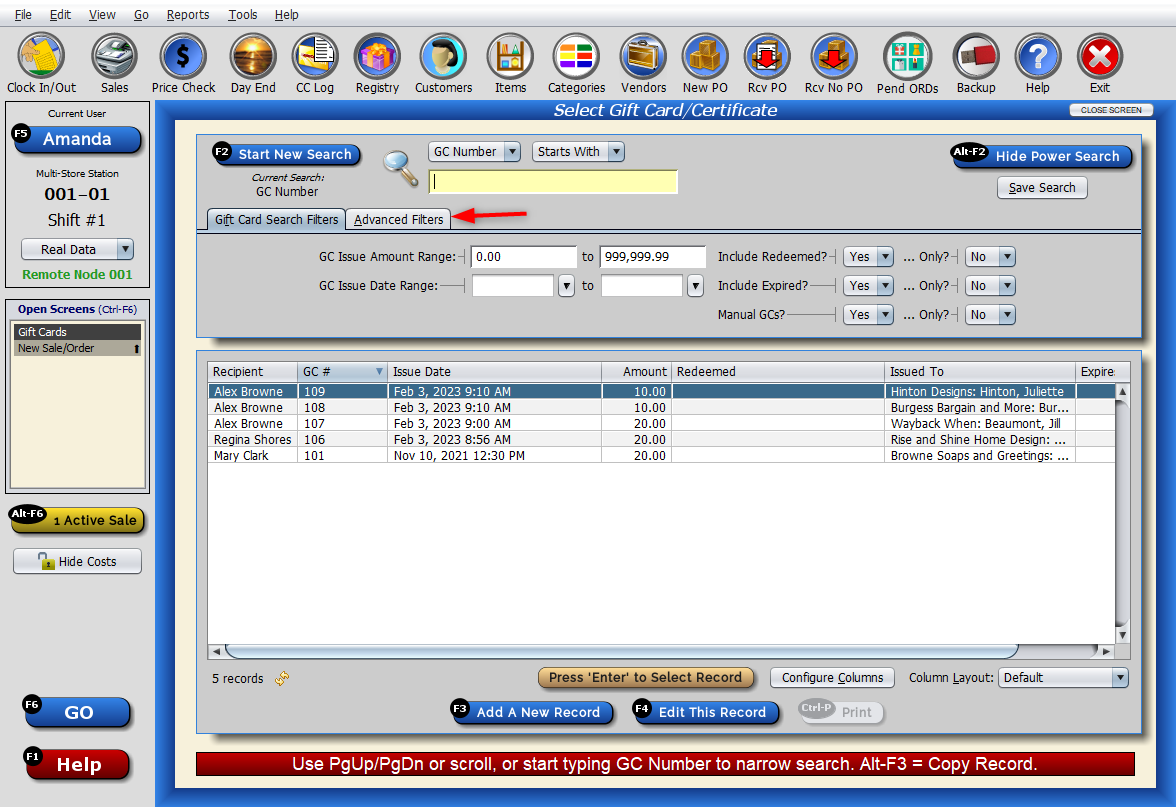
Select “Recipient Name” from the search type dropdown.
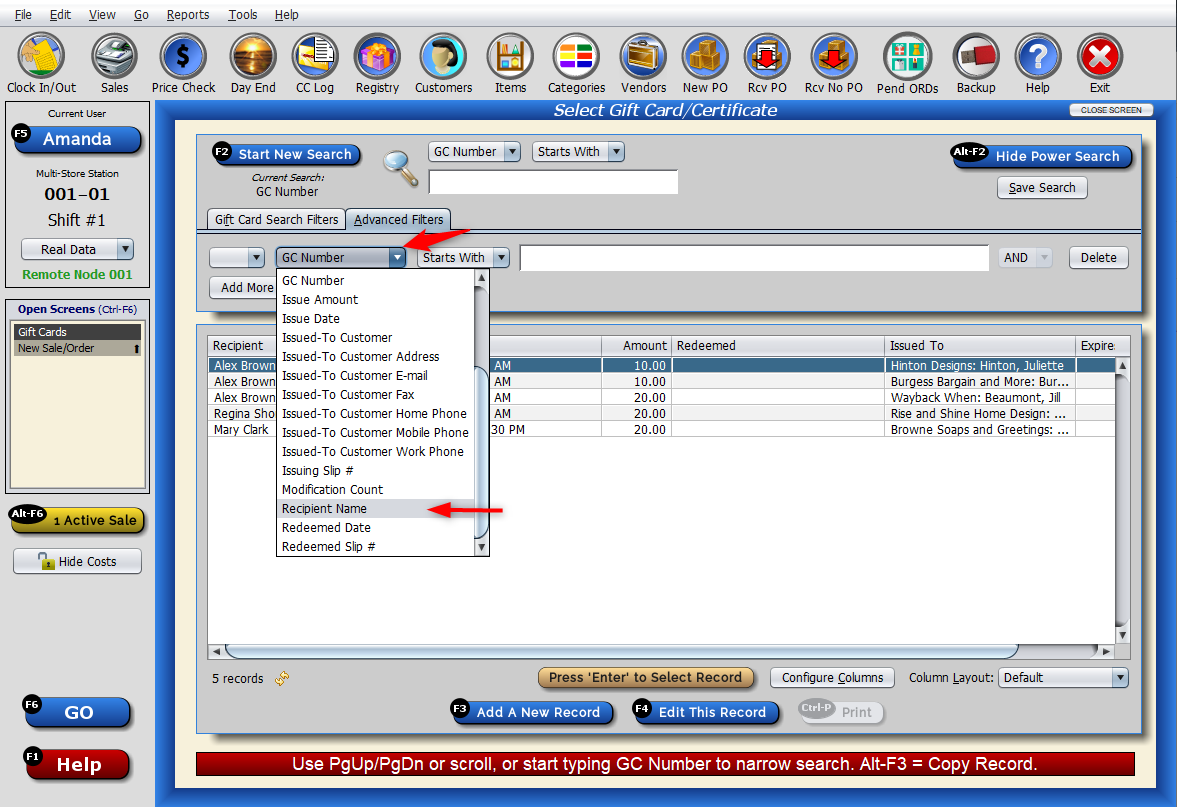
Type in the designated customer’s name to narrow down the results.
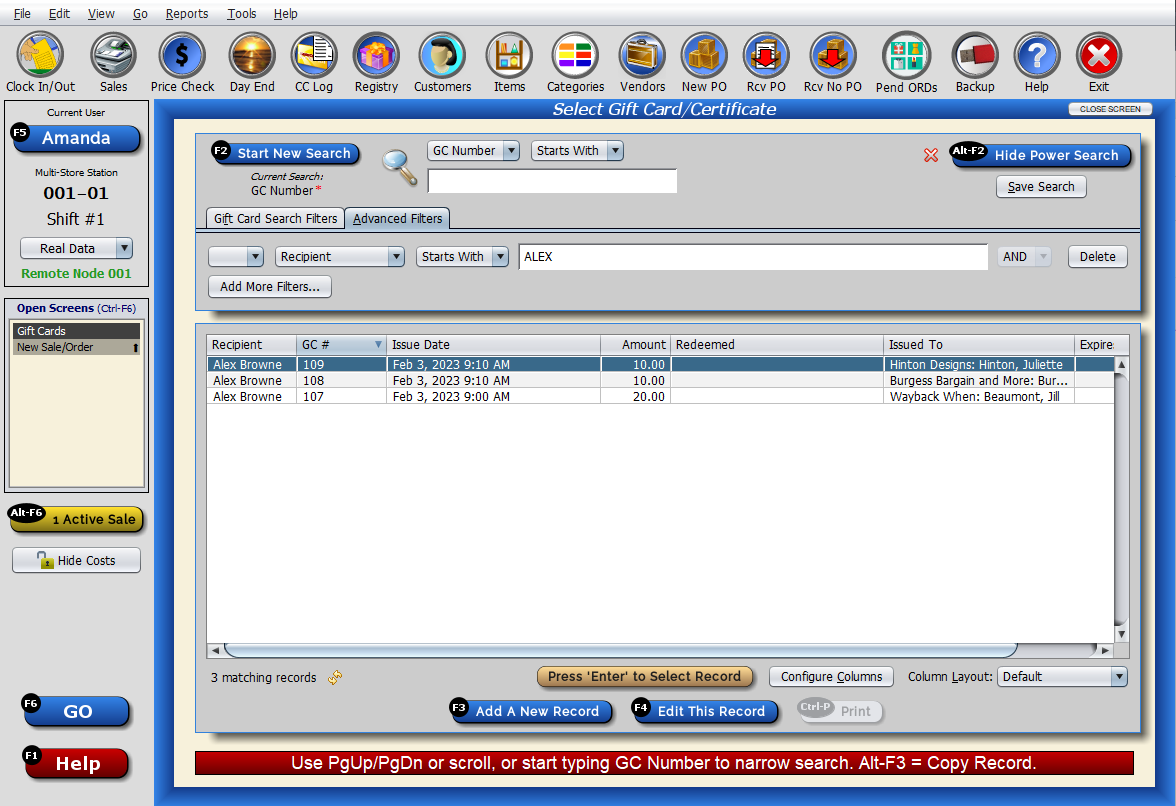
Save the search, so you can use it later.
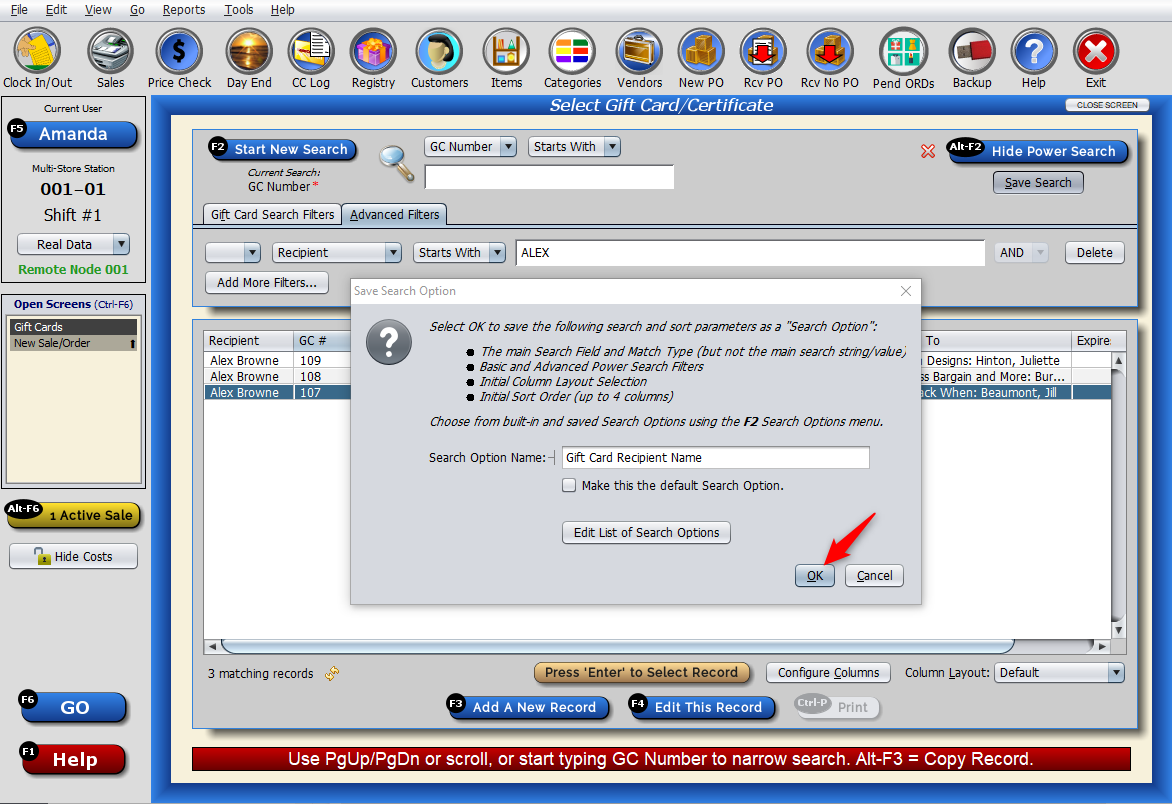
Or, click on the recipient column header to group the recipients, making it easier to see all the gift cards together.
Converting Gift Cards into Store Credit (Lump Sum)
If you would like to take things a step further for your designated customer, you could convert all of their gift cards into one lump sum as a store credit. This is handy if you know they’re coming into the store soon.
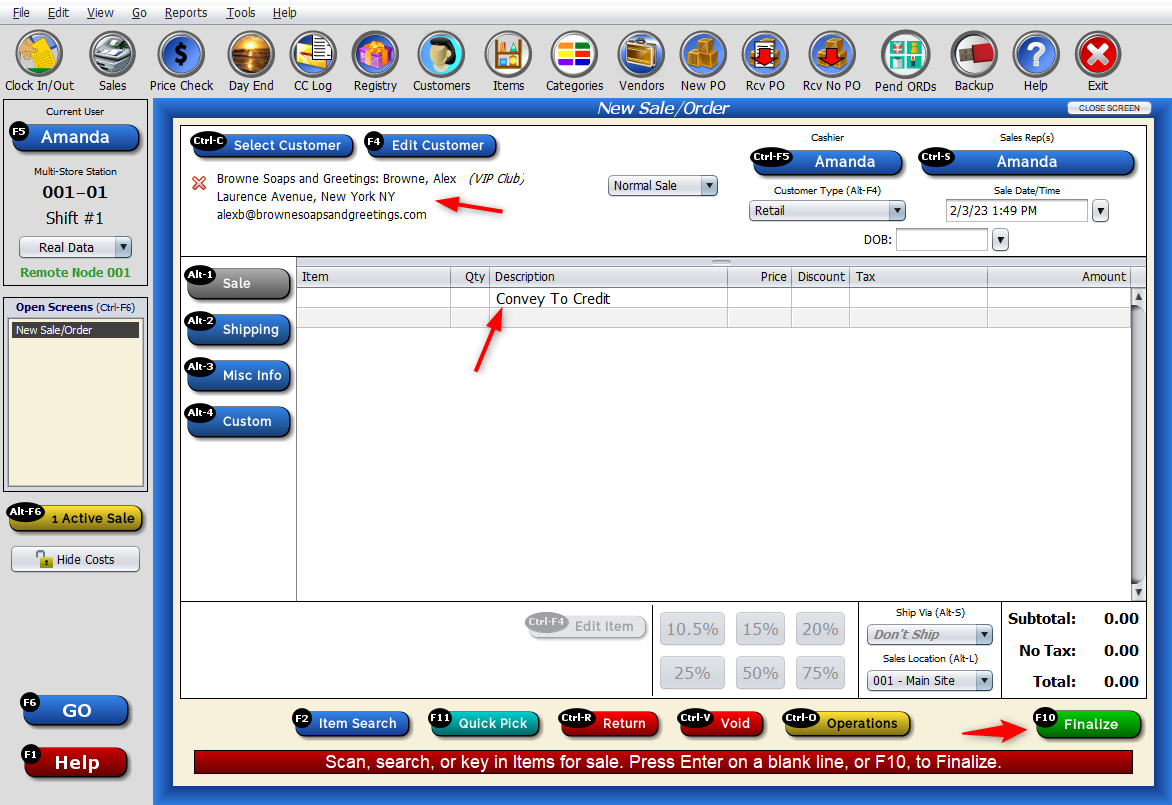
To do this, start a new sale and select the designated customer. Write “Convey to Credit” on the description line of the sale and hit “enter” on your keyboard. Click “Finalize.”
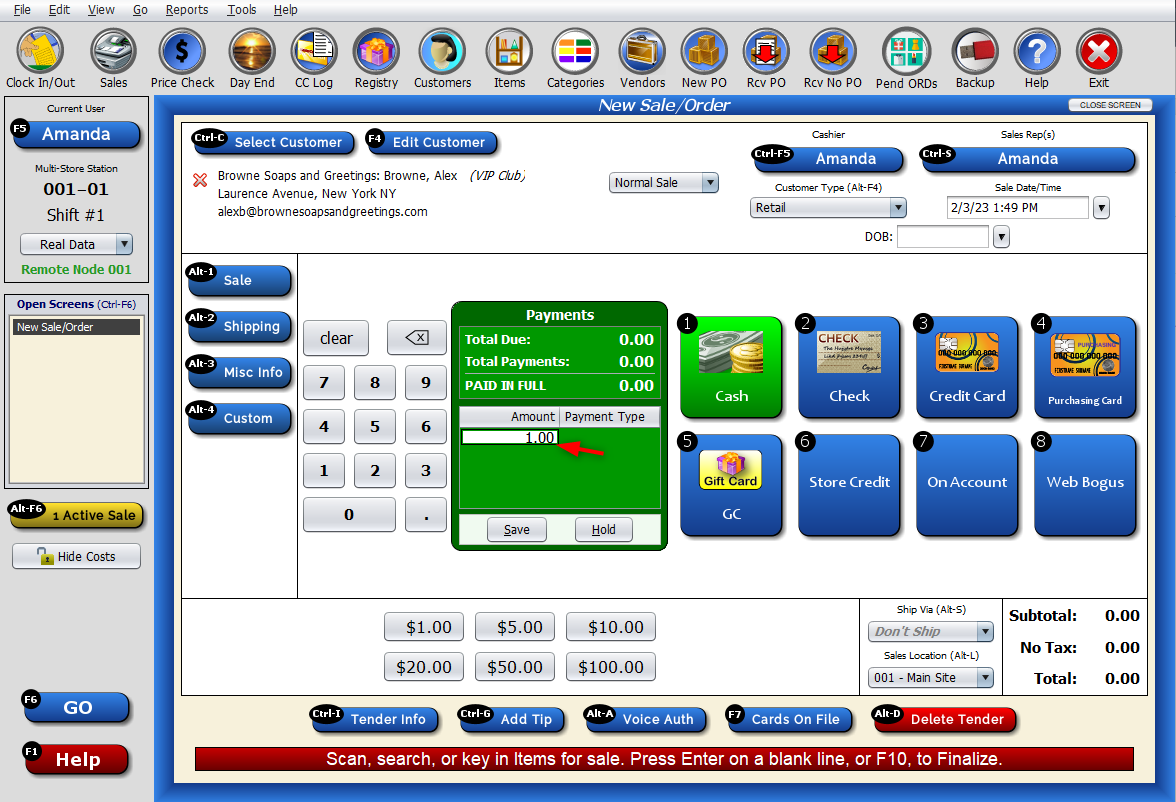
Input any value in the amount line (click on the green box and input an amount. The amount itself does not matter).
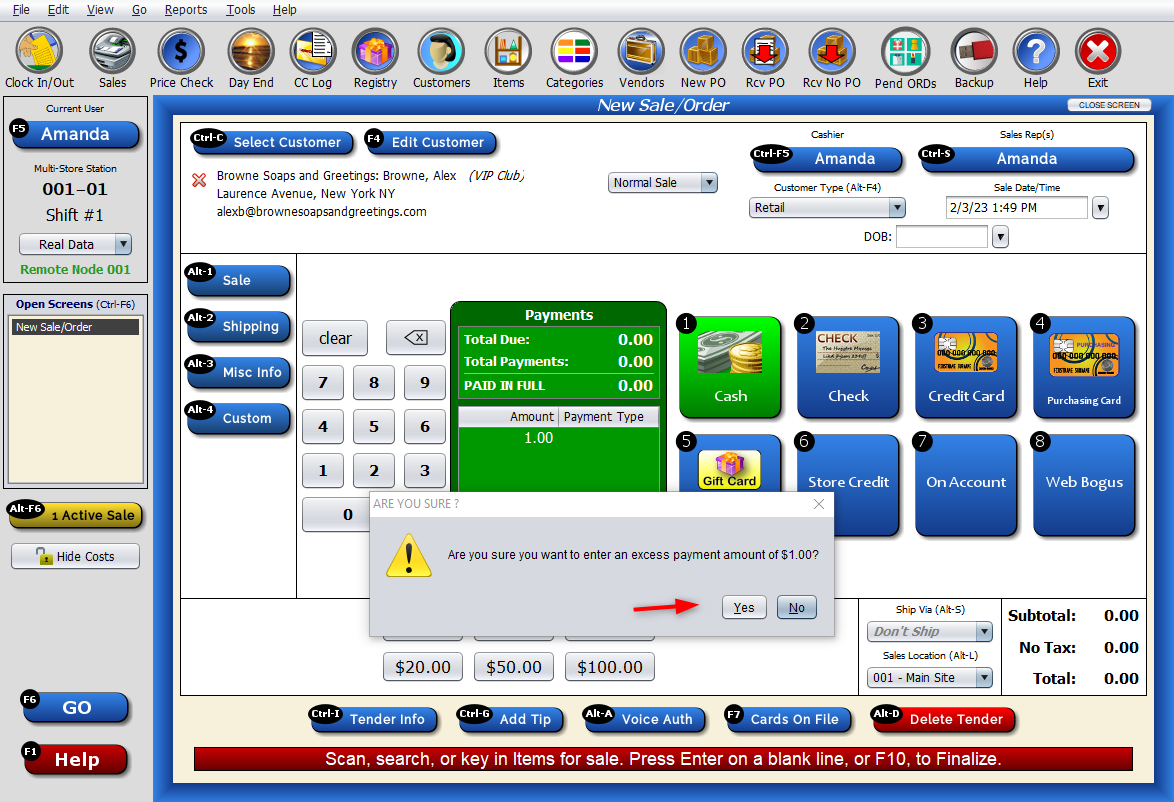
Artisan will ask if you want to enter an excess payment amount. Select “Yes.”
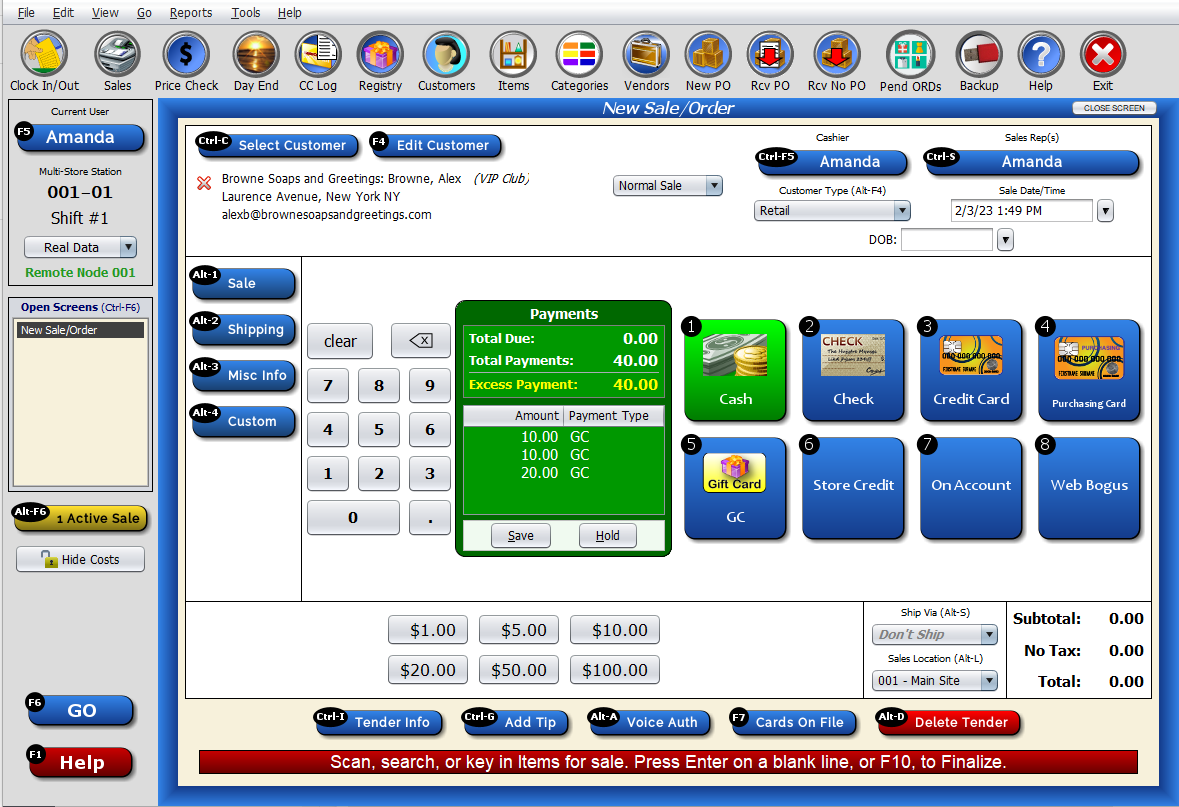
Click “Gift Card,” and select enter on any of the GC that are associated with the designated customer.
Repeat for each gift card, and save. In this example, we selected three gift cards.
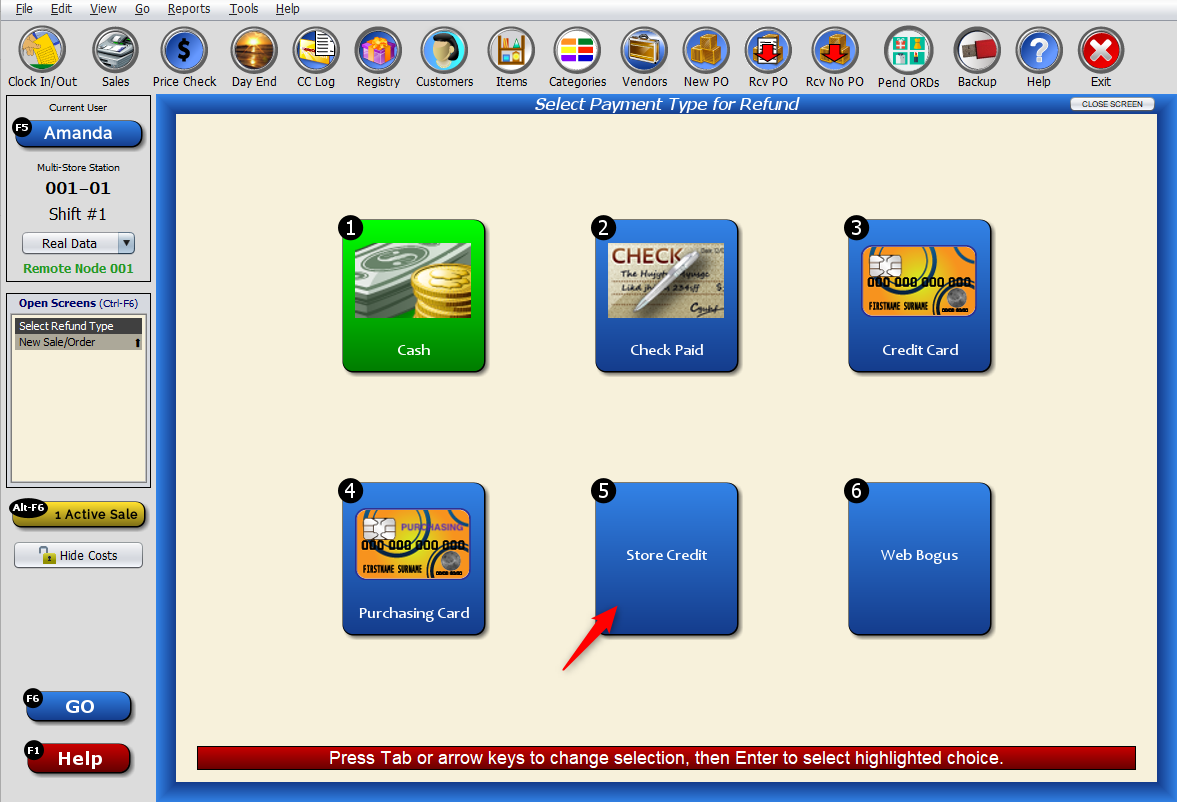
Select “Store Credit” as the refund type.
If the clerk forgot to attach the designated customer to the sale, Artisan will ask you to select a customer to associate with the credit, giving the clerk another opportunity.
Now, all of the GCs will show up under the designated customer’s record in Artisan as a total at the top of the sales screen. This saves the clerk from having to select each gift card at the time of the sale, making for a smoother checkout process.
To apply the credit to an order, select “Pay.”
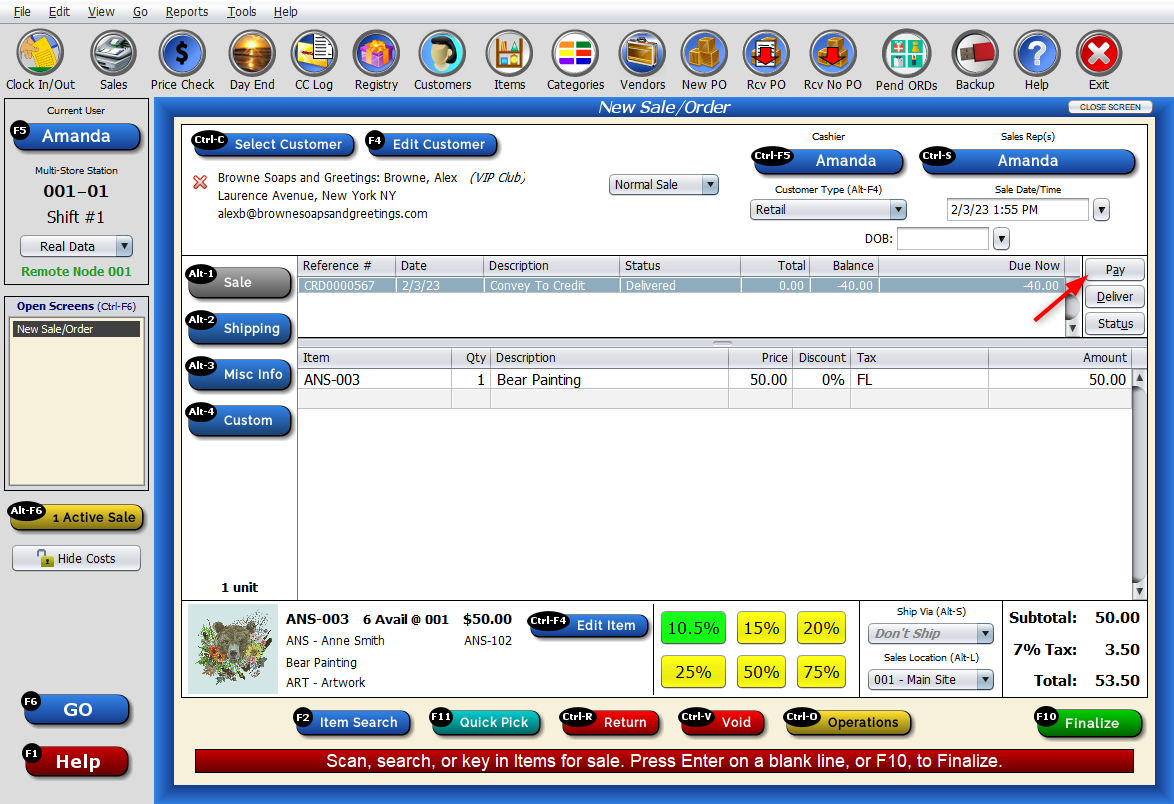
Enter the amount of the credit to apply to the sale (ex. all of the credit, or a specific amount).
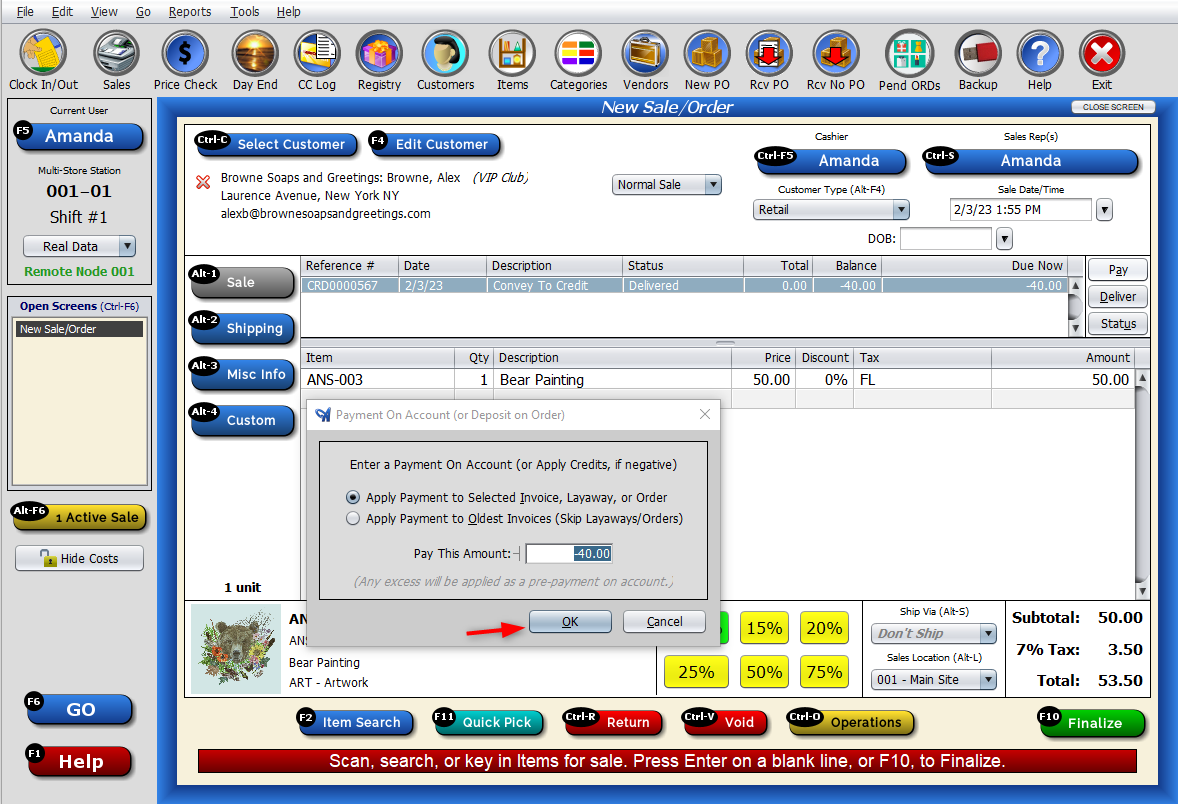
Press “OK,” and the credit will be applied to the sale.
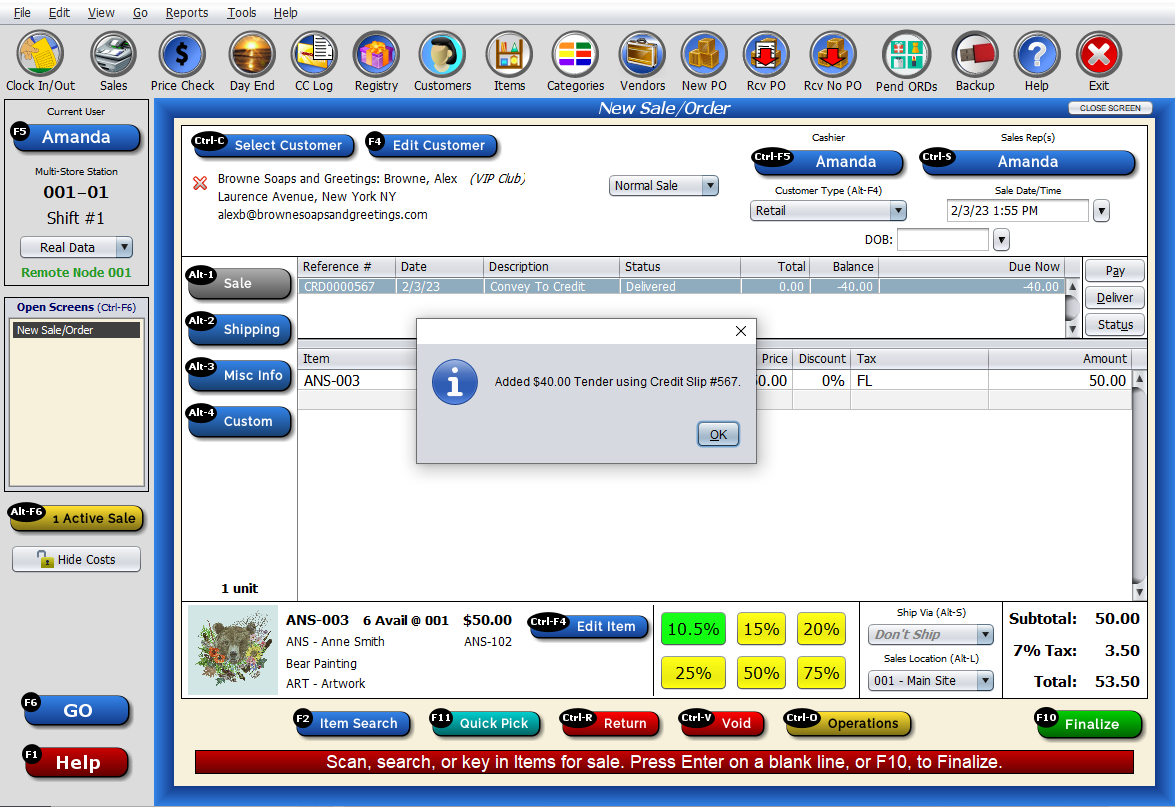
On the transaction screen, you’ll see the amount the credit subtracts from the transaction.